The interface
You're inside a world. Now what are all these buttons? This is a quick, friendly tour of what you see on screen: how to move, how to chat, what the little icons do, and exactly where to find the two big creator tools, Build Mode and the Scripts editor.
Moving your character
Your character is your avatar, the little person that represents you in the world. Move it like this:
| Input | What it does |
|---|---|
| W A S D | Walk up / left / down / right (desktop) |
| On-screen joystick | Drag it to walk (mobile) |
Walking, including pushing against an obstacle, plays lightly varied footsteps. Your own steps stay clear in the mix, while other players' footsteps come from their position, fade to a faint sound at about 40 tiles away, and stop beyond that range.
A tile is one square of the invisible grid the whole world is built on. Everything lives on that grid: your avatar, every object.
On a phone? A joystick appears on screen. Drag it to move your avatar around.Chatting
To talk to people in the world, type into the chat box and send. Your message pops up above your avatar's head and in the chat log so everyone nearby can read it.
Scripts can listen for what players type. A 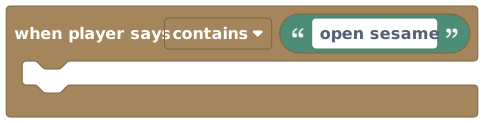 block can make your world react to a magic word: say "open" near a door and it opens.
So chat can double as a control panel for your games later on.
block can make your world react to a magic word: say "open" near a door and it opens.
So chat can double as a control panel for your games later on.
The HUD (your buttons)
The HUD ("heads-up display") is the ring of buttons and info around the edge of your screen that stays put while you play. It's your toolbar. The exact buttons depend on the world and your permissions, but the ones that matter most for a creator are:
| Button | What it opens |
|---|---|
| Edit (pencil / room icon) | Build Mode: place and move objects. On desktop you can also just press E. |
| World info | A panel about this world (see below). |
| World settings (gear) | Name, who can enter, lighting, and the door to Scripts. Owners/admins only. |
| Phone | Your in-game phone: friends, banking, and other apps. |
Don't worry about memorising every icon. The two you'll reach for constantly are Edit and World settings. Everything creator-related flows from those.
The World-info panel
Open World info to see the world you're standing in at a glance: its name, its description (the little blurb the owner wrote), who's here right now, and an About tab. The About tab is also where the remix button lives. To remix a world means to make your own copy of it that you can build on, handy when you love someone else's world and want your own version. It only works if the owner allowed it.
Finding Build Mode
This is where you decorate, Sims-style: drag and drop objects and furniture onto the grid. Here's the flow:
Enter Build Mode
Find the Edit button on the HUD and tap it, or on desktop just press E. If you have permission, you drop into Build Mode and the button changes to a pill that reads "Editing room."
Build
A panel of objects slides up from the bottom. Pick something, position it on the grid, and confirm. While editing you also get a live object counter (every world holds up to 8,000 objects) and a time-of-day slider.
Leave Build Mode
Press the close button on the "Editing room" pill to go back to normal play.
While an object is selected on desktop, these keys appear as on-screen hints:
| Key | Action |
|---|---|
| R | Rotate the selected object |
| Delete | Delete the selected object |
| Esc | Cancel / deselect |
Tapping Edit in a world you don't own pops up "You can't build here." That's normal. You can only build in your own worlds (and ones you've been given editing rights to). Tap "Take me to my worlds" in that pop-up to jump straight to your apartment and the worlds you've made.
Want the full builder's manual? See Building Worlds.
Finding the Scripts editor
The Scripts editor is the block-based tool that makes your world do things. You snap blocks together instead of typing code. There are two ways in, and the first is by far the easier.
The easy way: from Build Mode
This is the one you'll use most. Enter Build Mode (the Edit button, or press E), then tap the Scripts button in the top-right corner. The full-screen Scripts editor opens straight away.
The other way: from World settings
You can also reach it through settings:
Open World settings (the gear)
Tap the World settings gear on the HUD. (You'll only see this in a world you own or admin.)
Go to the Advanced section
In World settings, open the Advanced tab.
Tap “Scripting”
Hit the Scripting row, labelled "Open the block-based editor to add interactive behaviour." The full-screen Scripts editor opens.
Inside, you build behaviors: self-contained little programs, like "greet players when they join." Each behavior starts with a trigger block (the "when this happens" part) and then the steps that follow:
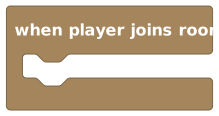 A trigger block. Every behavior starts with one of these.
The Scripts editor auto-saves your work as a private draft as you go. Players see nothing until you press Publish. So you can tinker freely without breaking the live world, then publish when it's ready.
New to blocks? Start with Hello, World. It's the gentlest possible first script.
Quick map of the screen
To sum up, here's the whole layout in one glance:
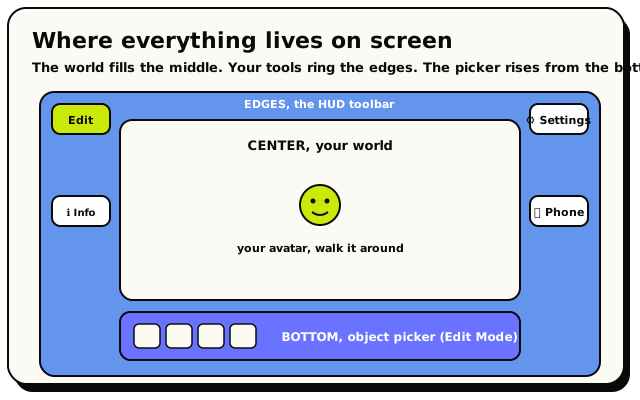 Your world fills the center, the HUD rings the edges, and the object picker rises from the bottom in Build Mode.
- Center: your world and your avatar.
- Edges: the HUD (Edit, World info, World settings, Phone).
- Bottom (in Build Mode): the object picker.
- Top-right of Build Mode: the Scripts button (the quickest way into the Scripts editor).