Events & Triggers
Nothing in your world runs on its own. Your blocks (the ones you snap together, no typing needed) only spring to life when something happens: a player joins, an object gets touched, ten seconds tick by. That "something happening" is an event. This page covers every event you can listen for, and how to read who (or what) set it off.
The big idea: "when this happens, do that"
Think of a script like a rule you'd give a friend: "When someone rings the doorbell, go open the door." The first half (when the doorbell rings) is the event. The second half (go open the door) is the stuff you actually do.
In Hideout, the block that listens for one specific event is a hat block. It's shaped like a little hat, and it always sits on top of a stack of other blocks, like a hat on a head. Whatever you snap underneath runs, top to bottom, the moment the event fires.
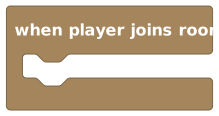 A hat block. Snap your actions underneath it.
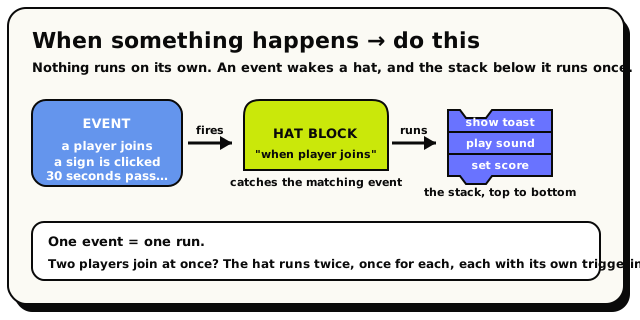 An event fires, the matching hat catches it, and the stack underneath runs once, top to bottom.
when player joins room          ← the hat block (the event)
  ┗ show toast "Welcome!"       ← your blocks (what happens)
  ┗ wait 1 second
  ┗ play sound "chime"
A pile of action blocks with no hat on top is called a loose block. Hideout keeps it in your draft so you don't lose your work, but it will never run. If you want something to happen, it has to live under a hat.
Events vs. triggers (two words, two jobs)
You'll hear both words, so here's the plain difference:
- An event is one thing that happened, at one moment: a player joined, a button was pressed. It carries a little bundle of information: who did it, what object was involved, and so on.
- A trigger is the listener your hat block becomes once you publish. It's the part that quietly waits, watching for the right event, and runs your blocks when one shows up.
You don't have to build triggers by hand. You build a hat block, press Publish, and Hideout turns it into a trigger for you. After that, every matching event runs your stack.
The full list of events
Every hat block lives in the Events category in the block drawer, and they're all the same warm gold colour so they're easy to spot. Here's every event you can react to today.
| Hat block | Fires when… | Gives you |
|---|---|---|
| when room starts | the room loads up | nothing |
| when player joins room | someone enters | triggering player |
| when player leaves room | someone exits | triggering player |
| when object is interacted with | a player touches/clicks an object | triggering player |
| when object state changes | an object switches state | nothing |
| when any object is added | a new object appears | nothing |
| when object is deleted | an object is removed | nothing |
| when object is grabbed | a player picks an object up | triggering player |
| when any object is un-grabbed | a player lets an object go | triggering player |
| when player says phrase | someone types matching words in chat | triggering player + message text |
| when player enters area | someone walks into an area | triggering player |
| when player leaves area | someone walks out of an area | triggering player |
| every N seconds | a set number of seconds passes | nothing |
| when NPC is interacted with | a player talks to an NPC | triggering player + triggering NPC |
| when NPC finishes walking | an NPC reaches where it was walking to | triggering NPC |
The "Gives you" column matters a lot. It's the information you're allowed to read inside that stack. More on that in the context values section below.
Room and timer events
These fire because of the room itself, not because a player did something.
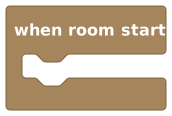 when room starts: fires every time the room loads.
when room starts runs when the room loads up. Use it to set the scene: turn the lights on, reset a scoreboard, place the day-one furniture.
A room unloads when it's empty and loads again when someone comes back, and when
room starts fires every time it loads, not just once forever. If you want
true one-time setup, save a room variable like hasInitialized and check it first.
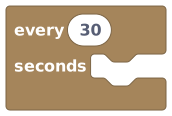 every N seconds: a repeating heartbeat. Defaults to 30.
every N seconds is a repeating timer. Great for ambient effects, a clock that counts down, or spawning a new wave of enemies.
The seconds box must be a plain number you type in (not a calculation). In a normal room the smallest interval is 5 seconds; go lower and the script won't publish. The default is 30 seconds. If your room unloads and comes back, missed ticks don't all replay at once; they're rolled into one.
Player events
These fire when a real person does something.
when player joins room
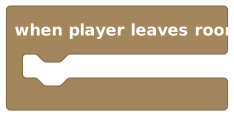 when player leaves room
when player joins room and when player leaves room do exactly what they say. Join is perfect for a welcome message. Leave is handy for cleaning up after someone, but remember they may already be disconnected, so you can only count on their basic info.
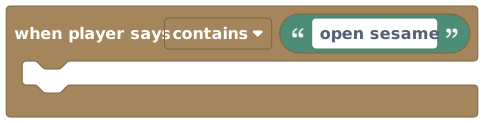 when player says phrase: listens to chat for matching words.
when player says phrase listens to the chat box. You type the words to watch for, and pick how they should match using a little dropdown:
| Match mode | Means | Example: phrase is "open" |
|---|---|---|
| contains (default) | the message has your words anywhere in it | "please open it" matches |
| equals | the message is exactly your words | only "open" matches |
| starts with | the message begins with your words | "open the door" matches, "please open" doesn't |
Use equals for a secret password so an exact word is needed. Use contains when you want to catch a word whenever it shows up. Your phrase can be up to 128 characters. There's no pattern-matching or wildcards, only these three modes.
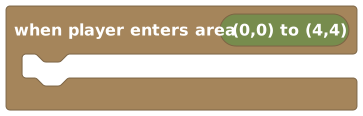 when player enters area
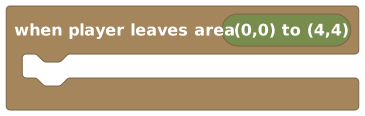 when player leaves area
when player enters area and when player leaves area watch an invisible rectangle on the floor that you draw. Enter fires when someone steps inside; leave fires when they step back out. A lava pit, a finish line, a "shhh, library" zone: all areas.
If a player spawns inside an area, Hideout treats that as entering it. They were "outside everything" a moment before, then suddenly inside.
Object events
Objects are the props in your world: doors, buttons, chests, signs. These events let you react to what happens to them.
 when object is interacted with, plus the 'highlight when nearby' row.
when object is interacted with is the big one. It fires when a player touches or clicks the object you picked. Notice the extra row on this block:
- A checkbox: highlight when nearby. Turn it on and the object gets a glowing outline whenever a player is close, so they know it's clickable.
- A text box: with hint. Type something like "Press to open" and players see that little label too. Hints can be up to 64 characters.
Turning the outline and hint on doesn't change when your script runs. It only changes what players see. Your blocks still run the moment the object is touched, outline or not.
- Locked objects. A creator can lock any tappable object, one whose states flip when tapped (select it in build mode and press L). A locked object stops flipping its own states, but this event still fires: the tap is handed entirely to your script. That's the tool for buttons, levers, and script-driven doors. See Object States.
- Proximity interactions. If that world setting is on (World Settings → Advanced), taps from more than about 5 tiles away do nothing at all: no state change and no event. The nearby highlight uses the same reach, so a glowing outline means "close enough."
The rest of the object events round out the set:
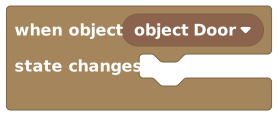 when object state changes
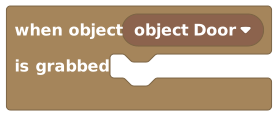 when object is grabbed
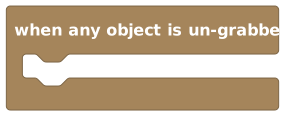 when any object is un-grabbed: room-wide, watches everything.
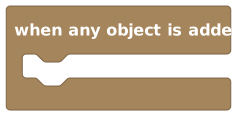 when any object is added: fires for any new object.
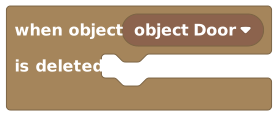 when object is deleted: for the object you picked.
- when object state changes fires when an object switches between its looks (like a door going from "closed" to "open").
- when object is grabbed fires when a player picks the object up.
- when any object is un-grabbed fires when a player lets any object go.
- when any object is added fires when any new object appears in the room.
- when object is deleted fires when the object you picked is removed.
Some object events watch one specific object (you drop it into the block): interact, state changes, deleted, and grabbed. The other two are room-wide and watch everything: any object is added and any object is un-grabbed. That's because you can't point at an object that doesn't exist yet (added), and "letting go" is treated as a room-wide moment. You also can't calculate which object to watch. It has to be a fixed pick, so Hideout can find your trigger fast.
NPC events
NPCs are the characters in your world. Two events let you react to them.
 when NPC is interacted with: also has the highlight and hint row.
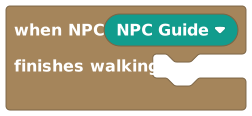 when NPC finishes walking
- when NPC is interacted with fires when a player talks to the NPC you picked. It has the same highlight when nearby and with hint options as object interact (try a hint like "Press to talk").
- when NPC finishes walking fires the moment an NPC reaches the spot it was walking toward. Perfect for "walk to the door, then open it" sequences.
You react to NPCs from room or object behaviors using the two hats above, and you pick which NPC right inside the block. There aren't separate "NPC behaviors" with their own hats today. You'll learn more about this in Behaviors & Scopes.
Context values: who (or what) set it off
When an event fires, it often comes with extra information: who did it, what they said. You read that information with little value blocks that only work under the right hats. Try one under the wrong hat and your script won't publish.
There are three of them.
 triggering player: the person who caused the event.
Triggering player is the person who set the event off. Drop it wherever a block
asks for a player, like "show toast to [triggering player]". You can use
under these events:
- when player joins room
- when player leaves room
- when object is interacted with
- when object is grabbed
- when any object is un-grabbed
- when player enters area
- when player leaves area
- when player says phrase
- when NPC is interacted with
It is not available under: when room starts, every N seconds, when object state changes, when any object is added, when object is deleted, or when NPC finishes walking. (There was nobody, or no single person, who "triggered" those.)
 triggering NPC: the character involved in an NPC event.
Triggering NPC is the NPC involved. You can only use it under the two NPC events: when NPC is interacted with and when NPC finishes walking.
 message text: the exact words a player typed.
Message text is the exact thing a player typed in chat. It only works under one event: when player says phrase. Nowhere else has any chat text to read.
Reaching for "triggering player" under "when room starts", or "message text" under an object event, is the most common beginner mistake. If a value isn't in the lists above, that event simply doesn't have it. Check the Gives you column in the big table when in doubt.
A few quick examples
when player joins room
  ┗ show toast to [triggering player]: "Welcome to my world!"
when player says [equals] "open sesame"
  ┗ set object [Door] state to "open"
Using equals means "open sesame please" won't trigger it. Swap to contains if you want it to fire whenever those words appear.
when player enters area [LavaPit]
  ┗ respawn [triggering player]
Under the hood: why "literal" picks matter
You may have noticed you can't calculate which object, NPC, area, or interval to watch. You have to drop in a fixed one. This is on purpose. When you publish, Hideout builds a tidy index of all your triggers so it can find the right one instantly, instead of checking every behavior every time anything happens. A fixed pick gives it a label to file your trigger under. If you try to compute one, you'll get a friendly publish error asking for a literal value.