Areas
An area is a rectangle of floor, a patch of your world you can name and watch. Areas are how you build trigger zones: a doormat that greets people, a finish line, a danger pit, a stage that lights up when someone steps on it. Draw the rectangle once, then ask "is anyone inside?" or "did someone just walk in?".
What an area actually is
An area is the simplest possible shape: an axis-aligned rectangle. That's a fancy way of saying a box with flat sides, no tilting, no rotation. Picture drawing a selection box on graph paper.
You don't describe the whole rectangle tile by tile. You just give it two opposite corners, and Hideout fills in the rest:
  (2, 2) ●────────────┐
         │            │
         │   AREA     │
         │            │
         └────────────● (8, 8)
Give it the top-left and bottom-right corners (or any two opposite ones), and that's the box. Every tile from one corner to the other is "inside."
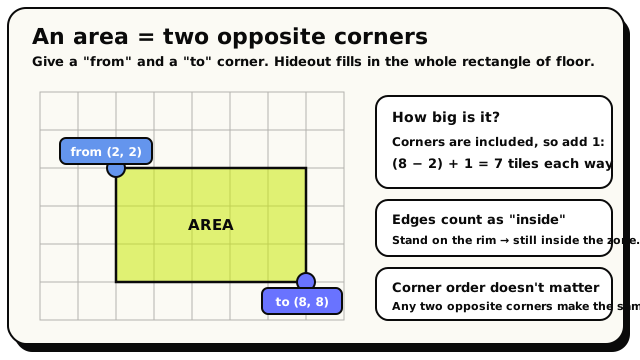 Two opposite corners define the whole rectangle. Corners are included, so remember the +1.
Areas are flat. Their corners are Vector2s, across-and-down only, no height. So an area covers a patch of ground, not a 3D box in the air. Area physics uses that flat rectangle as a footprint and projects it through every height, so gravity and force fields can still affect airborne players above it.
Making an area
You build one with the Area block. It has two corner slots (a "from" corner and a "to" corner) and a picker button so you can draw the rectangle by hand.
 An Area block: a rectangle drawn from two corner coordinates.
Drop in an Area block
Grab the Area block wherever a block asks for an area.
Draw it with the picker
Click the area's picker button. The overlay opens over your live room in Area mode. Click and drag across the floor to draw your rectangle. The readout shows its size, like "7 by 7 tiles."
Or type the corners
Prefer numbers? Type the two corner coordinates straight into the block's slots, e.g. from
(2, 2)to(8, 8).
"From (8, 2) to (2, 8)" makes the exact same rectangle as "from (2, 8) to (8, 2)." Hideout
sorts the corners out for you, so just give it any two opposite corners and you're done.
How big is my area?
The corners are included in the area, so the size counts both ends. The width is
(bigger X − smaller X) + 1 tiles, and the height is the same for Y.
| From | To | Size |
|---|---|---|
(0, 0) | (0, 0) | 1 × 1 tile |
(0, 0) | (2, 2) | 3 × 3 tiles |
(2, 2) | (8, 8) | 7 × 7 tiles |
That "+1" is the easy thing to forget: an area from (0, 0) to (2, 2) is 3 tiles wide, not 2,
because tiles 0, 1, and 2 are all inside.
Using an area: four jobs
Once you have an area, there are three things you'll want to do with it.
1. React the moment someone steps in (or out)
These are events: hat blocks that fire on their own when a player crosses the boundary.
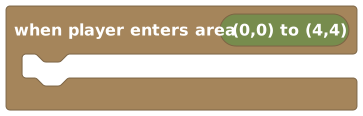 Runs the moment a player steps into the area.
There's a matching one for leaving, When Player Leaves Area. Together they're perfect for trigger zones:
When Player Enters Area (the doormat) → show that player a toast saying "Welcome!" Anyone who
steps onto the mat gets greeted; nobody else does.
"Enter" fires when a player was not inside a moment ago and now is. "Leave" fires the other way round: they were inside and now aren't. So crossing the edge once gives you exactly one event, not a stream of them while standing still.
The player who triggered the event is available as the triggering player, so you can act on exactly the right person.
2. Check if a specific player is inside
Sometimes you don't want to wait for an event. You want to ask, right now, "is this player standing in that area?" That's the Is Player In Area block. It gives back true or false.
 True if the given player is currently inside the area.
Drop it inside an If block to make decisions:
If Is Player In Area (the doormat) → open the door. The door only reacts while the player is
actually standing on the spot.
3. Get everyone inside at once
Want to act on the whole crowd in a zone, not just one person? The Players In Area block hands you a player group: every player currently inside.
 Players In Area: a group of everyone currently inside.
Get Players In Area (the finish line), then for each player in that group, show "You win!" Every
player standing there gets the message; if nobody's there, the group is simply empty and nothing
happens.
4. Change the physics above it
Areas can make ice, low-gravity zones, wind tunnels, and launch pads. Three action blocks control this:
- Set Area Friction changes how strongly supported movement is slowed. Normal friction is
1 N; use0 Nfor ice. - Set Area Gravity changes downward gravity. Normal gravity is
0.025tiles per tick squared; use0for zero gravity. - Add Force Field continuously pushes with a Vector3 force. Positive z pushes up, while negative z pushes down.
Walking applies force rather than replacing velocity. Below normal friction, held input applies the
full walking force without the normal walk-speed limit. Ice therefore accelerates players while
they walk and preserves momentum when input is released or changes direction. Players have mass
10, so a 1 N horizontal force changes velocity by 0.1 tiles per tick on each tick before other
forces are included.
The effect persists after the script finishes. Running the same block again updates the effect that block owns. Where areas overlap, the most recently set friction and gravity overrides win, while force fields from different blocks add together.
Good to know
The boundary is inclusive. A player standing exactly on the edge of the rectangle counts as inside, not out. So you don't get a one-tile gap around the rim; the whole rectangle, edges included, is the zone.
Because areas sit at ground level, the "inside" check expects players to be on the ground (height 0), which they almost always are. You'll only ever notice this if you're doing something fancy with floating players up in the air.
You can save an area with a name (up to 64 characters), like "lobby" or "arena," and refer to it by name across your behaviours instead of re-drawing the same corners every time.
What's next?
Areas hand you players. Learn what a player handle actually is.
Player Groups"Players in area" gives you a group. Here's how to use a whole crowd at once.
The Grid & PositionsCorners are coordinates. Brush up on X, Y, and the grid.
Block ReferenceEvery block with a picture and a plain-English explanation.