Opening the Editor
The Scripts editor is the full-screen workshop where you build your world's logic by dragging blocks together, no real code involved. This page shows you how to open it and gives you a quick tour of the four things you'll use every day: the behaviors list, the toolbox of blocks, the canvas, and the Publish button. Five minutes here and you'll never feel lost.
What you're opening
Before the clicks, the mental model in one breath:
- Your room has one Script Project. Think of it as a binder that belongs to the room.
- Inside the binder are behaviors. A behavior is one self-contained script: one rule, like "Greet players when they join." A room can have many behaviors, and they all run side by side.
- Inside a behavior, you build with blocks dragged from the toolbox.
So: one project (the binder), many behaviors (the pages), built from blocks. You'll meet these ideas again on Scopes, Projects & Behaviors. For now, just know the behaviors list is where your scripts live.
Open the Scripts editor
You can only script a room you own or have building rights in, so walk your avatar into that room first. Then, the quick way:
Enter Build Mode
Tap the Edit button on the HUD, or on desktop just press E.
Tap the Scripts button
In the top-right corner of Build Mode, tap Scripts. The editor opens as a big window that fills the screen.
Your avatar takes a napWhile the editor is open, your avatar won't walk around. The editor quietly switches off the normal game controls so a stray keypress doesn't move you. Close the editor and you're back in the world.
You can also reach it from World settings → Advanced → Scripting, but the Build Mode button is faster and the one you'll use day to day.
The first time it opens you'll see some shimmering skeleton shapes for a moment. That's the editor loading your project. Then the real window appears.
A tour of the project window
The window has four zones. Here's the whole thing at a glance:
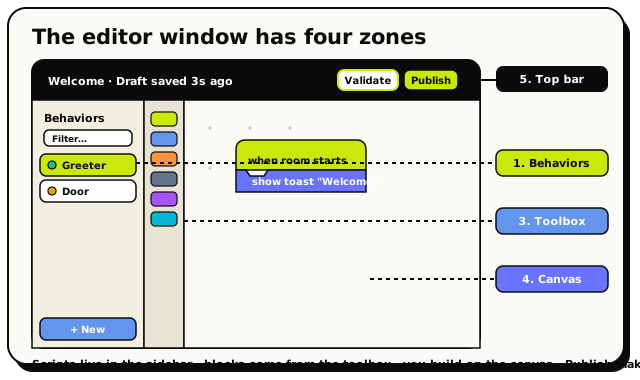 The four zones you'll use every day: the behaviors sidebar (your scripts), the toolbox rail (your blocks), the canvas (where you build), and the top bar (Validate, Publish, close).
┌─────────────────────────────────────────────────────────────────┐
│ Behavior name   ·   Draft saved 3s ago   ·   Validate  Publish  ×│
├────────────────┬────────────────────────────────────────────────┤
│  Behaviors     │                                                 │
│  Filter...     │                 The canvas                      │
│   • Greeter    │          (where blocks snap together)           │
│ + New behavior │                                                 │
└────────────────┴────────────────────────────────────────────────┘
1. The behaviors sidebar (left)
This is the list of your scripts, one row per behavior. The currently open behavior is highlighted. At the top is a Filter box (the magnifier) so you can search by name once you have a lot of them.
Each row has a small coloured status dot that tells you, at a glance, how that behavior is doing:
| Dot colour | What it means |
|---|---|
| Green | Enabled and published. It's live for players. |
| Amber | Enabled but only saved as a draft, not live yet. Hit Publish. |
| Grey | Disabled. It won't run even if published. |
| Red | The script has an error you need to fix. |
An amber dot is the editor's gentle nudge that you've made changes players can't see yet. Green is the colour you're aiming for.
2. Creating a new behavior + choosing a scope
At the bottom of the sidebar is a New behavior button.
Click “New behavior”
The button expands into a little form right inside the sidebar.
Give it a name
Type a name into the Behavior name box, something like
Name behaviors for what they do ("Open door on password"), not what blocks they use. Future-you will thank present-you.Welcome message. A name can be 1 to 80 characters. If you leave it blank, it's named New behavior for you.Click “Create”
Hit the lime Create button. Your new behavior appears in the list and opens on the canvas, ready to build.
Every behavior has a scope: who it's about. The system understands three scopes: the whole room, a single object, or a single NPC. The New behavior button always creates a room behavior, which is exactly what you want to start with. Room behaviors can react to everything: players joining, objects being touched, timers, chat phrases, all of it. You'll learn when other scopes matter later, on Scopes, Projects & Behaviors.
3. The toolbox (the block drawers)
Down the left edge of the canvas is the toolbox, your palette of blocks, sorted into colour-coded drawers. Click a category and a flyout slides open with every block in it; drag one onto the canvas to use it.
There are 15 top-level categories. You won't need all of them at once. Here are the ones you'll reach for first:
| Category | Colour | What lives there |
|---|---|---|
| Triggers | green | The "when this happens" hat blocks that start every script. |
| Player Actions | sky blue | Teleport, respawn, set emote, things you do to players. |
| Object Actions | orange | Change an object's state, move it, rotate it, delete it. |
| Control Flow | slate | if, wait, and loops: the "logic" of a script. |
| Text | cyan | Type text, glue text together, turn a value into words. |
| Variables | purple | Remember things: scores, switches, settings. |
The rest (Logic, Number, List, NPCs, Cinematics, Functions, and the various Info categories) you'll meet as you need them. Every block also has a full picture and explanation in the Block Reference.
4. The canvas (the build surface)
The big space in the middle is the canvas, your workbench. This is where you drag blocks out of the toolbox and snap them together into a script. You can pan around it, zoom, and lay out as many separate block stacks as you like.
Every change you make is auto-saved as a private draft about half a second after you stop. You never have to hit "save." The top bar shows "Draft saved Xs ago" so you know it landed. Closing the window also flushes your latest change first, so your work is safe.
5. The top bar (the controls)
Across the top are your main controls:
- The behavior name pill on the left shows which behavior you're editing (or "No behavior selected" if you haven't picked one).
- Validate (the play icon) checks your script for problems without going live, like a spell-check. Results show up in the Inspector panel.
- Publish (the lime button) compiles your draft and makes it live for players in the room.
- The × closes the editor.
Validate only checks your work; nothing players see changes. Publish is what actually makes your script go live. If you build something and players don't see it, the most common reason is that you never hit Publish. (The full lifecycle is on Scopes, Projects & Behaviors.)
You're ready
That's the whole window. You know where your scripts live (the sidebar), where blocks come from (the toolbox), where you build (the canvas), and how to make it real (Publish). Time to build something.