Build Mode
Build Mode is your build mode. If you've ever decorated a room or house in The Sims, you already know the feeling: flip it on, then drag and drop furniture to lay out your space. You can place objects, slide them around, spin them, and delete them, all on a neat grid. Flip it off and you're back to walking around and playing. This page is the full tour of building in Build Mode.
Think of your world as a dollhouse on a grid. Every object (a chair, a wall, a lamp, a sign) snaps onto grid squares called tiles. Build Mode is the switch that lets you rearrange the dollhouse instead of just living in it. This is the cozy, creative half of making a world. Later, scripting brings it to life.
Turning Build Mode on and off
Look for the round Edit Room button on your screen (the little pixel pencil-and-room icon). Tap it and you drop into Build Mode. The button stretches into a wide pill that says "Editing room" with an X on it. Tap that X any time to leave.
You can't build just anywhere. You can only edit a world if you're allowed to. If you tap Edit Room somewhere you don't have permission, you'll see a pop-up titled "You can't build here" that points you toward your own worlds:
"This is a shared world, so you can't build here. Head to one of your own worlds to start building your dream home!"
Tap "Take me to my worlds" to jump straight to the World Browser's Create tab, where your apartment and any worlds you've made are waiting — plus a New World button. Your apartment is always yours to build in, so that's the perfect place to learn.
If your build permission is taken away while you're in the middle of editing, Edit Mode closes itself automatically so you can't keep changing a world you no longer control. Who's allowed to build is set in the world's permissions; see World Settings for where that's controlled.
The camera modes
While building, you often want to look somewhere without walking your character there. Build Mode gives you a camera toggle button for exactly this. There are two modes:
| Mode | What the movement keys do | Best for |
|---|---|---|
| Player-locked camera | Move your player around the room | Building near where you're standing |
| Free camera | Pan the view across the room | Building a far-off corner without walking there |
The button shows a camera icon with a small badge: a person badge means player-locked, a four-way arrow badge means free camera. Build Mode starts in player-locked mode by default. Tap the button to switch.
Player-locked is a camera glued to your character: wherever you go, it follows. Free camera unclips it so you can "fly" the view around and build a distant balcony without making the long walk over there.
On a keyboard, the movement keys are W A S D ("WASD"). In player-locked mode they move your player; in free camera they pan the room.
Time of day
Build Mode also has an "Adjust time of day" button. It opens a little slider that dims or brightens your whole world, from full daylight down to pitch black.
- Drag the slider anywhere from bright daytime to total blackout.
- A moon quick-button drops you straight to a nighttime look.
- A sun quick-button snaps back to full midday brightness.
The moon button only takes you to a dim, still-visible night. For true blackout (full dark), drag the slider all the way down to zero yourself. You can also change the time of day from a script while your world is running, using this block:
 Set Global Illumination: drive the world's brightness from a running script.
The controls and key hints
On a computer, when you have an object selected, three little key hint pills appear at the top of the screen to remind you what to press:
| Key | What it does |
|---|---|
| Esc | Cancel: drop what you're placing or clear your selection |
| Delete | Delete: remove the selected object |
| R | Rotate: spin the selected object a quarter turn |
| L | Lock / Unlock: stop player taps changing the selected object's states (scripts stay in control). Only shown for objects with tappable states |
On a phone or tablet there's no keyboard, so the same actions appear as on-screen buttons while you're placing something:
- Cancel (red X) drops what you're holding.
- Delete (orange trash) removes the selected object.
- Confirm (green check) places the object down.
A round rotate button also appears at the top-right corner of whatever you've selected (when that object is allowed to spin). Tapping it does the same thing as pressing R. Next to it sits a round padlock button (for objects with tappable states): it locks or unlocks the object, exactly like pressing L. (See Object States for what locking does.)
When something won't place
The game gently stops you with a shaking message pill if you try something that isn't allowed. The ones you'll meet most often:
| Message | What it means |
|---|---|
| "Object cannot be rotated!" | This object has no other facing; it can only sit one way. |
| "Cannot place objects outside the edit zone!" | You're trying to build outside the area you're allowed to build in. |
| "Move closer to place this here!" | You're placing an object you're holding, and the spot is out of arm's reach — step nearer and try again. |
| "This can only go on a wall!" | Wall decorations (like a picture frame) need an actual wall behind them. |
| "Something's in the way!" | Another object is already occupying that spot. |
| "A player is standing there!" | Someone is standing where the object would go — wait for them to move, or place it elsewhere. |
| "Needs a surface to sit on!" | This object has to rest on the floor or on top of something, and there's nothing under it. |
| "Purchase failed!" | Placing this would cost coins, and the purchase didn't go through. |
| "Only room editors can lock objects!" | Locking needs room editing permission, just like the Scripts editor. |
Every world has an edit zone: the patch you're allowed to build in. Try to drop an object outside it and you'll get "Cannot place objects outside the edit zone!". If a spot won't take an object, you've probably wandered past the edge of your zone.
Place your first object
Ready to build? Here's the whole loop, start to finish. It's the same simple rhythm every time: pick a thing, drag it where you want it, drop it.
Enter Build Mode
Tap the Edit Room button. The button becomes the "Editing room" pill, and an object picker slides up from the bottom of the screen.
Pick something to place
Browse the picker and tap an item, say a chair. The chair pops into your "hand" and follows your cursor or finger around the room. (You can read all about the picker on the Objects page.)
Move it where you want it
Drag the object across the room. It snaps to the grid as you move, so it always lands neatly on a tile.
Rotate it if you like
Press R or tap the rotate button to spin it a quarter turn. Keep going to face it any of the four directions. (Some objects can't rotate. That's normal.)
Confirm to place it
Press the placement key or tap the green Confirm check. Done! Your chair is now a real part of the world. Want to undo? Tap Cancel before confirming, or select the placed object and hit Delete.
Moving, rotating, and deleting later
Already-placed objects aren't stuck. In Build Mode you can:
- Move an object by selecting it and dragging it to a new tile.
- Rotate it with R or the rotate button (if it has other facings).
- Delete it with Delete or the trash button.
Objects rotate in place in 90-degree steps (quarter turns) so they always line up with the grid. There are four facings: north, east, south, and west. You'll see those same four directions again when you start scripting.
How grid snapping works
Everything you place snaps to the grid, but not every object snaps the same way. Bigger building pieces move in bigger steps:
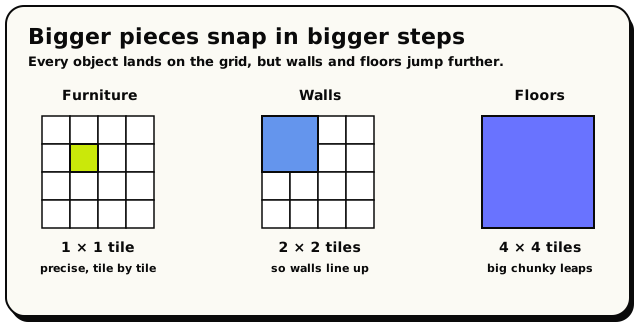 Furniture lands on a single tile; walls jump 2×2; floors leap 4×4 so big pieces always line up.
| Object type | Snaps to | Why it matters |
|---|---|---|
| Regular furniture | 1 × 1 tile | Lands on any single tile, for precise control |
| Walls | 2 × 2 tiles | Jumps in 2-tile steps, so walls line up with each other |
| Floors | 4 × 4 tiles | Jumps in big 4-tile chunks, so floors tile cleanly |
The placement guide shows all three scales at once. The strongest lines mark each 4 × 4 floor boundary, the lighter lines mark 2 × 2 wall steps, and the very faint lines mark single tiles. That means you can line a wall or a chair up with a floor edge without guessing. The line weights are only a visual guide; each object still snaps by the rules in the table above.
Muted, see-through red cells mark ground squares that are already occupied. If the selected object can sit on a nearby stackable surface, such as a table, the grid is also drawn across the top of that surface. It is blue where you can build and muted red where the surface is outside your editable area. You can therefore see the exact receiving squares instead of having the ground grid disappear behind the furniture.
For furniture and walls, the rounded patch under the preview shows its footprint on the surface where it will land. Floors use their own visible tile preview instead. Rounded blue corner markers bound every placement. When the selection can rotate, a small arrow just outside one edge shows which way the main object is facing. If the object cannot be placed there, the object, footprint, markers, and arrow turn red. Trying to place it makes the preview and nearby blockers briefly pulse, so the conflict is easy to spot, and plays a short rejection sound so the failed click is clear even when the blocker is partly off-screen.
That's why a floor "leaps" across the room in chunky steps when you drag it, while a chair glides tile by tile. It's not a glitch; it's the grid keeping your big pieces tidy.
Tiles, coordinates, and the way the grid is numbered all get a full, beginner-friendly walkthrough in The grid and positions. You don't need it to build, but it's worth a look once you start scripting.
The object limit
A world can't hold infinite objects. There's a budget: 8,000 objects per world.
While you build, Build Mode shows a live counter in the corner (something like
120 / 8,000) so you always know how much room you have left. When you hit the cap,
the counter turns red and you can't place more until you delete something.
Floors and walls are objects, so they spend from the same 8,000 budget. Tiling a huge floor can eat into it surprisingly fast. If your counter is climbing quicker than you expected, big floor areas are usually why.
Hideout has a larger object limit in the works for the future. For now, every world gets the standard 8,000.
What's next?
What objects really are, where they come from, and how scripts point at a specific one.
Object statesMake a door open and close, a lamp switch on and off, and have scripts react.
Special objectsSigns, teleporters, and spawners: the objects that do something.
Start scriptingMake your world react: when this happens, do that.