The Grid & Positions
Every Hideout world sits on a grid, like graph paper made of square tiles. Once you can name a spot with a couple of numbers, you can tell your script where to do things: teleport a player to here, spawn an NPC there, point a character that way. This page is the map-reading lesson for scripting.
The world is a grid of tiles
Imagine your whole world drawn on graph paper. It's covered in little squares called tiles. A tile is the basic unit of space in Hideout: one step on the grid.
To name any spot, you give two numbers:
- X is how far across (left to right).
- Y is how far down (top to bottom).
We write these as a pair in brackets, like (3, 5). That means 3 tiles across and 5 tiles down.
Same idea as a chessboard square or a spreadsheet cell (B2, C5), just with numbers for both.
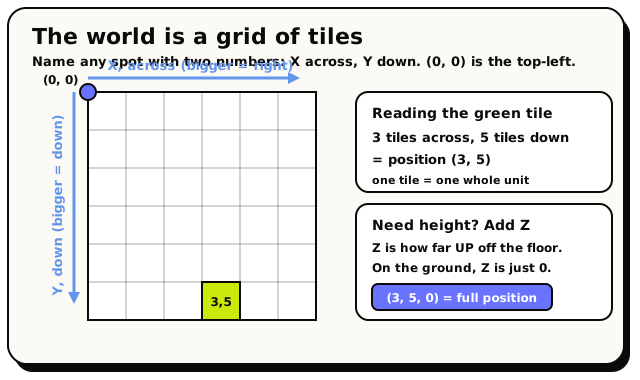 X counts across, Y counts down, (0, 0) is the top-left, and Z adds height when you need it.
When you type numbers into a script, one unit is one whole tile. So (3, 5) is the 4th tile
across and the 6th tile down (we start counting from 0; see below). You never have to think in pixels.
The origin: where (0, 0) is
There's one special tile that all the numbers are measured from. It's called the origin, and it
sits at the top-left corner of the grid. Its address is (0, 0).
Everything grows out from there:
- X gets bigger as you go right. Bigger X = further east.
- Y gets bigger as you go down. Bigger Y = further south.
This trips up almost everyone. In Hideout, going down the screen makes Y bigger, and going up
makes Y smaller. So the tile above (3, 5) is (3, 4), and the tile below it is (3, 6).
If your character keeps moving the wrong way, this is usually why.
What about height? The Z number
The grid is flat, but worlds aren't always flat. Sometimes things float or sit up high. That's where a third number comes in:
- Z is how far up (height). Higher Z = higher off the ground.
Most of the time you're working on the ground, so Z is just 0. You only reach for Z when you want something off the floor.
So the full set of three numbers is:
| Letter | Means | Bigger value goes… |
|---|---|---|
| X | how far across | right (east) |
| Y | how far down | down (south) |
| Z | how far up | up (higher) |
Positions and vectors
A position is an address on the grid, a spot. In scripting, a bundle of numbers like this is called a vector (say it "VEK-ter"). Don't let the word scare you: a vector is a little container that holds a couple of numbers together so you can pass them around as one thing.
Hideout has two kinds of vector, and the difference is how many numbers they hold.
Vector2: a flat spot (X, Y)
A Vector2 holds two numbers: X and Y. It's a spot on the flat grid, with no height. You build one with the Coordinate (X, Y) block.
 A Vector2: an across-and-down spot like (3, 5).
A fresh one starts at (0, 0). Vector2s are mostly used as the corners of areas (more on that on
the Areas page).
Vector3: a full position (X, Y, Z)
A Vector3 holds three numbers: X, Y, and Z. It's a full position, height included. You build one with the Coordinate (X, Y, Z) block.
 A Vector3: a full position with height, like (10, 4, 0).
A fresh one starts at (0, 0, 0). Vector3 is the everyday "where is it" type. Player positions,
object positions, NPC positions, and teleport targets are all Vector3s.
In some menus, the Vector3 type is shown with the friendlier label "coordinate." It's the same thing: when the editor says "coordinate," it means a full X-Y-Z position.
Picking one number out of a position
Got a position and only want, say, its X? The Get X / Y / Z of Position block pulls a single number out of a Vector3, handy for comparing heights or lining things up.
 Grabs just the X, Y, or Z number out of a position.
And to measure the straight-line gap between two positions, use Distance Between Positions:
 How far apart two positions are.
Rotations: which way you face
A position tells you where something is. A rotation tells you which way it's facing. Think of a person standing on a tile: they could be looking north, east, south, or west.
Hideout keeps this simple. There are exactly four facings, the four compass directions. No diagonals, no in-between angles, no degrees to remember.
You set one with the Rotation (Direction) block, which has a little dropdown:
 Pick a facing: North, East, South, or West.
The four directions
These are the only allowed values, and this is their official order:
| Rotation | Faces… | On the grid, one step moves you… |
|---|---|---|
| North | up | Y gets smaller (0, -1) |
| East | right | X gets bigger (1, 0) |
| South | down | Y gets bigger (0, 1) |
| West | left | X gets smaller (-1, 0) |
Notice that North makes Y smaller, because up means a smaller Y, just like we saw above. Walk one
tile north from (3, 5) and you land on (3, 4).
A brand-new Rotation block starts on North. But a freshly placed character or object actually faces South by default, because south is the "forwards" direction for avatars in the world. These are two different "defaults", so don't mix them up. You'll only notice this if you place a character and wonder why it's looking down.
The coordinate picker: point, don't type
Typing numbers is fine, but there's a much easier way. Most blocks that take a position have a little picker button on them. Click it and a full-screen overlay opens right over your live room, so you can grab a real spot by clicking it.
Open the picker
Click the picker button on a Coordinate block (or an Area block). The room fills the screen with a grid overlay on top.
Choose a mode
A toolbar lets you switch between Point mode (click one tile) and Area mode (click and drag to draw a rectangle). Which mode it opens in depends on the block you clicked from.
Click the spot
Hover and a faint box highlights the tile under your cursor. Click to choose it. A readout at the bottom shows the exact coordinate, like
x: 3, y: 5, z: 0.Confirm
Hit Use Coordinates and the numbers drop straight into your block. Hit Cancel (or press Esc) to back out with no changes.
The picker reads spots off the flat floor, so the height it returns is always 0 (ground level). If you want something up in the air, pick the spot first, then type a Z value into the block by hand.
Putting it together
Here are a few everyday moves, in plain English:
"Teleport the player to (10, 4, 0)" drops them on the tile 10 across and 4 down, at ground level.
North from (3, 5) is (3, 4), because going up makes Y smaller. South would be (3, 6).
Use Get X / Y / Z of Position to read the Z of two players, then check which one is higher up.