Values & Types
Some blocks do things. Other blocks hand back a value (a number, a player, a yes/no answer) that you slot into another block. This page is about that second kind: how data flows through your script, why some pieces only fit certain slots, and the friendly grey "fill-in-the-blank" blocks that make it all painless.
Value blocks: the ingredients
If a script is a recipe, then action blocks are the steps ("show a toast", "wait 1 second") and value blocks are the ingredients you drop into those steps. A value block doesn't sit in the stack. Instead it has a little plug that fits into a matching socket on another block. When the script runs, it hands back ("reports") a value.
You've already met some without realising:
 : a number you type in.
 : some text you type in.
 : "the player this event is about".
 : where a player is standing.
A value block. Its rounded plug slots into any socket that accepts a number.
Think of a value block as a question you can ask at any moment that always comes back with an answer: "how many players are here?", "where's the door?". You drop the question into a slot, and the answer flows in when the script runs.
Boolean blocks: the yes/no questions
There's a special kind of value block whose answer is always yes or no (true or false). It's
drawn as a pointy hexagon so you can spot it instantly, and it only fits into hexagon-shaped
sockets, mainly the condition slot of an If block and the and / or / not blocks.
 A boolean block. The hexagon shape means it answers yes or no.
Examples:  (a plain true/false toggle),
 ("is this player in this area?"), and
 ("is this NPC here?").
A boolean is like a light switch reading: either on or off, never "maybe". The hexagon shape is the editor's way of guaranteeing you can only put a yes/no answer where a yes/no answer is wanted.
The type system: every slot wants a certain kind of value
Here's the rule that keeps your scripts from breaking: every socket says which kind of value it accepts, and the editor physically refuses to let the wrong plug snap in.
A number slot only takes numbers. A player slot only takes players. If a block won't click into place, that's not a glitch. It's the editor catching a mistake before anything can go wrong. This is the best safety net you have.
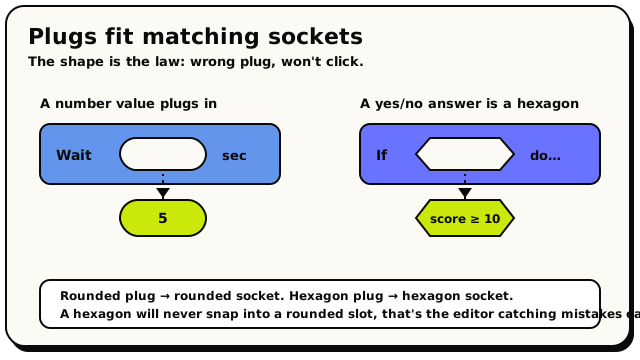 A rounded value plug only fits a rounded socket; a hexagon yes/no answer only fits a hexagon socket. The shape decides what clicks together.
The kinds of value you'll meet most:
- Number a number (decimals are fine)
- Text text: words and characters
- Yes/No a yes/no answer
- Player one player
- Object one world object
- NPC one NPC
- Area a rectangular area
- a coordinate: a 3D point (x, y, z)
- a rotation: a facing direction (
north,east,south,west) - a duration: a length of time, in seconds
Colours hint at the type
Every block is colour-coded so you can recognise families by eye before you even read the label. Events are green, player blocks are sky blue, object blocks are orange, logic is pink, numbers are amber, NPCs are teal, and so on.
But here's the rule to remember:
The colour helps you find the right block fast. But it's the shape and the socket that actually decide whether two blocks click together. Two blocks of the same colour still won't connect if their slots disagree, and that's fine.
One exception: whole numbers fit number slots
A whole number is still a number, so anywhere a Number is wanted, a whole number
fits too. You almost never have to think about this. Reach for the everyday
block and it goes wherever a number belongs.
The puzzle-piece shapes catch the big, obvious mistakes the instant you try to connect blocks. But a few rules are too subtle for shapes alone (like "does this object actually support that state?"). Those get a final check when you hit Validate or Publish. So if a block won't click, fix it now. If you see a little warning triangle on a block, read it. And always Validate before Publish. It's the final spell-check.
Shadow blocks: the friendly grey defaults
When you drag out a block with an empty socket, the editor doesn't leave a scary hole. It drops in a shadow block: a soft, greyed-out default value already sitting in the slot, pre-filled with a sensible starting value you can type right over.
This is the most beginner-friendly thing in the whole editor. Lean on it.
How shadows behave:
- They look faded compared to a normal block. That's how you know it's a placeholder.
- You can edit them in place. Click and type a new number, new text, whatever.
- If you drag a real value block on top, the shadow politely disappears and your block takes over. Drag your block away again and the shadow comes back.
- A shadow is a real value when the script runs. An untouched
30really means thirty.
You'll see shadows everywhere with sensible defaults baked in:
-
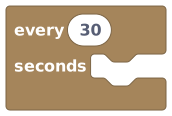 The interval starts as a grey 30, meaning every 30 seconds.
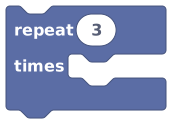 starts as "repeat 3 times".
 starts as "wait 1 second".
 starts as the NPC saying "Hello!".
 starts as a random number from 1 to 100.
A shadow is a real default value, not a blank. If you leave "wait 1 second" untouched, it really waits one second. Type over the grey to change it; don't assume it does nothing.
Why some slots don't auto-fill
The editor only pre-fills safe defaults. It will never quietly pick "the first object in the room" or "some random player" for you, because that would be dangerously ambiguous. The only entity defaults it fills in are unmistakable, contextual ones:
- this object (only inside an object's own behavior)
- triggering player (only under events where there is a triggering player)
- current area (from area events)
Where there's no safe default, you get a missing-value placeholder instead. That's covered next.
Missing-value placeholders: "you still need to pick this"
When a slot needs a real-world reference (an object, area, player, NPC, or state) and the editor can't safely fill one in, it drops in a loud missing-value placeholder. These are the bright "fill me in" blocks:
| Placeholder | Means |
|---|---|
| Value Missing object | Pick which object you mean |
| Value Missing area | Pick which area you mean |
| Value Missing player | Pick which player you mean |
| Value Missing NPC | Pick which NPC you mean |
| Value Missing state | Pick which object state you mean |
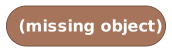 A missing-value placeholder. It won't let you publish until you choose a real object.
These blocks do two jobs:
- Stand in for "not chosen yet." Templates and recipes use them as a "pick one here" marker. If your room has no objects yet, the toolbox even shows a Missing object block in place of a real one.
- Stand in for something that disappeared. If you point a block at a door and then delete that door, the block keeps the old name so it stays readable (for example, "Missing object: Secret Door"), but now it needs a fresh pick.
They block publishing on purpose. A missing placeholder is designed to fail validation so you can't accidentally ship a half-finished script. When you try, you'll see this exact message:
"Choose a [object/area/player/state/NPC] before validating or publishing."
Think of it as a bright sticky-note that says "PICK ONE", the editor protecting you from a broken script.
If a missing placeholder somehow made it to runtime, it resolves to "nothing", so it quietly does nothing rather than affecting a random player or object. But validation stops it long before that.
Casting to text: turn anything into words
Very often you want to show a value to players, like a score, a position, or a name, inside a
message. The  block ("To Text") takes almost any value and
turns it into readable text.
block ("To Text") takes almost any value and
turns it into readable text.
To Text is the universal translator. Drop almost any value in, get readable text out.
Its partner is 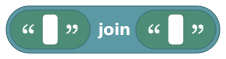 ("Join Text"), which glues two pieces of text
together end-to-end. It's perfect for building a message like
("Join Text"), which glues two pieces of text
together end-to-end. It's perfect for building a message like "Score: " + score.
Join Text sticks two texts together, great with To Text.
To say "Your score: 7" you join two pieces:
- Join text
"Your score: " - with: To Text of (the score number)
The number 7 becomes the text 7, sticks onto the end, and the player reads Your score: 7.
Here's how different values come out as text:
| Value | Becomes the text… |
|---|---|
| a boolean | true or false |
| a number | the number written out, like 42 or 3.5 |
| text | itself |
| a rotation | the direction word: north, east, south, west |
| a coordinate | (x, y, z), e.g. (3, 5, 2) |
| a list | list: followed by how many items |
If you cast a player straight to text, you get their internal ID, not their friendly name. To show a
real, readable name, use the dedicated  block instead.
Also note: very long text is trimmed to 512 characters, so don't rely on huge strings.
block instead.
Also note: very long text is trimmed to 512 characters, so don't rely on huge strings.
Quick recap
- Value blocks are ingredients. They plug into slots and hand back a value.
- Boolean blocks are hexagons. They answer yes/no and fit only hexagon slots.
- Every slot wants a certain type. If a block won't click, that's the type system saving you.
- Colour is a hint, shape is the rule.
- Grey shadow blocks are real default values you can type over, not empty holes.
- Missing placeholders mean "pick one here" and won't let you publish until you do.
- To Text turns any value into words; use display name blocks for human-friendly names.