World Settings
World Settings is the control room for your world. It's where you set the name, decide who can walk in, choose whether people can find you, dim the lights, and frame the cover photo people see in Explore. This page walks through every single setting: what it does and when you'd actually touch it.
You open it from the gear icon. The panel is titled World settings and is split into four sections: General, Access, Appearance, and Advanced. We'll take them one at a time.
General, Access, and Advanced only show up if you're a world admin (usually that's you, the owner). A regular visitor walking through your world won't see these. They're your controls, not theirs.
General: name and description
This is the simplest section. Two boxes:
- World name: what your world is called. Up to 30 characters. There's a little counter so you can see how many you've used.
- Description: a short blurb telling visitors what your place is about. Up to 150 characters. "A chill rooftop to watch the sunset" is perfect.
The name and description have a Save changes button. Your edits don't stick until you press it. (This is different from the toggles further down, which apply the instant you flip them.) Leave a box empty and Hideout just stores it as blank.
Access: who can walk in
This is the most important section to understand, so take it slow. The access policy is the lock on your front door. It decides who is allowed to enter your world.
Owner worlds (the normal kind, the ones you make) get these three options:
| Option | What it means | Use it when… |
|---|---|---|
| Private | Just you. Nobody else can enter. | You're building and not ready for visitors yet. |
| Friends only | You and the people on your friends list. | You want a cosy space for your crew, no randoms. |
| Public | Anyone can enter. | You're proud of it and want the world to come hang. |
New worlds you create start out Public. So if you want to build in peace, the first thing you might do is switch the lock to Private.
Worlds that belong to a Discord server (instead of a single person) don't have a personal owner, so they show a different menu: Discord only ("Only players launching from this Discord channel") and Public. Discord only is a soft routing gate rather than a hard security wall, so don't lean on it for true privacy. If you made your world the normal way, you'll see Private / Friends only / Public, not this.
Editing permissions are separate
Also in the Access section is an Editing permissions button. This controls who can build and edit scripts in your world, a totally different question from who can enter. Room editors can open the Scripts editor, save drafts, and publish changes as well as rearrange your furniture. Two different locks, two different keys.
Access: Discovery (the part people mix up)
Under a Discovery heading are two switches. The first one is the one everybody misunderstands, so let's nail it.
- Show in Explore: turns the
discoverablesetting on or off. On means your world is listed in the Discover feed (the big "Explore worlds" wall) where strangers can find it. Off keeps it link-only, or unlisted. On by default. - Allow remixing: turns the
remixablesetting on or off. On lets other players copy your world as a starting point for their own (see Creating a World). Off by default.
This is the big one. Show in Explore only controls whether your world appears in the list. It does not lock the door. If you turn it off, anyone with your link (or anyone allowed by your access policy) can still walk right in. They just won't find it by browsing.
If you want real privacy, change the access policy to Private or Friends only. That's the lock. "Show in Explore" is just the phone book.
Here's the difference, side by side:
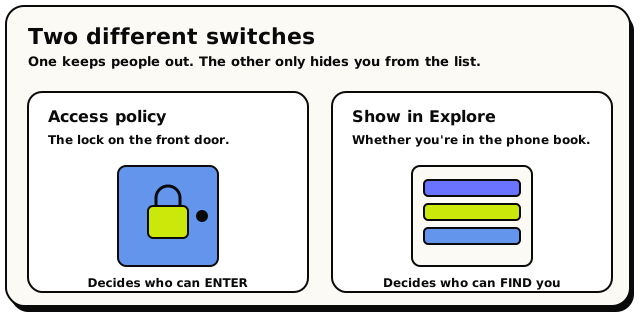 The access policy is the lock; Show in Explore is just the phone book. Only one of them keeps people out.
| Setting | The question it answers | Analogy |
|---|---|---|
| Access policy | Who is allowed to enter? | The lock on the front door. |
| Show in Explore | Is my world listed where people browse? | Whether you're in the phone book. |
So a world can be Public but unlisted: anyone with the link can join, but it never shows up on the Explore wall. The two settings work independently, and when it comes to keeping people out, the access policy lock is the one that matters. (Getting that link into people's hands is the Share button — see Sharing Your World.)
Appearance: how your world looks and feels
The Appearance section is about the mood of the space, not who's allowed in.
- Background: the void around your world. Choose Ocean (soft blue water, the default) or Black (a clean black void). Black is great for spooky or sci-fi vibes.
- Hide nametags: stops player and pet names appearing when someone hovers over them. Names otherwise stay off-screen until hover. On touchscreens, the first tap briefly reveals a player's name and a second tap opens their profile card.
- Time of day: opens the lighting control. This one deserves its own section.
Time of day (global illumination)
Tap Time of day and you get a panel titled Set time of day. Global illumination is a fancy phrase for one idea: a single master dimmer for your whole world.
- It's one slider running from Night (left) to Midday (right).
- Drag it down to 0% (or hit the Blackout button) for a pitch-black room. This is perfect for horror, or for making placed lights and glowing objects really pop.
- Drag it up to 100% for bright, sunny midday. That's the default.
Think of it like a real room. Global illumination is the big dimmer switch for the whole space. Individual placed lights and glowing objects are like lamps. When you dim the room down, those lamps are what's left shining. Crank the room to 0% and your lamps become the whole show.
The value runs from 0 to 1 in tiny steps. Anything at or below a hair above zero reads as "Blackout"; otherwise you see a percentage. You can also change the lighting live during play with these two blocks: snap straight to a level, or fade smoothly for a sunset or a lights-out jump scare.
 Set Global Illumination: jump the whole world to a brightness instantly.
 Fade Global Illumination: glide to a new brightness over time, like a sunset.
Advanced: scripting, thumbnail, and reset
The Advanced section has the power tools.
- Scripting: opens the block-based editor where you make your world do things, like reacting to players, running games, and talking back. Once you've decorated your space, this is what brings it to life. It's the doorway to the whole scripting world. (Your personal apartment has scripting too; the row appears there for you, its owner.)
- Thumbnail studio: frames the cover photo for your world's card. Its own section below.
- Proximity interactions and Owner override: two switches that decide how close players must be to use your objects. Their own section below.
- Reset world: the danger button. It wipes your world and restores the starter template you began with.
Reset world erases everything you've built and snaps the world back to its default template. Hideout asks you to confirm first, and you should read that confirm box twice. There's no undo.
Proximity interactions: make reach matter
Out of the box, players can interact with an object from anywhere in the world. A lever on the far side of the map flips just as happily as one right next to you. For a cosy hangout that's fine; for a puzzle room or a game, it's chaos.
Flip Proximity interactions on and a tap only counts when the player is actually near the object: within about 5 tiles of the object's edge. (Its edge, not its middle, so it's fair to stand beside something huge.) A tap from further away simply does nothing: no state change, no script trigger, no error message. The object just ignores it.
Below it sits Owner override: turn that on and world admins (you, and in server worlds the server's admins) can still interact from any distance, while everyone else has to walk over. Handy for flipping a far-away switch while you're testing, without hiking across your own map.
The glowing highlight when nearby outline you can put on script triggers uses the same reach as this setting. So with proximity interactions on, the outline becomes an honest "you're close enough" signal: if it's glowing, the tap will land.
The proximity rule applies to interacting with objects and nothing else. Area events, chat events, timers, and every other trigger keep working at any distance.
Thumbnail Studio: frame, don't upload
Open Thumbnail studio to set the picture that shows on your world's card in Explore. Here's the cool part: you never upload an image. Hideout takes a live photo of your actual world for you. Your job is to frame it, like deciding where to point a camera, not editing the photo afterward.
See your world, live
The Studio shows your real world content inside a landscape frame. That's the exact picture people will see.
Pan and zoom to the good bit
Drag to move the frame around, and use the zoom in / zoom out buttons to get the perfect crop. Center it on the coolest part of your build.
Save it
Hit Save thumbnail and you're done. Hideout re-takes the shot at your exact framing and stores it as your cover.
Don't like your crop? Hit Auto to throw away your manual framing and go back to the thumbnail Hideout picks for you automatically. Once you save your own crop, Hideout marks the thumbnail as "manual" and stops auto-updating it, so your choice sticks. Pressing Auto is how you hand that control back.
Tags: your world's "vibes"
Tags (also called vibes) are the genre shelves your world sits on in Explore. People browse "by vibe" to find the kind of place they're in the mood for. When you create a world you pick one category, but a world can carry up to 5 tags in total.
There are exactly 8 vibes to choose from:
| Vibe | Best for |
|---|---|
| Hangout | Chill social spaces, just vibing with friends. |
| Game | Anything with rules and a winner: tag, obbies, races. |
| Puzzle | Brain-benders, escape rooms, logic challenges. |
| Roleplay | Pretend-and-play worlds with characters and stories. |
| Horror | Scary builds, dark mazes, jump scares. |
| Experience | Tours, galleries, story scenes, sightseeing. |
| Club | Lights, music, dancing, party energy. |
| Quiz | Trivia nights, game shows, quizzes. |
These names are spelled exactly as shown: it's Roleplay, not "Role Play", and Hangout, not "Hang Out". You don't really need to type them (you pick from a list), but that's the spelling Hideout uses everywhere.
You might hear about spectator mode, which lets people watch a world without joining it. It exists, but there's no switch for it in your World settings panel; it's managed by Hideout staff behind the scenes. So you can safely ignore it as a creator.
Quick reference: what applies instantly vs. on Save
A small thing that trips people up:
- Name and Description wait for the Save changes button.
- Access policy, Show in Explore, Allow remixing, Proximity interactions, and Owner override apply the moment you change them. No save needed.