Object States
Some objects can be more than one way. A door can be open or closed. A lamp can be on or off. A chest can be shut or opened. Each of those "ways" is called a state, and your scripts can read the current state, switch it, and react the moment it changes. This page makes states click.
What is a state?
A state is one of the looks (or behaviours) an object can be in. The object is the same object the whole time; it's just showing a different page of itself.
Picture a flip-book. The door is the book. Each page is a state: "closed" on one page, "open" on the next. The door is always the same door; flipping the page just changes what you see.
- A door: states might be
closedandopen. - A candle: states might be
litandunlit. - A switch: states might be
upanddown.
When an object is first placed, it starts in its default state: the page the flip-book opens to.
What is a transition?
A transition is an allowed move from one state to another. It's the path between pages.
Take the candle. Its states are lit and unlit, and its transitions look like this:
- From
unlit, the "light" transition takes you tolit. - From
lit, the "extinguish" transition takes you tounlit.
So a transition has a name (like "light" or "extinguish") and it connects exactly two states: where you're coming from, and where you end up. You can only travel along paths that exist; there's no "light" move from a candle that's already lit.
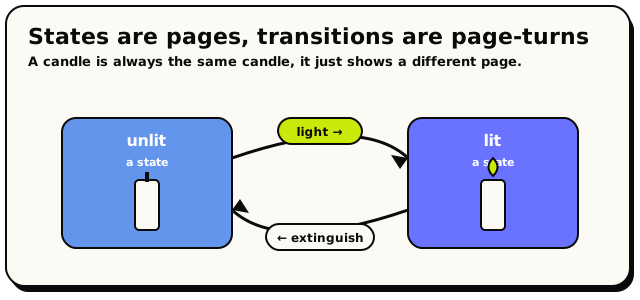 The candle's two states with the named transitions that move it between them.
States are the pages. Transitions are the allowed page-turns. You can only flip to a page the current page connects to, and some objects play a little animation as they flip, like a door swinging open.
How an object switches state
There are two everyday ways a state changes.
1. A player interacts with it
Lots of objects switch state all on their own when a player interacts. Tap a door and it swings open; tap it again and it closes. You don't need a script for this; it's built into the object.
That built-in tap-to-flip can be switched off per object. Lock an object and player taps stop changing its state entirely, while scripts stay fully in charge. There's a whole section on it below.
2. A script changes it
Your script can switch states too, which is where the real fun starts ("when the timer runs out, slam every door shut"). There are two blocks for this, and they think differently:
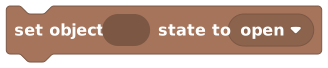 Set Object State: snap straight to the exact state you name.
Set Object State jumps the object straight to a state you name: no animation,
instant. Use it when you want an immediate change. "The moment the round starts, set
the gate to open." You pick the object, then pick the state.
 Advance Object State: follow a transition from wherever the object is now.
Advance Object State is smarter. Instead of naming the exact state, you name a transition, and the object follows that path from wherever it is now, playing any animation along the way. This is perfect for objects that should step through states in order, like a door that swings open properly instead of teleporting.
- Set = "Be
openright now." Direct, instant, no animation. - Advance = "Do your
openmove from where you are." Follows the built-in transition, plays the swing.
If you want the nice animation, reach for Advance. If you just need the object in a known state this instant (like resetting everything at the start of a game), reach for Set.
Naming states and transitions in scripts
Because states and transitions have real names baked into each object, Hideout gives you safe little blocks so you never have to guess or mistype them:
 State: pick one of an object's real state names from a dropdown. stands for one named state, chosen from a dropdown. Plug it into Set Object State, or compare against the current state.
 Transition: pick one of an object's real transition names. is one named transition. Plug it into Advance Object State.
If a block needs a state but you haven't chosen one yet, the editor shows a
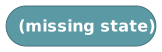 placeholder. It's not a block you add on purpose;
it's a reminder to drop in a real State block and pick the right name before you
publish.
placeholder. It's not a block you add on purpose;
it's a reminder to drop in a real State block and pick the right name before you
publish.
Reading the current state
Your script can also ask an object what state it's in right now, and decide what to do based on the answer.
 Current State Of Object: reads which state an object is in, as text.
Current State Of Object reads the object's state and gives it back as text. The
classic move is to put it inside an if block:
If the chest's current state is
closed, open it. Otherwise, do nothing.
That way your script does different things depending on how the object currently is, without ever opening an already-open chest.
Reacting when a state changes
Sometimes you don't want to cause a change; you want to notice one. That's what this starting block is for:
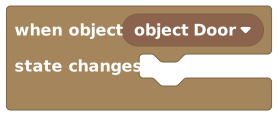 When Object State Changes: runs whenever the chosen object flips state.
When Object State Changes fires every time the object you choose flips from one state to another. Use it to react:
- Play a chime when a door opens.
- Add a point when a switch flips.
- Light up a path when a lever is pulled.
This is the heart of how Hideout works: when this happens, do that.
If an object plays an animation while it changes (like a door swinging), it's "busy" for the length of that animation. A second change won't take until the first one finishes. So if you spam Advance at a door faster than it can swing, the extra taps are politely ignored until the swing is done. Plan for the animation, not against it.
Locking an object: you decide who drives
Sometimes the built-in tap-to-flip is exactly what you don't want. The lever that's just set dressing. The vault door only a finished puzzle should open. The "button" that should fire your script without wiggling its own state. For all of those, lock the object.
Select the object in build mode and press L. On phones and tablets, tap the round padlock button next to the rotate button. The lock pill at the top of the screen shows whether your selection is locked; press L again to unlock.
The lock control only appears for objects a tap can actually flip: things with more than one state connected by a tap transition, like doors, levers, and lamps. Decor with a single look has nothing to lock, so you won't see it there. (Sitting on chairs and picking up grabbable objects aren't state flips, so those don't offer it either.) The one exception: an object that's already locked always shows the control, so you can always unlock it.
A locked object:
- Ignores taps completely, as far as its own states go. Players can click it all day and it won't flip, open, or toggle.
- Still fires your scripts. A "when object is interacted with" trigger on a locked object runs exactly as before. The tap becomes yours to handle.
- Still obeys script blocks. Set Object State and Advance Object State work normally. The lock stops players, not scripts.
In short: unlocked means "the object drives itself, scripts listen along." Locked means "scripts drive; the tap is just a signal."
Locking changes how scripts relate to an object, so it needs room editing permission. Anyone allowed to edit the room can lock objects and edit scripts. Other players still see the lock state, but the control is greyed out, and trying it shows "Only room editors can lock objects!".
Before locks existed, creators stopped players toggling an object by catching the interact event and immediately setting the state back. If you have scripts doing that, replace them with a lock: it's one keypress, and the object no longer flickers through the unwanted state first.
A tiny worked example
- Drop in and pick your door.
- Inside it, add a sound or a toast so something happens when the door changes.
- Now, anywhere a player should be able to open the door from a script, use
with the "open" transition.
Open the door (by hand or by script) and your greeting fires every time, because the state change is what you're listening for, not the tap.