Creating a World
A world is your own little online space: somewhere you and your friends can walk around, decorate, and play. This page shows you how to spin one up from a starter template, how to remix (copy) a world you love, and the first few things worth doing once you land inside.
Hideout is a cozy pixel-art game you and your friends play together, right inside Discord or in a browser. It's free, with nothing to install. A world is the piece you get to make yourself, and you can build pretty much anything in one: a hangout, a game, a whole experience, even a cinematic scene.
In the code Hideout calls a world a room, but they're the same thing: one space you can build in. You don't need to know anything about that. You just need a name and a starting point, and you'll be standing inside a furnished world about two seconds later.
The two-second version
Open the World Browser and hit Create
The World Browser is the menu where you find and make worlds. Open it, then go to the Create a World screen.
Name your world
Type something in the World name box. It can be up to 30 characters: think "Niall's Diner" or "The Glow Caves". You can rename it later, so don't overthink it.
Pick a starting template
Under Start from, choose one of the five starter templates (more on those below). This decides what your world looks like the moment you arrive.
Pick a Category (optional)
Choose one vibe (like Hangout or Game) so people can find your world in Explore. You can pick exactly one here, or skip it. You can add more later.
Create, and you're in
Hit Create and Hideout builds the world and warps you straight inside it, already furnished. No loading screen of doom.
The Create button stays greyed out until you type a name. Template and category are optional, but picking a template is way more fun than starting from an empty box.
Starter templates: the "Start from" choices
A template is a pre-built world you copy as your starting point, like getting a LEGO set that's already half-assembled instead of a pile of loose bricks. Hideout gives you five starter templates. Each one also suggests a category, which you can change.
| Template | What it's for | Suggested category |
|---|---|---|
| Island | A sunny getaway to explore | Experience |
| Cozy Home | A warm spot to hang out | Hangout |
| Playground | Built for games and chaos | Game |
| Party Room | Lights, music, dancing | Club |
| Stage Show | Host quizzes and shows | Quiz |
Picking a template doesn't lock you in. Once you're inside, you can move, delete, or add anything you want in Build Mode. The template is a comfy place to start, nothing more.
There's a second, older screen called "Choose a space" that pops up inside a world in two cases: when you're the very first person ever to visit it, or when an admin resets a world back to default. It offers size-based rooms: Unfurnished (Small, Medium, Large) and Furnished (Cottage Cafe, Hideout Tavern, The Garden). It feeds the same template system as Start from; you just meet it from a different doorway.
Who owns a world?
Every world has exactly one of two "shapes". You don't choose this with a switch. It's decided by how the world came to exist.
- Owner worlds (personal worlds). This is the normal kind: the world you make from the World Browser. You own it, and you control all its settings. When this guide says "your world", it means one of these.
- Guild / channel worlds. These belong to a Discord server or channel instead of a single person. Nobody personally owns them, so they're a little more locked-down by default and have a smaller set of door options. You probably won't make one of these on purpose.
Almost everything in these docs assumes you're working with your own owner world.
A regular player can own up to 3 created worlds at once. Try to make a fourth and Hideout will stop you with "You can create up to 3 worlds." If you hit the wall, delete one you don't love anymore to free up a slot. (Your personal apartment home space is special: it does not count toward the 3.)
Remixing: start from someone else's world
Remixing means copying an existing world into a brand-new one that you own, like photocopying a recipe so you can scribble your own changes on it. The original stays untouched; you get a fresh copy to make your own.
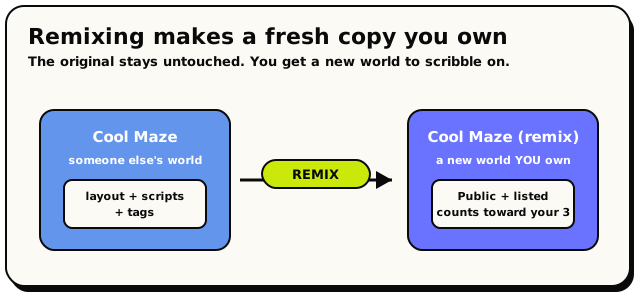 Remix copies someone else's world into a brand-new one you own. The original is never touched.
When you remix a world, you get:
- A copy of its layout: every object in the same spot.
- A copy of its scripts: all the interactive behaviour comes along too.
- The same tags, and a name like "Cool Maze (remix)".
Your remix starts out Public, listed in Explore, and (importantly) not remixable itself. If you want other people to be able to remix your version, you turn that on yourself later in World Settings.
You can remix a world if its owner switched on Allow remixing, or if you're the owner (you can always remix your own builds), or if you're staff. You also have to be able to enter the world in the first place: no remixing a world you can't even get into. One more thing: a remix mints a new owned world, so it counts against your 3-world limit just like creating from scratch does.
You just made a world. Now what?
The fun part. Here's a friendly starter checklist for your first few minutes:
Look around and walk the space
Get a feel for the template. Where would a visitor spawn? Where's the cool corner?
Add a description and a vibe
Open World Settings and write a short description (up to 150 characters) so people know what your place is about. Add a tag or two while you're there.
Build something with your hands
Jump into Build Mode and drag and drop objects, signs, and teleporters into place, the same way you'd decorate a room in The Sims. Rearrange the furniture. Make it yours. This is the cozy, creative half.
Make it do something
Ready for a little magic? This is the half that brings your world to life. Snap some blocks together and have your world react to players. Start with Hello, World. It's the gentlest possible intro.
Frame a cover photo
When it's looking good, open the Thumbnail Studio (in World Settings) to pick the picture that shows up on your world's card in Explore.
The first time you script, you'll meet this block. It runs the moment your world starts up, and it's the front door for almost everything interactive. Don't worry, we'll walk you through it.
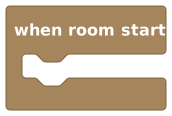 When Room Starts: the very first block most scripts hang off.