HUD & Cinematics
This is the fun, flashy part. The HUD lets your script pin things to a player's screen: a score, a timer, a health bar. The cinematic toolkit adds movie-style flair like confetti, a camera shake, a fade to black, a dramatic 3-2-1 countdown. Together they turn a room into an experience.
Two families, one simple idea:
- HUD is the dashboard: things that stay on screen until your script takes them down. The score in the corner of a game doesn't fade away on its own.
- Cinematics are the special FX: flourishes that usually flash and vanish, plus a few "mood" effects (fade, weather, letterbox) that stick until you clear them.
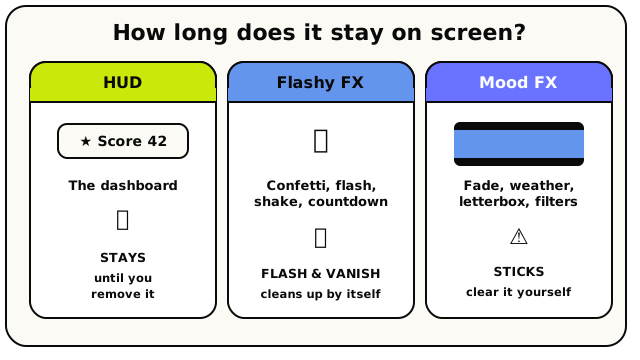 The whole page in one picture: HUD widgets stay, flashy effects vanish on their own, and mood effects stick until you clear them.
1. It's visual only. None of this changes the actual world. A screen flash doesn't move anything; a fade to black doesn't teleport anyone. These blocks paint pixels on the screens of the players you target, and nothing more.
2. You choose the audience. Every HUD and cinematic block has a players slot. You
can target one player, a group, a list, or  all
players. Out of the box, every one of these blocks targets everyone.
all
players. Out of the box, every one of these blocks targets everyone.
The HUD: things that stay on screen
A HUD element (short for heads-up display) is a little widget pinned to the screen. You get three flavours.
Show HUD Text pins an icon plus a label, like a " Bonus round!" banner.
 Pin an icon and a line of text.
Show HUD Number shows a number as a plain value, a progress bar, a value / max fraction, or a countdown clock.
 A number: plain, a bar, a fraction, or a countdown.
Show Live HUD Number shows a number that's tied to a variable. When the variable changes, the display updates by itself, no need to re-show it. Perfect for scores and health.
 Bound to a variable: updates automatically.
Every HUD element has a name
Each HUD element you create has a name you pick, like "score" or "timer". The name
is its identity, and it's how updating works:
- Show it again with the same name → it updates in place. No flicker, no stacking.
Show
scoreas 7, then later showscoreas 8, and the 7 becomes an 8. - Take it down with the same name using the Remove HUD Element block, or clear every element at once with Clear HUD Elements.
 Take down one HUD element by name.
 Take down all HUD elements at once.
Re-using a label rewrites that one sticky note. A new label adds a new note. So a typo in the name silently creates a second element instead of updating the first.
Live numbers are great for personal scores
The Live HUD Number block is a little bit magic. If you bind it to a player variable,
say each player's own score, then every player sees their own number. One block,
and everyone gets a personalised display, including people who join later.
Personal vs. everyone
- A HUD element shown to all players appears for everyone, now and in the future, until you remove it.
- A HUD element shown to specific players appears only for them. If a player has a personal element with the same name as a shared one, their personal one wins.
The HUD lives on the screen, not in the saved world. It survives a re-publish (so live rooms don't go blank when you push an update), but it resets when the room sleeps and wakes. Since "when room starts" fires on every wake-up, that's your chance to rebuild the HUD. There are also generous caps (for example, up to 24 HUD elements per player or in the shared scope) that you'll only ever hit if something's gone wrong.
The cinematic toolkit: special FX
The cinematic blocks are where your room gets dramatic. Here are some highlights:
 Drop a shower of confetti.
- Confetti, screen flash, floating text ("Wow!"), and particle burst: quick celebratory pops.
- Camera shake actually jitters the camera for impact. Felt, not just seen.
 Jolt the camera for a moment of impact.
- Spotlight, object pulse, beat lights, and room color grade: set a mood or draw the eye to something. (For a lasting musical mood, reach for the start music action instead: it outlives the moment and late joiners hear it too.)
- Dramatic countdown: the big centre-screen 3 → 2 → 1 → GO! to kick off a round.
 The classic 3-2-1-GO before a round.
- Big text: a giant title card like "Chapter One," placed wherever you like.
All of these flash and vanish on their own. They don't pause your script, and they clean themselves up. Just play them and move on.
"Mood" effects that stick around
A handful of effects are different: they stay until you turn them off. These set a lasting mood:
 Fade the screen to or from black.
- Fade to / from black: fade the screen out for a scene change, then fade back in.
- Set weather: rain, snow, or fog, for the players you choose.
- Set background: swap the world's backdrop (ocean or black) just for those players.
- Letterbox: slide in black cinema bars, top and bottom, for that movie feel.
- Posterised / motion blur / old film camera: screen filters for style.
Fade-to-black, weather, background, and letterbox do not clear themselves. If you fade to black and forget to fade back, players are left staring at a black screen.
The fix is the Remove Visual Effects block, the master "reset the screen" button. It wipes all the flashy effects, all the filters, the weather, the background, and the letterbox for the players you target. Reach for it at the end of any cutscene.
 The master reset: clears sticky effects for the targeted players.
The "world effect" power
You might wonder why these are called world effects when they only show on screens. It's because they're meant to feel like the whole world changed: rain falling everywhere, the room fading out, a cinematic letterbox snapping in. Under the hood it's per-player pixels, but to the player it feels like a transformed world. That's the magic of targeting all players: do it to everyone at once, and the room itself seems to shift.
Per-player vs. everyone: why it matters
Because every block lets you choose the audience, you can do things that feel impossible:
- Make it rain only for one player as a spooky personal moment.
- Show a different background to the team that's "it" in a game.
- Fade only the losing players to black at the end of a round.
And the flip side: an effect you target at one player is invisible to everyone else. NPCs are never in the "all players" audience; effects are for humans.
NPC dialog: the one that pauses
There's one cinematic feature that behaves differently from everything else: the NPC dialog. This is the "mayor-style" conversation panel at the bottom of the screen: a character's face, their name, a line of text, and click to continue.
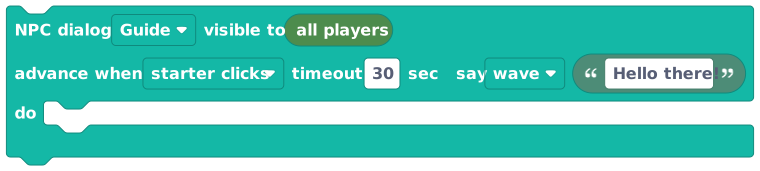 A click-to-advance conversation panel, and the one cinematic that pauses the script.
Unlike confetti or a flash, NPC dialog pauses your script. The blocks after the dialog don't run until the player clicks through it (or it times out). That's exactly what you want for a real conversation (line, click, next line, click) but it's a surprise if you forget.
Two things to know about NPC dialog:
- It pauses the script between steps. Anything after the dialog block waits until the conversation is done.
- It needs a scripted (puppet) NPC. An AI-brain NPC won't work here.
You can choose who can click to advance: just the player who triggered it, the first viewer, or everyone. By default it's the triggering player.
To close a dialog early, use the Dismiss NPC Dialog block.
This dialog panel is a full-screen UI overlay. It's different from the in-world speech bubble that floats over an NPC's head (the NPC Says block) and from the cinematic speech bubble effect. Pick the dialog panel when you want a proper, paced conversation.
Which ones pause the script?
| Block family | Pauses your script? | Cleans up by itself? |
|---|---|---|
| HUD (text / number / live number) | No | Stays until you remove it |
| Flashy effects (confetti, flash, shake, big text…) | No | Yes, auto-expires |
| Mood effects (fade, weather, background, letterbox) | No | No, use Remove Visual Effects |
| NPC dialog | Yes | Auto-dismisses after the last step |
Want every detail?
This page is the concept tour: what's possible and how to think about it. For the exact inputs, defaults, limits, and every effect listed out, see the full reference.