Cinematic
These are the blocks that make a moment feel big. Confetti when someone wins. A screen that fades to black before a reveal. Rain rolling in. A camera that shakes when the boss appears. Cinematic blocks paint movie-style effects onto a player's screen.
What “cinematic” means here
Think of yourself as a movie director for a second. The cinematic blocks are your special-effects crew: the smoke machine, the spotlight, the rumble in the seats, the fade-to-black between scenes. You don't move actors with them. You set the mood.
Behind the scenes, every cinematic block needs one permission the engine calls the
world effect power (written world.effect.play in the system). That's the
engine's way of saying "this block is allowed to paint an effect onto a player's screen."
You never have to switch it on yourself. Every block on this page already has it built in.
 Confetti, one of the flash-and-vanish effects. Great for a win moment.
The golden rule: effects are visual only
If you remember one thing from this page, make it this: cinematic blocks change what a player sees, not what is actually happening in the world.
A screen flash doesn't move anything. A fade-to-black doesn't teleport anybody. Confetti isn't a real object you can bump into. These blocks only paint an effect onto the screens of the players you target, and nothing else. To actually move things or change the game itself, use the Actions and Objects blocks.
There's one more rule that trips people up, and it matters just as much.
Most effects (confetti, a flash, a shake) disappear on their own after a second or two. But a handful are sticky. They stay on screen until you turn them off:
- Fade to black, Set Weather, Set Background, and Letterbox all stay put.
- If you forget to clear them, players are left staring at a black or rainy screen.
- The fix is the
 Remove Visual
Effects block. Think of it as the master "reset the screen" button. Run it at the end
of any cutscene to clean everything up.
Remove Visual
Effects block. Think of it as the master "reset the screen" button. Run it at the end
of any cutscene to clean everything up.
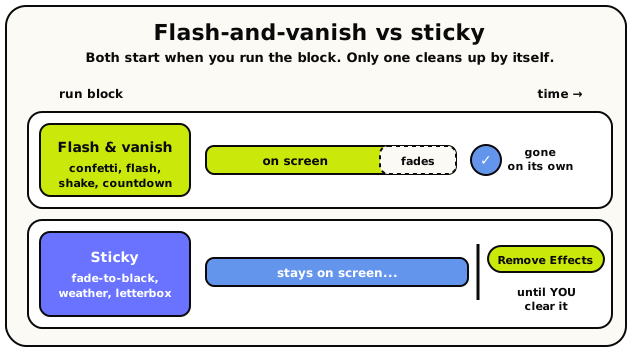 Flash-and-vanish effects clear themselves; sticky ones stay until you run Remove Visual Effects.
Remove Visual Effects, the master reset that clears every sticky effect at once.
Flash-and-vanish effects clear themselves; sticky ones stay until you run Remove Visual Effects.
Remove Visual Effects, the master reset that clears every sticky effect at once.
Who sees it? You choose the audience
Every cinematic block has a players input that decides who sees the effect. You can pick one player, a group of players, or everyone. If you leave it alone, the block targets all players by default.
The effect only shows up on the screens of the players you choose. If you aim it at one player, nobody else sees it. NPCs never count as part of the "everyone" audience, because an NPC doesn't have a screen to paint.
The five families of effect
There are a lot of cinematic blocks. To make them easier to picture, here's how they group together before you reach the full list:
- Flash-and-vanish effects:
 camera
shake,
camera
shake,  screen flash, confetti, floating
text, particle bursts, object pulse, spotlight, beat-synced lights, a dramatic 3-2-1
countdown, and more. These clean themselves up after a moment.
screen flash, confetti, floating
text, particle bursts, object pulse, spotlight, beat-synced lights, a dramatic 3-2-1
countdown, and more. These clean themselves up after a moment. - Camera filters (sticky):
 fade
to and from black, plus posterised, motion-blur, and old-film looks. These stay until you
remove them.
fade
to and from black, plus posterised, motion-blur, and old-film looks. These stay until you
remove them. - Camera moves:
 pushes the camera to a
spot and zooms in;
pushes the camera to a
spot and zooms in; 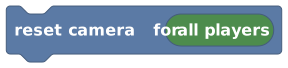 hands control back to
the player.
hands control back to
the player. - Mood-setters (sticky):
 swaps the
background,
swaps the
background,  adds rain, snow, or fog,
 drops in cutscene bars, and
 shows a giant title.
 - NPC dialog:
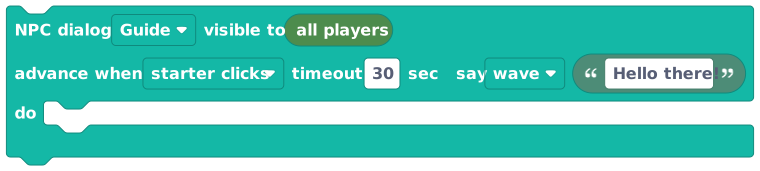 opens a portrait dialog
box for click-through conversations.
opens a portrait dialog
box for click-through conversations.
And one more block on its own: Remove
Visual Effects, the clean-up block that resets the screen.
The blocks
Camera Shake
ActionCinematicShakes the chosen players' screens for a moment, like an earthquake or a big impact.
Rattles the camera for the players you pick, giving a punchy "something just happened!" feeling. Use it for explosions, hard landings, boss stomps, or any dramatic moment. You set the intensity (how violent the shake is) and how many seconds it lasts. It doesn't move the camera for good, it just rattles it and settles back.
Inputs & fields
| Slot | Accepts | Default | What it's for |
|---|---|---|---|
visible to | PlayerGroup of playersPlayer list | all players | Whose screens shake. Defaults to all players. |
intensity | Number | 0.55 | How hard the camera shakes, from 0 (no shake) to 1 (very strong). |
seconds | NumberWhole number | 1 | How long the shake lasts, in seconds. |
How it behaves
Compiles to the effect.play.cameraShake action with the audience plus intensity and duration. The audience is read from the PLAYERS socket; if it's empty the effect goes to all human players in the room. Intensity is clamped to the range 0 to 1. The seconds value is turned into milliseconds and clamped between 100ms and 10000ms (10 seconds). The effect is broadcast to each target player's screen and the block returns immediately, so it never pauses the script. If the audience resolves to zero players the action fails and nothing happens.
Watch out
Intensity above 1 or below 0 is clamped, so very large numbers won't shake harder than 1.
The shake is capped at 10 seconds even if you ask for more.
This is a screen effect only, it doesn't move the player or the world.
Tips
Pair it with a screen flash or a sound effect for a bigger impact.
Keep intensity around 0.4 to 0.6 for most hits; save high values for huge moments.
Leave "visible to" as all players for room-wide drama, or target one player for a personal jolt.
Examples
When object {a button} is interacted with → camera shake visible to {all players} intensity {0.7} seconds {2}Everyone in the room feels a 2-second rumble the moment the button is used.
See also
Screen Flash
ActionCinematicBriefly washes the chosen players' screens with a colour, like a camera flash or lightning.
Fills the screen with a colour, then quickly fades it out, for the players you pick. Great for camera-flash moments, lightning, taking damage (red), or a magic spell. You choose the colour with a hex code and set how long the flash lingers before it disappears.
Inputs & fields
| Slot | Accepts | Default | What it's for |
|---|---|---|---|
visible to | PlayerGroup of playersPlayer list | all players | Whose screens flash. Defaults to all players. |
color | Text | #ffffff | The flash colour, as a hex code like #ffffff (white) or #ff0000 (red). |
seconds | NumberWhole number | 0.8 | How long the flash takes to fade away, in seconds. |
How it behaves
Compiles to the effect.play.screenFlash action with the audience, colour, and duration. The audience comes from the PLAYERS socket, defaulting to all human players in the room when empty. The colour text is used as-is (capped at 32 characters) and falls back to #DEFF09 if blank. The seconds value becomes milliseconds clamped between 100ms and 10000ms (10 seconds). The effect is broadcast to each target's screen and the block returns instantly without pausing the script. If no players are targeted the action fails.
Watch out
The colour must be a valid hex code (like #ff0000); plain words like "red" won't work.
The flash is capped at 10 seconds.
A blank colour falls back to a yellow-green default rather than doing nothing.
Tips
Use a quick white flash (under 1 second) for a camera-snapshot feel.
Flash red briefly when a player takes damage.
Combine with camera shake for explosions.
Examples
screen flash visible to {all players} color {"#ffffff"} seconds {0.4}A fast white flash gives the feeling of a lightning strike across every player's screen.
See also
Confetti
ActionCinematicRains colourful confetti down the chosen players' screens to celebrate a win or special moment.
Drops a shower of party confetti for the players you pick. It's perfect for celebrating a victory, finishing a level, or any happy surprise. You choose how many pieces fall and how long the celebration lasts.
Inputs & fields
| Slot | Accepts | Default | What it's for |
|---|---|---|---|
visible to | PlayerGroup of playersPlayer list | all players | Who sees the confetti. Defaults to all players. |
pieces | NumberWhole number | 72 | How many confetti pieces rain down. |
seconds | NumberWhole number | 1.5 | How long confetti keeps falling, in seconds. |
How it behaves
Compiles to the effect.play.confetti action with the audience, piece count, and duration. The audience is taken from the PLAYERS socket and defaults to all human players when empty. The number of pieces is rounded to a whole number and clamped between 1 and 160. The seconds value becomes milliseconds clamped between 100ms and 10000ms (10 seconds). The effect is sent to each target's screen and the block returns immediately, never pausing the script. If no players are targeted the action fails.
Watch out
More than 160 pieces is capped at 160.
Confetti is capped at 10 seconds.
This is a screen overlay effect, it doesn't drop real objects into the world.
Tips
Trigger it from a "player wins" or "round ends" moment.
Use a smaller piece count on mobile-heavy rooms to keep things smooth.
Pair with a big floating text like "You win!" for extra celebration.
Examples
confetti visible to {the triggering player} pieces {100} seconds {3}Showers confetti for 3 seconds on just the player who triggered the win.
See also
Spotlight
ActionCinematic
Shines a dramatic spotlight on a spot in the world and dims everything else for the chosen players.
Casts a theatrical spotlight on a chosen position in the world, pulling every eye toward it while the surroundings go dark. Use it to highlight a prize, a stage, an important door, or a player standing on a spot. You pick where it points and how long it lasts.
Inputs & fields
| Slot | Accepts | Default | What it's for |
|---|---|---|---|
visible to | PlayerGroup of playersPlayer list | all players | Who sees the spotlight. Defaults to all players. |
at | Position (X, Y, Z) | 0, 0, 0 | The world position the spotlight points at. |
seconds | NumberWhole number | 2 | How long the spotlight stays, in seconds. |
How it behaves
Compiles to the effect.play.spotlight action with the audience, a placement, and a duration. The audience comes from the PLAYERS socket and defaults to all human players when empty. The location is turned into a world position; if no vector3 is provided the placement falls back to a global (centred) placement. The seconds value becomes milliseconds clamped between 100ms and 10000ms (10 seconds). The effect is broadcast to each target's screen and the block returns immediately without pausing the script. If no players are targeted the action fails.
Watch out
If you leave the location empty it falls back to a centred placement instead of a specific spot.
The spotlight is capped at 10 seconds.
It's a visual overlay only, it doesn't add a real light to the room's lighting.
Tips
Plug in an object's position to spotlight a specific item.
Use it with a soundscape zone or music for a reveal moment.
Keep it short for a quick "look here" cue, or longer for a stage scene.
Examples
spotlight visible to {all players} at {position of the chest} seconds {4}Darkens the scene and shines a light on the chest for 4 seconds so everyone notices it.
Floating Text
ActionCinematic
Pops a short piece of text at a spot in the world, where it floats up and fades, like a score number.
Shows a quick piece of floating text at a position in the world for the players you pick. The text drifts upward and fades out, just like the damage numbers or "+10" pop-ups you see in games. Use it for points, reactions, hints, or labels above objects.
Inputs & fields
| Slot | Accepts | Default | What it's for |
|---|---|---|---|
visible to | PlayerGroup of playersPlayer list | all players | Who sees the floating text. Defaults to all players. |
text | Text | Wow! | The words that float up in the world. |
at | Position (X, Y, Z) | 0, 0, 0 | The world position the text floats up from. |
color | Text | #DEFF09 | The text colour, as a hex code like #DEFF09. |
seconds | NumberWhole number | 2 | How long the text stays before fading, in seconds. |
How it behaves
Compiles to the effect.play.floatingText action with the audience, placement, text, colour, and duration. The audience comes from the PLAYERS socket, defaulting to all human players when empty. The location becomes a world position, falling back to a global placement if no vector3 is given. The text falls back to "Wow!" if blank and is cut to 160 characters. The colour text is used as-is (capped at 32 characters) and falls back to #DEFF09 if blank. The seconds value becomes milliseconds clamped between 100ms and 10000ms (10 seconds). The effect is broadcast to each target's screen and the block returns immediately without pausing the script. If no players are targeted the action fails.
Watch out
Text longer than 160 characters gets cut off.
The colour must be a hex code; plain colour names won't work.
If you leave the location empty it appears at a centred fallback position.
Tips
Use it for "+10" style score pop-ups above objects or players.
Match the colour to the meaning: green for gains, red for damage.
Combine the text block with a number to show live values like a score.
Examples
floating text visible to {the triggering player} text {"+10"} at {position of the coin} color {"#DEFF09"} seconds {1.5}Pops a "+10" above the coin that the player just collected, then it floats up and fades.
See also
Object Pulse
ActionCinematic
Makes a chosen object glow and pulse with a colour so players notice it.
Wraps an object in a pulsing, glowing outline to draw players' eyes to it. Use it to point out which lever to pull, which item to grab, or which door to open. You pick the object, the glow colour, and how long it pulses.
Inputs & fields
| Slot | Accepts | Default | What it's for |
|---|---|---|---|
visible to | PlayerGroup of playersPlayer list | all players | Who sees the pulse. Defaults to all players. |
object * | Object | (default) | The object that glows and pulses. |
color | Text | #DEFF09 | The glow colour, as a hex code like #DEFF09. |
seconds | NumberWhole number | 1 | How long the object pulses, in seconds. |
How it behaves
Compiles to the effect.play.objectPulse action with the audience, the object, the colour, and the duration. The audience comes from the PLAYERS socket, defaulting to all human players when empty. The OBJECT input is required: the object id is resolved and must still exist in the world, otherwise the action fails with "Visual effect needs an object" and no pulse is shown. The colour text is used as-is (capped at 32 characters) and falls back to #DEFF09 if blank. The seconds value becomes milliseconds clamped between 100ms and 10000ms (10 seconds). The effect is broadcast to each target's screen and the block returns immediately without pausing the script. If no players are targeted the action fails.
Watch out
If the object has been deleted, the whole action fails and nothing pulses.
The colour must be a hex code, not a plain word.
The pulse is capped at 10 seconds.
Tips
Use it as a hint to show players what to interact with next.
Match the colour to your room's theme for a polished look.
Combine with a floating text label above the same object for an extra-clear cue.
Examples
object pulse visible to {all players} object {the lever} color {"#38bdf8"} seconds {3}Makes the lever glow blue for 3 seconds so players know it's the next thing to use.
Particle Burst
ActionCinematic
Shoots a quick burst of coloured particles from a spot in the world, like a spark or magic puff.
Fires a one-time spray of coloured particles from a position in the world for the players you pick. It's great for sparkles, explosions, pickups, teleports, or magic effects. You choose the spot, the colour, how many particles, and how long they last.
Inputs & fields
| Slot | Accepts | Default | What it's for |
|---|---|---|---|
visible to | PlayerGroup of playersPlayer list | all players | Who sees the burst. Defaults to all players. |
at | Position (X, Y, Z) | 0, 0, 0 | The world position the particles burst from. |
color | Text | #DEFF09 | The particle colour, as a hex code like #DEFF09. |
particles | NumberWhole number | 32 | How many particles fly out. |
seconds | NumberWhole number | 1.2 | How long the particles last, in seconds. |
How it behaves
Compiles to the effect.play.particleBurst action with the audience, placement, colour, particle count, and duration. The audience comes from the PLAYERS socket, defaulting to all human players when empty. The location becomes a world position, falling back to a global placement if no vector3 is given. The colour text is used as-is (capped at 32 characters) and falls back to #DEFF09 if blank. The count is rounded to a whole number and clamped between 1 and 120. The seconds value becomes milliseconds clamped between 100ms and 10000ms (10 seconds). The effect is broadcast to each target's screen and the block returns immediately without pausing the script. If no players are targeted the action fails.
Watch out
More than 120 particles is capped at 120.
An empty location falls back to a centred placement.
The colour must be a hex code; plain words won't work.
Tips
Use it on item pickups for a satisfying "poof".
Lower the count on busy rooms to keep performance smooth.
Stack it with camera shake and a screen flash for explosions.
Examples
particle burst visible to {all players} at {position of the gem} color {"#a78bfa"} particles {40} seconds {1}A purple burst pops where the gem was, giving a magical pickup feel.
See also
Room Color Grade
ActionCinematic
Washes the whole scene in a colour tint to set a mood, like a warm sunset or an eerie blue.
Tints the entire view with a colour to change the mood of the room for the players you pick. Use it to make the scene warm and golden, cold and spooky, or red and dangerous. You choose the colour, how strong the tint is, and how long it lasts.
Inputs & fields
| Slot | Accepts | Default | What it's for |
|---|---|---|---|
visible to | PlayerGroup of playersPlayer list | all players | Whose view gets tinted. Defaults to all players. |
color | Text | #38bdf8 | The tint colour, as a hex code like #38bdf8. |
intensity | Number | 0.35 | How strong the tint is, from 0 (none) to 1 (full). |
seconds | NumberWhole number | 2 | How long the tint stays, in seconds. |
How it behaves
Compiles to the effect.play.roomColorGrade action with the audience, colour, intensity, and duration. The audience comes from the PLAYERS socket, defaulting to all human players when empty. The colour text is used as-is (capped at 32 characters) and falls back to #DEFF09 if blank. The intensity is clamped to the range 0 to 1. The seconds value becomes milliseconds clamped between 100ms and 10000ms (10 seconds). The effect is broadcast to each target's screen and the block returns immediately without pausing the script. If no players are targeted the action fails.
Watch out
Intensity above 1 or below 0 is clamped.
The tint fades after the duration; it is not permanent, and is capped at 10 seconds.
The colour must be a hex code, not a plain word.
Tips
Use a low intensity (around 0.3) for a subtle mood, higher for dramatic scenes.
Warm orange for sunsets, deep blue for night or underwater, red for danger.
Re-run it before it fades to keep the mood going for a long scene.
Examples
room color grade visible to {all players} color {"#1e3a8a"} intensity {0.5} seconds {6}Bathes everyone's view in a cold blue tint for 6 seconds to make the scene feel eerie.
See also
Beat Lights
ActionCinematic
Pulses the screen with coloured light a set number of times, like dance-floor or party lights.
Flashes coloured light in a rhythm for the players you pick, like club or concert lighting. You set the colour, the brightness, how many pulses (called beats) you want, and how long the whole show runs. It's perfect for dance floors, music moments, and party scenes.
Inputs & fields
| Slot | Accepts | Default | What it's for |
|---|---|---|---|
visible to | PlayerGroup of playersPlayer list | all players | Who sees the pulsing lights. Defaults to all players. |
color | Text | #f472b6 | The light colour, as a hex code like #f472b6. |
intensity | Number | 0.55 | How bright the pulses are, from 0 to 1. |
beats | NumberWhole number | 8 | How many times the lights pulse over the duration. |
seconds | NumberWhole number | 4 | How long the whole light show lasts, in seconds. |
How it behaves
Compiles to the effect.play.beatSyncedLights action with the audience, colour, intensity, beat count, and duration. The audience comes from the PLAYERS socket, defaulting to all human players when empty. The colour text is used as-is (capped at 32 characters) and falls back to #DEFF09 if blank. The intensity is clamped to 0 to 1, and the beat count is rounded to a whole number and clamped between 1 and 32. The seconds value becomes milliseconds clamped between 100ms and 30000ms (30 seconds), a longer cap than most cinematic effects. The effect is broadcast to each target's screen and the block returns immediately without pausing the script. If no players are targeted the action fails.
Watch out
The beat count is capped at 32; asking for more pulses won't add more.
This effect can run up to 30 seconds, longer than most cinematic blocks.
The pulses are spread evenly over the duration, so more seconds means slower beats for the same beat count.
Tips
Match the beats to the tempo of your music for a synced feel.
Use bright colours and higher intensity for an energetic party.
Combine with a soundscape zone playing a music loop.
Examples
beat lights visible to {all players} color {"#f472b6"} intensity {0.7} beats {16} seconds {8}Pink lights pulse 16 times over 8 seconds, giving the room a club vibe.
See also
Speech Bubble
ActionCinematic
Pops a comic-style speech bubble with your words above a spot in the world.
Shows a little speech bubble with your text at a position in the world for the players you pick, as if a character is talking. Use it for quick comments above NPCs, objects, or spots, without the full back-and-forth of an NPC dialog. You choose the words, the position, and how long it stays.
Inputs & fields
| Slot | Accepts | Default | What it's for |
|---|---|---|---|
visible to | PlayerGroup of playersPlayer list | all players | Who sees the speech bubble. Defaults to all players. |
text | Text | ... | The words shown inside the speech bubble. |
at | Position (X, Y, Z) | 0, 0, 0 | The world position the bubble appears above. |
seconds | NumberWhole number | 2 | How long the bubble stays, in seconds. |
How it behaves
Compiles to the effect.play.npcSpeechBubble action with the audience, placement, text, and duration. The audience comes from the PLAYERS socket, defaulting to all human players when empty. The location becomes a world position, falling back to a global placement if no vector3 is given. The text falls back to "..." if blank and is cut to 180 characters. The seconds value becomes milliseconds clamped between 100ms and 10000ms (10 seconds). The effect is broadcast to each target's screen and the block returns immediately without pausing the script. If no players are targeted the action fails.
Watch out
Text longer than 180 characters gets cut off.
The bubble is capped at 10 seconds.
This is a one-off bubble, not an interactive conversation; for click-to-advance dialog use the NPC dialog blocks instead.
An empty location falls back to a centred placement.
Tips
Place it above an object's position to make the object seem to "talk".
Keep the text short so it fits nicely in the bubble.
Use several in a row (with waits between) for a simple back-and-forth scene.
Examples
speech bubble visible to {the triggering player} text {"Welcome, traveler!"} at {position of the statue} seconds {3}A bubble pops above the statue for 3 seconds when a player gets close, as if it spoke.
See also
Dramatic Countdown
ActionCinematic
Shows a big on-screen countdown like 3... 2... 1... with a label, to build suspense before a start.
Displays a large, dramatic countdown on the chosen players' screens, with a label like "Get ready" above the numbers. Use it before a race starts, a round begins, or any big moment. You pick the label and how many seconds it counts down from.
Inputs & fields
| Slot | Accepts | Default | What it's for |
|---|---|---|---|
visible to | PlayerGroup of playersPlayer list | all players | Who sees the countdown. Defaults to all players. |
label | Text | Get ready | The words shown above the countdown numbers. |
seconds | NumberWhole number | 3 | How many seconds to count down from. |
How it behaves
Compiles to the effect.play.dramaticCountdown action with the audience, the label, and the number of seconds. The audience comes from the PLAYERS socket, defaulting to all human players when empty. The label is cut to 80 characters (an empty label is allowed). The seconds value is rounded to a whole number and clamped between 1 and 30. Unlike the other cinematic effects, the duration here is sent as a whole number of seconds (not milliseconds) and there is no separate "how long" timer; the countdown's length is the second count itself. The effect is broadcast to each target's screen and the block returns immediately. Important: the block does NOT pause the script and does NOT wait for the countdown to finish, so following blocks run right away. If no players are targeted the action fails.
Watch out
It counts down from at most 30 seconds and at least 1.
The block does not wait: blocks after it run immediately, not after the countdown ends. Add your own wait block if you need to act when it hits zero.
The seconds value here is the countdown length itself (a whole number), not a fade time.
Tips
Follow it with a "wait" block of the same number of seconds, then start your round, to line up with the countdown reaching zero.
Use a label like "Race starts in" or "3... 2... 1..." for flavour.
Show it to all players so everyone starts together.
Examples
dramatic countdown visible to {all players} label {"Race starts in"} seconds {3} → wait {3} seconds → start roundEveryone sees a 3-second countdown, then after a matching 3-second wait the round begins right as it hits zero.
See also
Object Path Animation
ActionCinematic
Makes an object appear to glide to a new spot on screen, without moving the real object.
Plays a smooth gliding animation that makes an object look like it's sliding to a new position, for the players you pick. Use it for cinematic moments like a door sliding open, a platform moving, or a prize floating into place. Remember that this is a visual-only effect: it changes how the object looks on screen but does not move the object's real position in the world.
Inputs & fields
| Slot | Accepts | Default | What it's for |
|---|---|---|---|
visible to | PlayerGroup of playersPlayer list | all players | Who sees the animation. Defaults to all players. |
object * | Object | (default) | The object that appears to glide to a new spot. |
to | Position (X, Y, Z) | 0, 0, 0 | The world position the object animates toward. |
seconds | NumberWhole number | 1.5 | How long the glide takes, in seconds. |
How it behaves
Compiles to the effect.play.objectPathAnimation action with the audience, the object, the target position, and the duration. The audience comes from the PLAYERS socket, defaulting to all human players when empty. The OBJECT input is required: the object id is resolved and must still exist in the world, otherwise the action fails with "Visual effect needs an object" and no animation plays. The target position is read from the TO vector3 (defaulting to 0,0,0 if absent). The seconds value becomes milliseconds clamped between 100ms and 30000ms (30 seconds), a longer cap than most cinematic effects. The effect is broadcast to each target's screen and the block returns immediately without pausing the script. Because it is a client-side visual effect, the object's true server position is unchanged; players who weren't targeted (or who join later) see the object in its original place.
Watch out
This is a visual effect only: the object's real position does not change, so the world layout and collisions stay the same.
Different players can see the object in different places if you target only some of them.
If the object has been deleted, the whole action fails and nothing animates.
The animation is capped at 30 seconds.
Tips
Use it for a cinematic reveal, then permanently relocate the object with a real "move object" block if you want it to stay put.
Show it to all players so everyone sees the same movement.
Plug another object's position into "to" to make one object glide to meet another.
Examples
object path animation visible to {all players} object {the platform} to {position of the gap} seconds {2}The platform appears to glide over the gap over 2 seconds, creating a bridge effect on screen.
See also
Fade To/From Black
ActionCinematicFades the chosen players' screens to solid black, or back from black, like a movie scene change.
Use this to make the screen go fully black ("to black") or come back from black ("from black") for the players you pick. It's perfect for hiding a scene change, building suspense, or starting and ending a cinematic moment. The fade-to-black sticks until you fade back from black or clear visual effects, so the screen stays dark in between.
Inputs & fields
| Slot | Accepts | Default | What it's for |
|---|---|---|---|
visible to | PlayerGroup of playersPlayer list | all players | Whose screens fade. Defaults to every player in the room, but you can target one player, a player group, or a list of players. |
fade | dropdown | to | Choose: to black, from black |
How it behaves
Compiles the PLAYERS audience (defaulting to all players when the socket is empty), then emits the action effect.play.fadeToBlack or effect.play.fadeFromBlack based on the DIRECTION field. 'to black' sends a setPlayerCameraEffect with effect "fadeToBlack" (a sticky camera filter); 'from black' sends an unsetPlayerCameraEffect for "fadeToBlack", removing only that filter and leaving other active effects alone. Affects only the targeted players' clients. Runs instantly and does not pause the script. With an empty audience at runtime the effect is shown to all human players.
Watch out
Fade to black is sticky - it stays on until you fade from black or use 'remove visual effects'. New players who join after the fade will not be black unless you fade them too.
Fading 'from black' only removes the black fade; it does not clear other effects like weather or letterbox.
It affects screens, not the world - other players who weren't targeted still see everything normally.
Tips
Pair 'to black' at the start of a cutscene with 'from black' at the end to bookend the moment.
Add a short wait between fading to black and fading back so the black actually lingers on screen.
Examples
fade {to black} visible to {all players} → wait 1 second → teleport everyone → fade {from black} visible to {all players}The screen goes black, you secretly move everyone, then the screen fades back in on the new location.
Posterised Camera
ActionCinematic
Gives the chosen players' screens a posterised, banded-colour look like a comic or poster.
This turns on a posterise camera filter for the players you pick, flattening colours into bold bands so the world looks like a printed poster or comic. It's a sticky filter - it stays on until you remove it. Use it for stylised cutscenes, dream sequences, or special moments.
Inputs & fields
| Slot | Accepts | Default | What it's for |
|---|---|---|---|
visible to | PlayerGroup of playersPlayer list | all players | Whose screens get the effect. Defaults to every player; can be one player, a player group, or a list of players. |
How it behaves
Compiles the PLAYERS audience (defaulting to all players when empty) and emits effect.play.posterised, which sends a setPlayerCameraEffect with effect "posterised" to the targeted players' clients. This is a sticky camera filter that persists until cleared with 'remove visual effects'. Runs instantly and never pauses the script. With an empty audience at runtime it applies to all human players.
Watch out
The filter is sticky - it stays on until you use 'remove visual effects'. It will not turn off by itself.
It only changes how the chosen players see the world; other players see normal colours.
Tips
Combine with old film or motion blur for a stronger stylised effect.
Clear it with 'remove visual effects' when the special moment is over.
Examples
posterised camera visible to {all players} → big text {"Three years earlier..."} → wait 4 seconds → remove visual effects from {all players}Everyone's screen gets a poster look during the flashback, then returns to normal.
Motion Blur Camera
ActionCinematic
Adds a motion-blur smear to the chosen players' screens for a fast, dreamy feel.
This turns on a motion-blur camera filter for the players you pick, making movement leave a smeared trail. It's great for high-speed moments, woozy or dreamlike scenes, or dramatic action. Like the other camera filters it is sticky and stays on until you remove it.
Inputs & fields
| Slot | Accepts | Default | What it's for |
|---|---|---|---|
visible to | PlayerGroup of playersPlayer list | all players | Whose screens get the effect. Defaults to every player; can be one player, a player group, or a list of players. |
How it behaves
Compiles the PLAYERS audience (defaulting to all players when empty) and emits effect.play.motionBlur, which sends a setPlayerCameraEffect with effect "motionBlur" to the targeted players' clients. This is a sticky camera filter that persists until cleared with 'remove visual effects'. Runs instantly and never pauses the script. With an empty audience at runtime it applies to all human players.
Watch out
The filter is sticky - it stays on until you use 'remove visual effects'.
It only affects the screens of the players you target; others see the world normally.
Tips
Use it briefly for a punchy effect, then clear it - constant motion blur can be tiring to look at.
Pair it with 'move camera' for a sweeping cinematic shot.
Examples
When object {a boost pad} is interacted with → motion blur camera visible to {the triggering player} → wait 2 seconds → remove visual effects from {the triggering player}Only the player who stepped on the pad gets a blurry speed effect for two seconds.
Old Film Camera
ActionCinematic
Gives the chosen players' screens an old-movie look with grain and flicker.
This turns on an old-film camera filter for the players you pick, adding vintage grain and flicker so the world looks like an old black-and-white movie reel. Use it for flashbacks, silent-movie gags, or a retro vibe. It is sticky and stays on until you remove it.
Inputs & fields
| Slot | Accepts | Default | What it's for |
|---|---|---|---|
visible to | PlayerGroup of playersPlayer list | all players | Whose screens get the effect. Defaults to every player; can be one player, a player group, or a list of players. |
How it behaves
Compiles the PLAYERS audience (defaulting to all players when empty) and emits effect.play.oldFilm, which sends a setPlayerCameraEffect with effect "oldFilm" to the targeted players' clients. This is a sticky camera filter that persists until cleared with 'remove visual effects'. Runs instantly and never pauses the script. With an empty audience at runtime it applies to all human players.
Watch out
The filter is sticky - it stays on until you use 'remove visual effects'.
It only changes the look for the players you target; everyone else sees normal video.
Tips
Combine with the 'big text' block in a serif-style title for a silent-movie title card feel.
Add letterbox bars to complete the cinematic look.
Examples
old film camera visible to {all players} → letterbox {in} over {0.6} seconds → big text {"Long ago..."} → wait 4 seconds → remove visual effects from {all players}The whole room gets a vintage film look with bars and a title card during the flashback.
Remove Visual Effects
ActionCinematicClears every cinematic effect at once from the chosen players' screens, including filters, backgrounds, weather, letterbox bars and NPC dialogs.
This is the clean-up block: it removes the sticky visual effects you've applied to players - fade-to-black, posterise, motion blur, old film, custom backgrounds, weather, letterbox bars and any open NPC dialog. Use it at the end of a cutscene to return players to a normal view in one go. Letterbox bars and NPC dialogs also have their own dedicated blocks ('letterbox out' and 'dismiss NPC dialog') if you want to remove just one of them, but this block wipes everything at once.
Inputs & fields
| Slot | Accepts | Default | What it's for |
|---|---|---|---|
from | PlayerGroup of playersPlayer list | all players | Whose effects to clear. Defaults to every player; can be one player, a player group, or a list of players. |
How it behaves
Compiles the PLAYERS audience (defaulting to all players when empty) and emits effect.play.clearPlayerVisualEffects, which sends a clearPlayerVisualEffects payload to the targeted players' clients. The client clears every script visual effect at once: the sticky camera filters, the player background overlay, the player weather overlay, the letterbox bars and any open NPC dialog. Runs instantly and never pauses the script. With an empty audience at runtime it applies to all human players.
Watch out
It clears everything at once: camera filters, background, weather, letterbox bars and any open NPC dialog. If you only want to remove one of those, use its own block instead.
It only affects the players you target, so remember to clear everyone you applied effects to.
Tips
Always pair the start of a cinematic with a 'remove visual effects' at the end so players don't get stuck with a filter on.
Targeting 'all players' is the safest way to make sure nobody is left with an effect.
Examples
remove visual effects from {all players} → letterbox {out} over {0.6} seconds → reset camera for {all players}Filters and overlays are removed, the bars slide away, and the camera returns to normal - a tidy end to a scene.
Move Camera
ActionCinematicGlides the chosen players' camera to a spot in the world, at a zoom you pick, over a number of seconds.
This takes control of the camera for the players you pick and moves it to a specific position with a chosen zoom level, animating over the seconds you set. It's the heart of any cutscene - point the camera at a stage, an NPC, or a dramatic view. The camera stays where you put it until you use 'reset camera'.
Inputs & fields
| Slot | Accepts | Default | What it's for |
|---|---|---|---|
for | PlayerGroup of playersPlayer list | all players | Whose camera moves. Defaults to every player; can be one player, a player group, or a list of players. |
to * | Position (X, Y, Z) | x:0 y:0 z:0 | The world position the camera should look at / move to. |
zoom * | NumberWhole number | 2 | How zoomed-in the camera is. Clamped to between 1 (far out) and 5 (close in). |
over * | NumberWhole number | 0 | How many seconds the camera takes to glide there. 0 snaps instantly; clamped to at most 30 seconds. |
How it behaves
Compiles PLAYERS (defaulting to all players when empty), the POSITION vector3, the ZOOM number and the SECONDS duration (converted to milliseconds), then emits camera.moveForPlayers. At runtime it fails the action if no position is given or if the audience is empty. Zoom is clamped to 1-5 and the duration is clamped to 0-30000 ms (0 = snap). It records a sticky camera override for each targeted player and sends a movePlayerCamera effect, so the camera holds that position until reset. Runs instantly and never pauses the script (the glide animates on the client; the script continues immediately).
Watch out
The camera stays locked at the new position - you must use 'reset camera' to give control back, or players will be stuck looking there.
Zoom is limited to between 1 and 5, and the move time is capped at 30 seconds, even if you type bigger numbers.
Setting seconds to 0 snaps the camera instantly with no glide.
The script does not wait for the glide to finish - the next block runs right away. Add a 'wait' block if you need to pause until the camera arrives.
Tips
Add a 'wait' block matching your 'over' seconds so the rest of your scene happens after the camera has finished moving.
Use a small zoom like 1 for wide establishing shots and a bigger zoom like 4 for close-ups.
Chain several 'move camera' blocks with waits between them to create a multi-shot cutscene.
Examples
move camera for {all players} to {x:10 y:0 z:5} zoom {3} over {2} seconds → wait 2 seconds → big text {"Welcome!"}Everyone's camera glides to the stage over two seconds, then the welcome text appears.
See also
Reset Camera
ActionCinematicGives camera control back to the chosen players so their view follows their own character again.
After you've moved a player's camera with 'move camera', this block undoes that and returns the camera to normal, following the player's own character again. Always use this at the end of a cutscene so players aren't left staring at a fixed spot.
Inputs & fields
| Slot | Accepts | Default | What it's for |
|---|---|---|---|
for | PlayerGroup of playersPlayer list | all players | Whose camera to return to normal. Defaults to every player; can be one player, a player group, or a list of players. |
How it behaves
Compiles the PLAYERS audience (defaulting to all players when empty) and emits camera.resetForPlayers. At runtime it fails if the audience is empty. For each targeted player it deletes the stored camera override and sends a resetPlayerCamera effect, returning the client camera to following the player. Runs instantly and never pauses the script.
Watch out
If you forget this after 'move camera', players stay locked looking at the fixed spot and can't see their own character.
It only resets the players you target, so reset everyone whose camera you moved.
Tips
Reset the same audience you moved - using 'all players' for both is the simplest pairing.
Put 'reset camera' right after your final 'wait' so control returns exactly when the cutscene ends.
Examples
move camera for {all players} to {x:0 y:5 z:0} zoom {2} over {3} seconds → wait 3 seconds → reset camera for {all players}After the camera finishes its move and a 3-second beat, everyone gets control of their own view back.
Set Background
ActionCinematicPaints a different world backdrop (ocean or black) just for the players you choose, without changing the real room.
This swaps the backdrop behind the world for the players you pick - either an ocean scene or solid black. It only changes what those players see; the room's real background and what other players see stay the same. Use it for a focused, stage-like backdrop during a cutscene or special moment. It is sticky and stays until you clear it.
Inputs & fields
| Slot | Accepts | Default | What it's for |
|---|---|---|---|
visible to | PlayerGroup of playersPlayer list | all players | Whose background changes. Defaults to every player; can be one player, a player group, or a list of players. |
set background | dropdown | ocean | Choose: ocean, black |
How it behaves
Compiles the PLAYERS audience (defaulting to all players when empty), pushes the BACKGROUND field as a string constant ("ocean" by default), and emits effect.play.setPlayerBackground. At runtime the value is normalised to either "black" or "ocean" (anything other than "black" becomes "ocean") and sent as a setPlayerBackground overlay to the targeted clients. This is sticky - it persists until cleared with 'remove visual effects'. Runs instantly and never pauses the script. With an empty audience at runtime it applies to all human players.
Watch out
This does not change the room's actual background - it's a per-player overlay that only the targeted players see.
It is sticky: it stays on until you use 'remove visual effects'.
Only two choices are available: ocean and black.
Tips
Use 'black' as a clean stage backdrop behind a cinematic moment.
Clear it with 'remove visual effects' when the moment is over so players return to the real world view.
Examples
set background {black} visible to {all players} → move camera for {all players} to {the stage} zoom {3} over {1} secondsEveryone's backdrop becomes black and the camera pushes in on the stage, focusing all attention there.
Set Weather
ActionCinematicShows a weather overlay (rain, snow, or fog) on the chosen players' screens.
This adds a weather effect - rain, snow, or fog - over the world for the players you pick. It's a screen overlay that sets the mood; it doesn't change the actual world. Use it to make a scene feel stormy, wintry, or mysterious. It is sticky and stays on until you clear it.
Inputs & fields
| Slot | Accepts | Default | What it's for |
|---|---|---|---|
visible to | PlayerGroup of playersPlayer list | all players | Who sees the weather. Defaults to every player; can be one player, a player group, or a list of players. |
set weather | dropdown | rain | Choose: rain, snow, fog |
How it behaves
Compiles the PLAYERS audience (defaulting to all players when empty), pushes the WEATHER field as a string constant ("rain" by default), and emits effect.play.setPlayerWeather. At runtime the value is normalised to "snow", "fog", or "rain" (any unrecognised value becomes "rain") and sent as a setPlayerWeather overlay to the targeted clients. This is sticky and persists until cleared with 'remove visual effects'. Runs instantly and never pauses the script. With an empty audience at runtime it applies to all human players.
Watch out
Weather is a visual overlay only - it doesn't affect gameplay or what other players see.
It is sticky: it stays on until you use 'remove visual effects'.
Only three choices are available: rain, snow, and fog.
Tips
Combine fog with the old film or posterise filter for a spooky atmosphere.
Clear it with 'remove visual effects' when the weather should stop.
Examples
When player {enters area} the haunted room → set weather {fog} visible to {the triggering player}When a player walks into the haunted room, their screen fills with fog for a creepy mood.
Letterbox
ActionCinematicSlides cinematic black bars in (or out) across the top and bottom of the chosen players' screens.
This is the classic movie look: black bars slide in at the top and bottom of the screen to make a scene feel like a film. Choose 'in' to show the bars and 'out' to slide them away, and set how many seconds the slide takes. Use it to frame cutscenes and dramatic moments. The bars stay until you slide them out.
Inputs & fields
| Slot | Accepts | Default | What it's for |
|---|---|---|---|
visible to | PlayerGroup of playersPlayer list | all players | Who sees the bars. Defaults to every player; can be one player, a player group, or a list of players. |
over * | NumberWhole number | 0.6 | How long the bars take to slide in or out, in seconds. Clamped to at most 10 seconds. |
letterbox | dropdown | in | Choose: in, out |
How it behaves
Compiles the PLAYERS audience (defaulting to all players when empty), pushes the DIRECTION field as a string constant ("in" by default), and the SECONDS duration converted to milliseconds, then emits effect.play.setLetterbox. At runtime the bars are shown when direction is anything other than "out" (visible = direction !== "out"), and the slide duration is clamped to 0-10000 ms. Sends a setLetterbox effect to the targeted clients. Runs instantly and never pauses the script (the slide animates on the client).
Watch out
The bars stay on screen until you slide them away. 'letterbox out' animates them off, while 'remove visual effects' clears them instantly along with every other effect.
The slide time is capped at 10 seconds even if you enter a larger number.
The script does not wait for the bars to finish sliding; the next block runs immediately.
Tips
Use a short time like 0.6 seconds for a snappy slide, or a longer one for a slow, dramatic reveal.
Start a cutscene with 'letterbox in' and end it with 'letterbox out' to bookend the scene.
Combine with 'move camera' and 'big text' for a full cinematic shot.
Examples
letterbox {in} over {0.6} seconds → move camera for {all players} to {the throne} zoom {3} over {2} seconds → ... → letterbox {out} over {0.6} secondsBars slide in to frame the scene, the camera does its thing, then the bars slide away at the end.
Big Text
ActionCinematicShows large dramatic text that fades in and out, pinned to a spot on the chosen players' screens.
This shows a big, dramatic line of text on screen - like a chapter title, a 'Game Over', or a dramatic announcement. You choose the words, the size (small, medium, large), where it sits on screen (the 3x3 anchor grid, default center), who sees it, and how many seconds it stays before fading away. The text fades in and out automatically.
Inputs & fields
| Slot | Accepts | Default | What it's for |
|---|---|---|---|
big text * | Text | Chapter One | The words to show. Up to 160 characters are displayed. |
visible to | PlayerGroup of playersPlayer list | all players | Who sees the text. Defaults to every player; can be one player, a player group, or a list of players. |
for * | NumberWhole number | 3 | How long the text stays on screen, in seconds (it also fades in and out). Defaults to about 3 seconds. |
size | dropdown | small | Choose: small, medium, large |
at | custom | center | Choose: top left, top center, top right, left, center, right, bottom left, bottom center, bottom right |
How it behaves
Compiles the PLAYERS audience (defaulting to all players when empty), the TEXT expression, the ANCHOR field (default "center"), the SIZE field (default "medium" at runtime if unset) and the SECONDS duration converted to milliseconds, then emits effect.play.bigText with 5 args. At runtime the text is trimmed to 160 characters (empty text becomes "..."), the anchor and size are validated, and the display duration is clamped to between 100 ms and 30000 ms (30 seconds). Sends a bigText effect to the targeted clients which fades the text in and out. Runs instantly and never pauses the script - the text shows for its duration on the client while the script continues.
Watch out
The text is capped at 160 characters - longer messages get cut off.
The script does not wait for the text to finish; add a 'wait' block if your next step should happen after it fades.
The size starts at 'small' in the editor. Pick the size you want so you always get the look you expect.
Tips
Use the anchor grid to place titles - center for chapter cards, bottom center for subtitles.
Add a 'wait' block matching the seconds so the rest of the scene happens after the text fades.
Pair with letterbox bars and a camera move for a polished title card.
Examples
letterbox {in} over {0.6} seconds → big text {"Chapter One"} size {large} at {center} visible to {all players} for {3} seconds → wait 3 secondsBars slide in, a large 'Chapter One' fades up in the middle for three seconds, then the script waits for it to finish.
See also
NPC Dialog
ActionCinematicShows a big dialog box with an NPC's face and click-to-continue speech, pausing the script until viewers click through it.
This shows a mayor-style dialog box featuring a scripted NPC's avatar and one or more lines of speech. Viewers read a line, then click to advance to the next. Each speech step has its own text, an optional avatar emote, and a 'do' slot of blocks that run when that step appears. You can add as many speech steps as you like with the + button (up to 32). You choose who sees it, which click advances it (the starter, any viewer, or all viewers), and a timeout that auto-advances if nobody clicks.
Inputs & fields
| Slot | Accepts | Default | What it's for |
|---|---|---|---|
visible to | PlayerGroup of playersPlayer list | all players | Who sees the dialog. Defaults to every player; can be one player, a player group, or a list of players. |
say * | Text | Hello there! | The line of text the NPC says in this speech step. Add more steps with the + button. |
NPC dialog | npc | ||
advance when | dropdown | starter | Choose: starter clicks, any viewer clicks, all viewers click |
timeout | number | 30 | |
say | emote | 0 |
How it behaves
This is the only block in this group that PAUSES the script. For each speech step the compiler emits cinematic.npcDialogStep (shows the line, NPC avatar resolved server-side, emote and step counter) then runs that step's DO statement chain, then emits cinematic.awaitNpcDialogStep which suspends the script until the wait condition is met. The WAIT_MODE chooses who must click: "starter" (the player who triggered the script), "any" viewer, or "all" viewers; TIMEOUT_SECONDS (1-300, default 30) auto-advances after that long. Steps beyond the first are added by the block's mutator (TEXT1/EMOTE1/DO1, etc.). The NPC must be a scripted NPC or the action fails; the audience must be non-empty. On the final step (or when dismissed) a dismissNpcDialog effect is sent. Text is trimmed to 280 characters; emotes outside ids 1-27 mean 'no emote'. Step index/count are clamped to a max of 32 steps.
Watch out
This block pauses the script until viewers click through (or the timeout fires) - it is not instant like the other cinematic blocks.
It only works with a scripted NPC; pointing it at a regular AI NPC or leaving the NPC empty makes the action fail.
The 'advance when' mode matters: 'all viewers click' will wait for every targeted player, so the dialog can stall if someone walks away - the timeout is your safety net.
Each speech step's 'do' blocks run when that step appears, not all at once.
Emote ids outside 1-27 show no emote.
Tips
Use the + button to add more 'then say' steps for a back-and-forth conversation.
Keep lines under 280 characters - longer text is cut off.
Use 'starter clicks' for a one-player chat and 'all viewers click' for a synchronised group cutscene with a sensible timeout.
Put actions like giving an item or playing a sound in a step's 'do' slot so they happen at the right line.
Examples
When NPC {the guide} is interacted with → NPC dialog {the guide} visible to {the triggering player} advance when {starter clicks} say {(smile)} {"Welcome to the village!"} do {} then say {(wave)} {"Take this map."} do {give item map}The guide greets the player, who clicks to continue; on the second line a map is given via the step's 'do' slot.
Dismiss NPC Dialog
ActionCinematic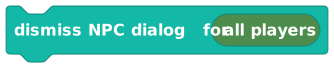
Instantly closes any NPC dialog box showing on the chosen players' screens.
This force-closes an open NPC dialog for the players you pick, without waiting for them to click through it. Use it to cut a conversation short - for example if a timer runs out, the player leaves an area, or another event should interrupt the dialog.
Inputs & fields
| Slot | Accepts | Default | What it's for |
|---|---|---|---|
for | PlayerGroup of playersPlayer list | all players | Whose dialog box to close. Defaults to every player; can be one player, a player group, or a list of players. |
How it behaves
Compiles the PLAYERS audience (defaulting to all players when empty) and emits cinematic.dismissNpcDialog. At runtime it fails if the audience is empty, sends a dismissNpcDialog effect to the targeted clients, and records the dismissal in the NPC dialog progress tracker (so any waiting 'NPC dialog' step can resolve). Runs instantly and does not pause the script.
Watch out
This only closes the dialog box; it does not run the remaining speech steps' 'do' blocks of an interrupted 'NPC dialog'.
It only affects the players you target, so dismiss everyone who is viewing the dialog.
Tips
Use it as a safety cut-off, e.g. dismiss the dialog when a player leaves the area where the conversation started.
Target the same audience that was shown the dialog so nobody is left with a stuck box.
Examples
When player {leaves area} the meeting room → dismiss NPC dialog for {the triggering player}If the player walks out mid-conversation, their NPC dialog box closes automatically.
See also
A couple of the trickier ones, explained
Fade to black (and back)
Fade To/From Black: one block, with a dropdown to choose the direction.
This is one block with a dropdown to pick the direction. To black dims the screen down to darkness; from black fades it back up to normal. Both animate smoothly.
Here's the catch: fading to black is sticky. If you never fade from black (or run Remove Visual Effects), the player is left staring at a dark screen.
NPC dialog: the one that pauses
NPC Dialog: a portrait conversation box with click-to-advance.
This is the classic "talk to a townsperson" dialog box: a panel at the bottom of the screen with the NPC's face, their name, a line of text, and a click-to-advance prompt. You add each line of conversation with the little + button on the block.
This is the only cinematic block that stops your script and waits. Nothing after the dialog block runs until the player has clicked through every line (or the dialog times out). It also needs a scripted NPC, the kind you control like a puppet. An AI-brain NPC won't work. See the NPC pages to learn the difference.
- Camera shake really moves the camera, then puts it back. Intensity runs from 0 to 1, default 0.55.
- Confetti defaults to 72 pieces (max 160); a particle burst to 32 (max 120).
- Most flash-and-vanish effects last at most 10 seconds. Beat lights, big text, and object-path animations can run up to 30 seconds.
- The old soundscape zone block has been retired from the toolbox. Already-published scripts that use it keep working, but you can't place new copies; for an ongoing musical mood, use the start music action instead.
- Move Camera zoom is limited to 1 through 5, and the move takes at most 30 seconds.
- Set Background offers
ocean(default) orblack. Set Weather offersrain(default),snow, orfog. Neither one changes your room's real, saved look, only what the targeted players see right now. - Big Text comes in
small,medium(default), andlarge, and it uses the same nine screen positions as the HUD.