Math
Math blocks are how you make and work with numbers: typing one in, adding two together, rolling a random one. They also cover the special number-ish things Hideout uses for the 3D world: positions, directions, and the distance between two points.
Plain numbers
 Number: a value you type in.
- is a number you type, like
5,3.5, or-10. It's the block you'll reach for most.  is a whole number, no decimals. Anywhere a number
is wanted, a whole number fits too.
is a whole number, no decimals. Anywhere a number
is wanted, a whole number fits too.
Doing arithmetic
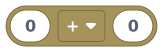 Math: add, subtract, multiply, divide, or remainder.
The block does basic math on two numbers. Pick the
operation from the dropdown:
| Symbol | Does |
|---|---|
+ | add |
- | subtract |
* | multiply |
/ | divide |
mod | the remainder after dividing (so 7 mod 3 is 1) |
This is the block you use to add 1 to a score, halve a value, or work out a remainder.
In normal math you can't divide by zero. Here, if you divide (or mod) by zero you get
0 back instead of an error, so your script keeps running. (In most other places, a value
that isn't a number is read as 0 too.)
Rounding and randomness
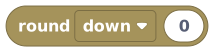 Round: turn a decimal into a whole number.
- turns a decimal into a whole number, either rounding
down or rounding up (your choice in the dropdown).
 picks a random whole number between two
values, including both ends. It defaults to 1 to 100, perfect for dice rolls, random
prizes, or "pick a number".
picks a random whole number between two
values, including both ends. It defaults to 1 to 100, perfect for dice rolls, random
prizes, or "pick a number".
Positions, directions, and distance
Hideout is a 3D world, so some "numbers" describe where and which way.
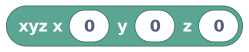 Coordinate (X, Y, Z): a point in the world.
- is a coordinate, a point in the world made of three
numbers:
x(how far across),y(how far along), andz(how high up). 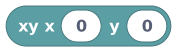 is a flat (x, y) coordinate, a spot on the floor
grid with no height.
is a flat (x, y) coordinate, a spot on the floor
grid with no height. pulls a single number out of a coordinate:
just the
pulls a single number out of a coordinate:
just the x, just they, or just thez. measures how far apart two positions are, as
a plain number. Use it for "is the player close enough?".
measures how far apart two positions are, as
a plain number. Use it for "is the player close enough?". is a facing direction: one of
 north,east,south, orwest.
Distance Between Positions: the straight-line gap between two points, as a number.
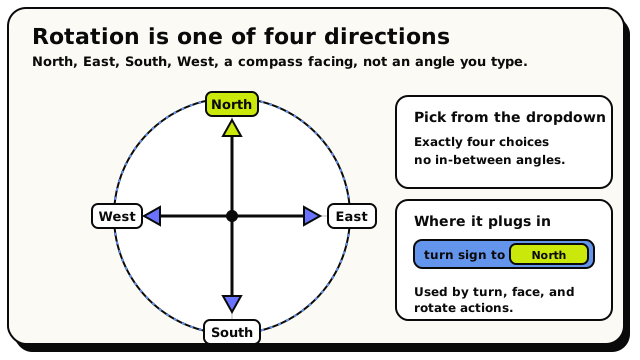 Rotation is a compass facing, one of North, East, South, or West, not a free angle.
You'll plug coordinates into blocks like "move object" or "teleport". The grid & positions guide explains how x, y, and z map onto your world.
Worked example
if ( (distance between [position of triggering player] and [position of door]) < 3 ) →
then open the door.
You measure the gap with distance between, then compare it with a Logic block.
Under the hood
The precise rules
- All math blocks read instantly and never pause the script.
- A whole number is accepted anywhere a number is wanted (a whole number is a number).
- Numbers must be finite; there's no infinity. Non-number inputs are read as
0where it makes sense. - Rotation has exactly four values:
north,east,south,west.
The blocks
Number
ValueMathNumberA plain number you type in, like 5, 3.5, or -10.
This is the basic number block. Type any number into it, including decimals and negatives. You plug it into any slot that asks for a number, like the amount of coins to give, a wait time, or one side of a math block. It is the number building block for everything in the Math category.
Inputs & fields
| Slot | Accepts | Default | What it's for |
|---|---|---|---|
VALUE | number | 0 |
How it behaves
Compiles to a constant number with whatever value you typed (defaults to 0). It is read instantly and never pauses the script.
Watch out
This holds decimals. If you specifically need a whole number, round it with the round block or use it inside a block that already rounds (like repeat or random whole number).
Tips
Most number sockets already come with a number block filled in for you; just click and type to change it.
Examples
wait {2.5} secondsUses a number block holding 2.5 to set the pause length.
See also
Rotation (Direction)
ValueMathDirectionA facing direction: North, East, South, or West.
This block holds a compass direction you pick from a dropdown. You plug it into blocks that need a direction, such as turning an object or pointing a player a certain way. The four choices are North, East, South, and West.
Inputs & fields
| Slot | Accepts | Default | What it's for |
|---|---|---|---|
rotation | rotation | north | Choose: North, East, South, West |
How it behaves
Compiles to a constant rotation value. If the stored value is somehow invalid, it falls back to North. Read instantly and never pauses the script.
Watch out
Only the four cardinal directions are available; you cannot pick an arbitrary angle here.
Tips
Use this with object-rotation or player-facing actions to set a clear, fixed direction.
Examples
set rotation of {the sign} to {rotation East}Turns the sign so it faces East.
Coordinate (X, Y)
ValueMathPosition (X, Y)A flat map spot made of two numbers: x (how far across) and y (how far along the floor grid).
This block builds a 2D point from an x and a y number. It is mostly used for flat, floor-plan style positions, such as the corners that define an Area. There is a small pin button next to it that lets you pick a spot in the world instead of typing the numbers by hand.
Inputs & fields
| Slot | Accepts | Default | What it's for |
|---|---|---|---|
xy x * | Number | 0 | How far across (the left/right position). |
y * | Number | 0 | How far along (the front/back position on the floor grid). |
COORDINATE_PICKER | custom |
How it behaves
Evaluates X and Y, then creates a 2D coordinate value from them. Read instantly and never pauses the script.
Watch out
This is a flat (2D) coordinate with only x and y. For a full position in the world with height, use the 3D Coordinate block instead.
Tips
Click the pin/picker button to grab a spot from the world visually instead of guessing numbers.
Two of these define an Area block's opposite corners.
Examples
Area from {xy 0, 0} to {xy 10, 10}Uses two 2D coordinates to mark the opposite corners of a square area.
Coordinate (X, Y, Z)
ValueMathPosition (X, Y, Z)A full position in the world made of three numbers: x, y, and z (height).
This block builds a 3D point from an x, a y, and a z number. It is the standard way to describe a spot in the world, like where to teleport a player or move an object. There is a pin button next to it that lets you pick a location in the world instead of typing the numbers.
Inputs & fields
| Slot | Accepts | Default | What it's for |
|---|---|---|---|
xyz x * | Number | 0 | How far across (the left/right position). |
y * | Number | 0 | How far along (the front/back position). |
z * | Number | 0 | The height (how far up). |
COORDINATE_PICKER | custom |
How it behaves
Evaluates X, Y, and Z, then creates a 3D coordinate value from them. Read instantly and never pauses the script.
Watch out
z is always the height (up). The pin/picker only reads spots off the flat floor, so it always gives a z of 0; type a z value in by hand if you need a position off the ground.
Tips
Click the pin/picker button to grab a real position from the world instead of guessing.
Pull a single number out of a coordinate with the "get x/y/z of position" block.
Examples
teleport {triggering player} to {xyz 5, 0, 5}Builds a 3D position and sends the player there.
Get X / Y / Z of Position
ValueMathNumberPulls a single number (the x, y, or z) out of a 3D position.
This block takes a coordinate and gives you just one of its three numbers: the x, the y, or the z, whichever you pick. Use it when you only care about one axis, like a player's height (z) or how far east they are (x).
Inputs & fields
| Slot | Accepts | Default | What it's for |
|---|---|---|---|
of position * | Position (X, Y, Z) | The 3D coordinate to read a single number out of. | |
get | dropdown | x | Choose: x, y, z |
How it behaves
Evaluates the 3D coordinate input and returns the chosen axis as a number. Read instantly and never pauses the script.
Watch out
It expects a 3D coordinate (x, y, z). Feed it a position block or a position-returning block like 'position of player'.
Tips
Combine with compare to check things like 'is the player above a certain height (z)?'.
Examples
if compare {get z of position {position of triggering player}} {>} {10} → do: ...Reads just the z (height) value from the player's position and checks if it is above 10.
Distance Between Positions
ValueMathNumberMeasures how far apart two positions are, as a number.
This block measures the straight-line distance between two 3D positions and gives you a number. Use it to check how close a player is to something, like "is the player within 5 of the treasure?". Smaller numbers mean closer together.
Inputs & fields
| Slot | Accepts | Default | What it's for |
|---|---|---|---|
distance from position * | Position (X, Y, Z) | 0, 0, 0 | The first position. |
to position * | Position (X, Y, Z) | 0, 0, 0 | The second position. |
How it behaves
Evaluates both positions and returns the 3D straight-line distance between them as a number. Read instantly and never pauses the script.
Watch out
Both inputs default to the position 0,0,0, so an empty block returns 0. Plug real positions in.
The distance includes height (z), so two points stacked vertically still count as far apart.
Tips
Pair with a compare block to make proximity checks, e.g. distance < 5.
Use 'position of player' and 'position of NPC' to feed real, live positions in.
Examples
if compare {distance from {position of player} to {position of NPC}} {<} {3} → do: NPC says "Hello!"Measures the gap between the player and the NPC, and greets them when the gap is small.
Math (+ - * /)
ValueMathNumberDoes basic math with two numbers: add, subtract, multiply, divide, or remainder (mod).
This block takes two numbers and combines them with the operation you pick: plus (+), minus (-), times (*), divide (/), or mod (the remainder after dividing). It gives back a number, so you can chain these together or plug the result into other blocks. Use it for scores, timers, prices, positions, and anything that needs arithmetic.
Inputs & fields
| Slot | Accepts | Default | What it's for |
|---|---|---|---|
A * | NumberWhole number | 0 | The first number. |
B * | NumberWhole number | 0 | The second number. |
OP | dropdown | ADD | Choose: +, -, *, /, mod |
How it behaves
Both numbers are evaluated and the chosen operation is applied. Division by zero returns 0 instead of crashing (both / and mod), so you never get an error from dividing by zero. Non-number inputs are read as numbers where possible (text that isn't a number, and other non-number values, count as 0). Read instantly and never pauses the script.
Watch out
Dividing by zero gives 0, not an error and not infinity. Check for a zero divisor first if that matters.
"mod" gives the leftover after dividing (7 mod 3 is 1). It is not regular division.
Results can be decimals; wrap with the round block if you need a whole number.
Tips
Chain math blocks for bigger formulas, e.g. (score * 10) + bonus.
Use "mod 2" with a compare to check if a number is even (mod 2 = 0) or odd.
Examples
set room variable {score} to {{score} {+} {10}}Takes the current score, adds 10, and saves it back.
Round
ValueMathNumberTurns a decimal number into a whole number, either rounding down or rounding up.
This block takes a number with a decimal and makes it a whole number. Pick "round down" to drop the decimal part (2.9 becomes 2) or "round up" to push to the next whole number (2.1 becomes 3). Use it after division or random math when you need a clean whole number, like a count of items.
Inputs & fields
| Slot | Accepts | Default | What it's for |
|---|---|---|---|
VALUE * | NumberWhole number | 0 | The number to round. |
MODE | dropdown | FLOOR | Choose: round down, round up |
How it behaves
Evaluates the input number, then applies floor (round down to the nearest whole number) or ceil (round up to the nearest whole number) depending on the dropdown. Read instantly and never pauses the script.
Watch out
This is always round down or round up, not normal "round to nearest". 2.5 with round down becomes 2, and 2.1 with round up becomes 3.
Rounding down a negative number makes it more negative (-1.2 becomes -2).
Tips
Pair with divide to split things evenly, e.g. round down (total / players).
Round up is handy for 'how many pages/groups do I need' style counts.
Examples
set variable {each} to {round down {{total} {/} {players}}}Divides the coins among players and rounds down so nobody gets a fraction of a coin.
See also
Random Whole Number
ValueMathNumberPicks a random whole number between two values, including both ends.
This block gives a surprise whole number somewhere between your low and high values (defaults 1 to 100). Both ends are possible, so "from 1 to 6" can give any of 1, 2, 3, 4, 5, or 6, like rolling a die. Use it for randomness: random spawn spots, loot, dice, picking a winner.
Inputs & fields
| Slot | Accepts | Default | What it's for |
|---|---|---|---|
random whole number from * | NumberWhole number | 1 | The lowest number it can pick. |
to * | NumberWhole number | 100 | The highest number it can pick. |
How it behaves
Both ends are evaluated and rounded to whole numbers. The result is a random whole number from the smaller to the larger value, inclusive of both ends. If you accidentally put the bigger number first, the block still works (it sorts them). Each time the block runs it can give a different result. Reads instantly and never pauses the script.
Watch out
Both the low and high values can come out, so "1 to 6" includes 6.
Decimals are rounded to whole numbers before picking, so you only ever get whole numbers out.
Tips
Use 1 to N to pick a random index, then read that spot from a list.
For a coin flip, use 0 to 1 and check the result.
Examples
set variable {roll} to {random whole number from {1} to {6}}Picks a number from 1 to 6, just like rolling a die.