Debug
When a script doesn't do what you expected, the question is always “what is it actually doing?” The Debug block lets your script leave little notes about itself as it runs, so you can peek inside and find out exactly what happened, and where it went wrong.
What is debugging?
A bug is when your script does something you didn't mean. Debugging is the detective work of finding out why. The hardest part is usually seeing what your script is up to: it runs in a fraction of a second, invisibly, on the server.
The Debug block makes the invisible visible. You drop it into your script with a message, and every time the script runs past it, that message gets recorded. Read those messages back, and you can follow your script's footsteps.
Think of it like leaving a trail of breadcrumbs through a forest. Later, you walk the trail and see exactly where you went.
The block
Block data for “Debug” is being generated.
The 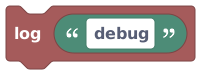 Log block takes one thing: a message to record.
Drop in a simple value, like a piece of text, a number,
a true/false flag, or the value of a variable. (It accepts
text, numbers, true/false, durations, and rotations; to log a player or object, turn it into
text first, for example with their name.) It's a Action stack block,
so it snaps into your script like any action and the blocks keep running right past it.
Log block takes one thing: a message to record.
Drop in a simple value, like a piece of text, a number,
a true/false flag, or the value of a variable. (It accepts
text, numbers, true/false, durations, and rotations; to log a player or object, turn it into
text first, for example with their name.) It's a Action stack block,
so it snaps into your script like any action and the blocks keep running right past it.
Log records a message every time your script runs through it.
How to actually use it
The classic trick is the “did we get here?” check. Suppose a door isn't opening and you can't tell why. Sprinkle Log blocks through the script:
Log at the start
Put a Log block right under your event that says"door script started". If you never see it, the event itself isn't firing.Log the values
Before the part that decides things, log the value you're checking, like the player's score or an object's state. Now you can see the real numbers your script is working with, not the ones you assumed.Log inside the branch
Put a Log inside your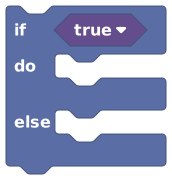 “if” block. If it never prints, your condition is false when you thought it was true.
Read the trail
Open the editor's Runs panel (see below) and follow the messages in order. The gap between the last message you see and the one you don't is where the problem lives.
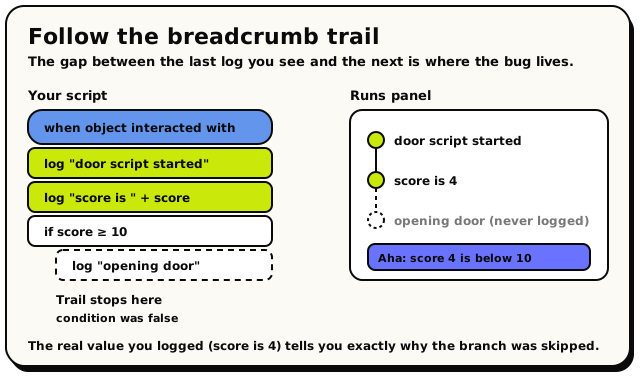 Logs left through the script become a trail in the Runs panel. The trail stops where the script stopped going, and the real value you logged often tells you why.
"got here" tells you the script reached a spot. "score is " joined with the actual
score tells you why it did what it did. Logging the real values is the trick that cracks most
bugs, because most bugs are a value being something you didn't expect.
Where the messages show up
Your logs are recorded on the server and shown in the script editor's Runs panel, the list of recent script runs, newest first. Each run shows the behavior name, whether it completed or failed, and how much work it did. Open it up to walk through what happened.
- The room keeps a rolling buffer of the most recent debug records (up to 500). Old ones drop off the end, so debug logs are for live investigation, not permanent records.
- The Runs panel refreshes every couple of seconds while it's open, so trigger your event and watch the new run appear.
Tidy up when you're done
Debug logs are for you, while you're hunting a bug. Once the script works, delete the Log
blocks you scattered around (or at least the chatty ones). They add a tiny bit of work to
every run, and a script littered with old "test 1", "test 2" logs is harder to read.
Leave a couple of meaningful ones if they help; clear out the noise.