Actions
If events are the “when” of your script, actions are the “do”. These are the blocks that make real things happen: move an object, teleport a player, play a sound, flip a sign. Snap them under an event and they run in order, top to bottom.
What is an action?
An action is a command. It tells your world to do one thing right now.
Think of a recipe. The event is the moment you decide to bake (“when the oven beeps”). The actions are the steps: crack the egg, stir the bowl, open the door. Each one is a single, concrete move.
Actions are stack blocks, the puzzle-piece shape with a bump on top and a notch on the bottom (Action). They snap together in a column, and your script runs them one after another.
 A typical action block. It does one thing, here it plays a sound, then hands off to the block below it.
Actions are only half the picture. Most action blocks have slots you drop other blocks into: a number, a player, an object. Those droppable pieces are values, and they're explained in Values & types. A quick rule: stack blocks = verbs (do something), value blocks = nouns (a thing).
The kinds of action you'll find here
This page is the grab-bag of everyday “make it happen” blocks. They fall into a few loose families:
- Object actions: change an object's state, move it, rotate it, delete it, or
rewrite a sign.
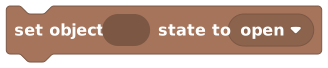 is one you'll use a lot,
alongside
is one you'll use a lot,
alongside 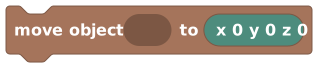 ,
, 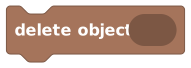 and
and 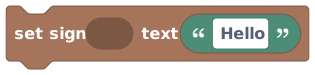 . You can even conjure a brand-new object
from the catalogue with
. You can even conjure a brand-new object
from the catalogue with  ; it hands the new
object back to you through
; it hands the new
object back to you through  .
. - Player actions:
 someone somewhere,
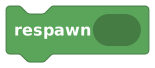 them to a spawn point, turn them with
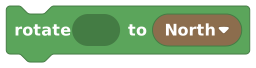 , or play a little animation like a wave or a
dance with
, or play a little animation like a wave or a
dance with 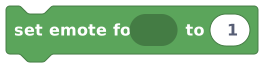 .
. - Messages: pop up a toast (a small message that slides in and fades) with
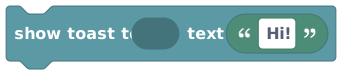 , send a
  ,
or show an on-screen
,
or show an on-screen  .
. - Sound & music:
 plays a one-shot
effect for one player, a group, or everyone. For an ongoing soundtrack there's
plays a one-shot
effect for one player, a group, or everyone. For an ongoing soundtrack there's
 and
and  :
unlike a sound, music keeps playing after the script ends, loops if you want, and
players who join later hear it too. Pick the song with a
:
unlike a sound, music keeps playing after the script ends, loops if you want, and
players who join later hear it too. Pick the song with a
 block.
 - World look: set how bright the whole room is with
 (so you can fake day and night), or
  and
and
 to hide and show name tags.
Some action-flavoured blocks live on their own pages because there are so many of them:
- On-screen scoreboards, timers and health bars live on HUD blocks.
- Camera moves, screen flashes, fades, weather, confetti and NPC dialog live on Cinematic blocks.
- Spawning, walking and talking to NPCs live on the NPC blocks.
- Teleporting whole groups at once lives on the Players & Groups blocks.
This page is the plain, everyday toolkit.
A few things every beginner trips on
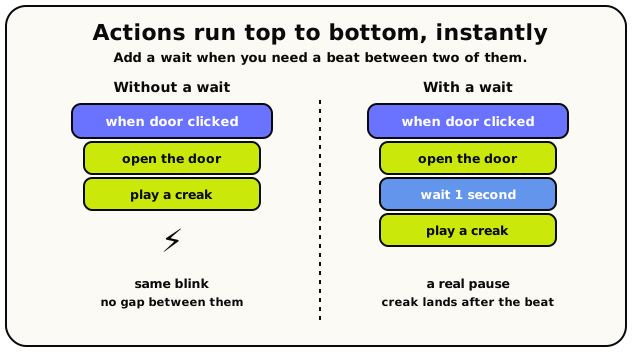 Actions fire top to bottom in the same blink. Slip a wait block between two of them when you need a real pause.
The blocks run top to bottom as fast as the room can manage. There is no pause between
them unless you add a  (“wait”) block. So “move
the door, then play a creak” happens in the same blink. If you want a beat between two
actions, drop a wait in. See Timers, loops & waits.
(“wait”) block. So “move
the door, then play a creak” happens in the same blink. If you want a beat between two
actions, drop a wait in. See Timers, loops & waits.
A single run of a script can only do so much work before the engine calls it a day. A runaway script (say, a loop that never ends) is stopped automatically so it can't freeze your room. You won't hit it doing normal stuff, but it's good to know it exists. Details are in Publishing & limits.
The blocks
Every Action block is listed below with its picture, what it does, and the slots it takes.
Set Object State
ActionActionsInstantly switches an object into a named state, like making a door look open or a lamp look on.
Many objects can look or behave several different ways: a door can be open or closed, a lamp on or off. Each look is called a 'state'. This block snaps the object straight into the state you pick. Use it when you want an immediate change with no animation, for example opening a chest the moment a player clicks it.
Inputs & fields
| Slot | Accepts | Default | What it's for |
|---|---|---|---|
set object * | Object | The object whose state you want to change. | |
state to * | Text | state | The name of the state to switch the object into. By default this is a 'state' dropdown that lists the states this object actually supports. |
How it behaves
Takes an object and a state name, then switches the object into that state and waits for the change to apply before continuing. First it checks the object still exists and that the state is valid for the object's current rotation. If the object is gone or doesn't support that state, the action fails (stops with an error) instead of quietly doing nothing. The state name is trimmed to the maximum allowed length.
Watch out
If you type a state name the object doesn't have, the action fails. It does not fall back to a default.
The list of valid states can depend on the object's current rotation, so the same name may not work after you rotate it.
This is an instant snap, not a smooth animation.
Tips
Use the built-in 'state' dropdown rather than typing a name by hand; it only shows states the object really supports.
Pair it with 'When object is interacted with' to toggle things on click.
Examples
When object {a door} is interacted with → set object {the door} state to {"open"}Clicking the door immediately switches it to its open state.
Advance Object State
ActionActions
Moves an object to its next state by following a named transition, like stepping a traffic light from green to amber.
Some objects have built-in 'transitions' that connect their states together, like a path from 'closed' to 'opening' to 'open'. Instead of naming the exact state you want, this block follows a transition from wherever the object is now. It's great for objects that should step through states in order, like a multi-stage machine or a counter.
Inputs & fields
| Slot | Accepts | Default | What it's for |
|---|---|---|---|
advance object * | Object | The object you want to move to its next state. | |
transition * | Text | transition | The named transition (path) to follow from the current state. By default this is a 'transition' dropdown listing the transitions available right now. |
How it behaves
Takes an object and a transition name. It looks at the object's current state and the transitions leading out of it. If you name a transition, it follows that one; if you leave it blank, it follows the first available transition from the current state. It then checks the object can legally move into the next state and applies the change, waiting for it to apply. It fails if the object no longer exists, or if there's no valid transition out of the current state.
Watch out
It moves relative to the object's CURRENT state, not to a fixed state, so calling it twice steps forward twice.
If you leave the transition blank it uses the first available one, which may not be the one you expected.
If the current state has no outgoing transition (or the named one isn't valid), the action fails.
Tips
Use the 'transition' dropdown so you only pick transitions that exist.
Use this for things that cycle or step forward; use 'Set object state' when you want to jump to one specific look.
Examples
When object {the lever} is interacted with → advance object {the machine} transition {"next"}Each click follows the 'next' transition, stepping the machine to its following state.
Move Object
ActionActionsPicks up an object and drops it at a new x, y, z spot in the world, keeping the way it's facing.
Use this to teleport an object to a new position in the room. You give it a 3D location (x across, y up, z depth) and the object instantly appears there. It keeps its current rotation, so only the position changes. Handy for moving platforms, hiding props, or repositioning anything during your script.
Inputs & fields
| Slot | Accepts | Default | What it's for |
|---|---|---|---|
move object * | Object | The object you want to move. | |
to * | Position (X, Y, Z) | x 0 y 0 z 0 | The world position (x, y, z) to place the object at. Defaults to 0, 0, 0. |
How it behaves
Takes an object and an x/y/z location. It confirms the object still exists, then moves it to the new spot while keeping its current rotation, and waits for the move to apply. The move is instant (a snap, not a glide). Fails if the location isn't valid or the object no longer exists.
Watch out
It snaps instantly: there is no smooth sliding animation.
It keeps the object's existing rotation; use 'Rotate object' separately if you also want to turn it.
Coordinates are world positions, not offsets from where the object currently is.
Tips
Use the coordinate picker on the vector3 block to grab a real spot in your world instead of guessing numbers.
Combine with a wait and repeated moves to fake a slow-moving platform.
Examples
move object {the crate} to {x 999 y 0 z 999}The crate instantly jumps to a far-off position, effectively hiding it.
Rotate Object
ActionActions
Turns an object to face North, East, South, or West without moving it.
Use this to spin an object to face a new direction while keeping it in the same spot. You pick one of four compass directions. Great for pointing arrows, turning furniture, or aiming an object at a doorway.
Inputs & fields
| Slot | Accepts | Default | What it's for |
|---|---|---|---|
rotate object * | Object | The object you want to turn. | |
to * | Direction | North | The direction the object should face: North, East, South, or West. Defaults to North. |
How it behaves
Takes an object and a rotation, turning it into a compass direction. It confirms the object still exists, then turns it to face that way without letting it drift from its spot, and waits for the turn to apply. Fails if the rotation can't be understood or the object no longer exists.
Watch out
Only the four compass directions (North/East/South/West) are supported.
The turn is instant, not a smooth spin.
An unreadable rotation value causes the action to fail.
Tips
Keep a rotation value in a variable if you want to cycle an object through several facings.
Use the rotation dropdown so you always pick a valid direction.
Examples
rotate object {the arrow sign} to {East}Turns the arrow sign to face East while leaving it in place.
See also
Delete Object
ActionActionsPermanently removes an object from the room.
Use this to make an object disappear from the world for good, like collecting a coin, breaking a crate, or clearing away a prop. Once deleted, the object is gone and its handle no longer points to anything.
Inputs & fields
| Slot | Accepts | Default | What it's for |
|---|---|---|---|
delete object * | Object | The object you want to remove from the world. |
How it behaves
Takes an object and confirms it still exists, then deletes it and waits for the change to apply. After this runs, the object is gone from the world. Fails if the object no longer exists.
Watch out
Deletion is permanent within the running script: the object is gone, not just hidden.
Any other blocks still holding that object's handle will fail because the object no longer exists.
If you only want it out of sight temporarily, use 'Move object' to push it away instead.
Tips
Double-check you're deleting the right object; there's no undo inside a script.
Trigger it from 'When object is interacted with' for collectibles that vanish on click.
Examples
When object {a coin} is interacted with → delete object {the coin}Clicking the coin removes it from the world, like picking it up.
Spawn Object
ActionActionsCreates a brand-new object from the catalogue at a spot in your world, exactly there or at the closest free spot, facing a direction.
Use this to make objects appear while your world is running: drop a treasure chest when a puzzle is solved, scatter coins at the start of a round, or build a platform piece by piece. Pick the object from the catalogue (the picker opens a searchable list of every object that can be spawned), give it a position, and choose which way it should face. The new object is a real object, exactly like one you placed by hand in Build Mode: it stays in the world, shows up in Build Mode, and can be moved, changed or deleted by other blocks. Straight after this block runs, 'last spawned object' hands you the new object so you can store it, move it, or delete it later.
Inputs & fields
| Slot | Accepts | Default | What it's for |
|---|---|---|---|
at / near * | Position (X, Y, Z) | 0, 0, 0 | Where in the world the new object should appear (x, y, z). |
facing * | Direction | South | Which direction the new object should face when it appears. |
spawn object | dropdown | ||
placement | dropdown | exact | Choose: at, near |
How it behaves
Creates one new copy of the chosen catalogue object at the given position, facing the given direction. The position is the tile of the object's back-bottom-left corner (the same point 'position of object' reports), rounded to whole tiles; the direction is used as given when the object supports it, otherwise the object's default direction is used. The little dropdown before the position picks the placement rule. 'at' (the default) puts the object exactly on that spot, even if a player or another object is in the way, just like 'move object' can move things anywhere. 'near' looks for the closest spot where the object properly fits: the exact spot first, then up to 3 tiles around it on the same floor, and if nothing fits the action fails (the rest of the run carries on) with the reason in the script debug log; 'last spawned object' is then empty. Spawning also fails when the chosen object can't be spawned, when the world is already at its 8,000-object limit, or when scripts are spawning too fast (more than 50 objects in a quick burst, then more than 10 per second in the world). The new object is free and belongs to nobody. It counts towards the world's 8,000-object limit, survives the world sleeping and restarting, can be deleted in Build Mode or with 'delete object', and fires 'when any object is added' just like a hand-placed object. The action runs instantly and does not pause your script.
Watch out
'When room starts → spawn object' runs again every time the world restarts, so objects pile up over time. Keep the handle in a room variable (or a room list) and delete the old one first, or spawn from a player interaction instead.
With 'at', the object appears exactly where you said, even inside a player or another object, so it can overlap things. With 'near', it can land up to 3 tiles away, and if nothing nearby is free the action fails, the run carries on, and 'last spawned object' is empty.
It fails when the world is at its 8,000-object limit, and when scripts spawn too fast: at most 50 objects in a quick burst, then 10 per second for the world.
Spawning fires 'when any object is added', so don't spawn inside that event without a guard (a condition or a counter) or you'll create an endless loop.
Only catalogue objects can be spawned: nothing from your Inventory (objects you personally own), and no walls, floors, doors or windows, which are placed with the construction tools. The picker only shows objects that can be spawned.
Tips
Store 'last spawned object' in a room variable (or add it to a room list) straight after spawning, so another script can move or delete the object later.
To drop something beside a player instead of on top of them, switch the dropdown to 'near' and use 'position of player' as the location: the object lands on the closest free tile.
Pair it with 'delete object' for temporary objects: spawn → wait a few seconds → delete object {last spawned object}.
Examples
When object {lever} is interacted with → spawn object {Treasure Chest} at {12, 4, 0} facing South → set room variable {chest} to {last spawned object}Pulling the lever creates a chest at a fixed spot and remembers it in a room variable, so a later script can move or delete it.
When room starts → repeat {10} times → spawn object {Coin} at {a random spot} facing South → add {last spawned object} to {end} of room list {coins}Each loop creates one coin and records its handle in a room list, so a clean-up script can delete them all later instead of letting them pile up.
When object {button} is interacted with → spawn object {Fireworks Crate} near {position of object {triggering object}} facing South → wait {5} seconds → delete object {last spawned object}The crate appears on the nearest free tile beside the button, stays for five seconds, then cleans itself up. 'last spawned object' still works after the wait because it's the same run.
Set Sign Text
ActionActionsChanges the words written on a sign object.
Use this to update what a sign says while your world is running. You could show a player's score, a welcome message, a countdown, or a hint. The sign updates for everyone in the room. Signs only fit a limited number of lines and characters, and only certain characters are allowed.
Inputs & fields
| Slot | Accepts | Default | What it's for |
|---|---|---|---|
set sign * | Object | The sign object you want to write on. | |
text * | Text | Hello | The words to show on the sign. Defaults to 'Hello'. |
How it behaves
Takes a sign object and some text. The text is cleaned up: it's cut to the sign's line limit, then to its character limit, and rejected if it contains characters the sign font can't display. If the text is valid, it's written to the sign and the script waits for the change to apply. Fails if the target isn't an object, the value isn't text, or the text has unsupported characters.
Watch out
Signs have a limited number of lines and characters; extra text is cut off.
Unusual symbols or emoji in the text can make the action fail because only supported characters are allowed.
This sets text only; use 'Set sign emoji' for the picture sign style.
Tips
Use the 'join text' / text blocks to build messages with live numbers, like a score counter.
Keep messages short so they fit within the sign's line limits.
Examples
set sign {the scoreboard} text {join "Score: " with {score}}Updates the scoreboard sign to show the current score whenever the script runs.
See also
Set Sign Emoji
ActionActions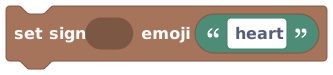
Shows a built-in picture icon (like a heart) on a sign.
Some signs can display a picture instead of words. This block sets which built-in icon a sign shows by name, such as 'heart'. Use it for decorative signs, status indicators, or simple emoji-style feedback. You must use one of the supported icon names, not arbitrary emoji.
Inputs & fields
| Slot | Accepts | Default | What it's for |
|---|---|---|---|
set sign * | Object | The sign object you want to show an icon on. | |
emoji * | Text | heart | The name of the built-in sign icon to display, for example 'heart'. Defaults to 'heart'. |
How it behaves
Takes a sign object and an icon name (text), trims spaces, and checks the name against the list of valid sign icons. If it matches, the icon is shown on the sign and the script waits for the change to apply. Fails if the target isn't an object, the value isn't text, or the icon name isn't a recognized sign icon.
Watch out
You must use a supported icon NAME (like 'heart'), not a typed-out emoji character.
An unknown icon name causes the action to fail.
Setting an emoji replaces the sign's text look, and vice versa.
Tips
Check the available sign icon names in the editor before typing one.
Use it as a quick on/off indicator by swapping between two icons.
Examples
set sign {the status sign} emoji {"heart"}Displays the heart icon on the chosen sign.
See also
Set Global Illumination
ActionActionsInstantly sets how bright the whole room is, from pitch black to fully lit.
This block controls the overall brightness of the entire world's lighting. A value of 1 is full daylight and 0 is total darkness. Use it to flip between day and night, create a spooky blackout, or set the mood for a cutscene. The change happens instantly for everyone in the room.
Inputs & fields
| Slot | Accepts | Default | What it's for |
|---|---|---|---|
set global illumination * | Number | 1 | How bright the whole room is, from 0 (fully dark) to 1 (fully lit). Defaults to 1. |
How it behaves
Takes a number and keeps it within 0 to 1 (anything below 0 becomes 0, anything above 1 becomes 1). It sets the room's brightness to that level and waits for the change to apply. The change is instant. Fails only if the value isn't a number.
Watch out
Values are clamped to 0-1, so 2 acts the same as 1 and -5 acts the same as 0.
It snaps instantly; use 'Fade global illumination' for a smooth transition.
This affects the whole room's lighting, not a single object.
Tips
Use 0 for a sudden blackout and 1 to bring the lights back.
Drive the value from a variable to dim the room gradually over several script runs.
Examples
set global illumination {0}Plunges the entire world into darkness instantly.
Fade Global Illumination
ActionActions
Smoothly fades the room's brightness to a new level over a number of seconds.
Like 'Set global illumination', but instead of snapping it eases the brightness from where it is now to a new value over the time you choose. Use it for sunrises, sunsets, gentle dimming for a cutscene, or a slow fade to black. A value of 1 is full light and 0 is darkness.
Inputs & fields
| Slot | Accepts | Default | What it's for |
|---|---|---|---|
fade global illumination * | Number | 1 | The target brightness to fade to, from 0 (dark) to 1 (fully lit). Defaults to 1. |
over * | NumberWhole numberDuration | 2 | How long the fade should take, in seconds. Defaults to 2. |
How it behaves
Takes a target brightness and a number of seconds. It starts the room fading toward that brightness (kept within 0-1), and each player's screen handles the smooth fade over the chosen time. The script itself does NOT pause for the fade: it kicks off the fade and moves straight on to the next block. Fails if the target value isn't a number.
Watch out
The target value is clamped to 0-1, so anything above 1 or below 0 is treated as the limit.
The script does not pause for the full fade duration; it fires the fade and moves on.
Very short durations look almost identical to an instant set.
Tips
Use a few seconds for a believable sunrise or sunset feel.
Chain a fade to 0 then a fade to 1 with a wait in between for a blink-of-darkness effect.
Examples
fade global illumination {0} over {5} secondsGently darkens the whole room to black across five seconds.
Hide Name Tags
ActionActionsStops player and pet names appearing on pointer hover in the room.
Player and pet names normally stay off-screen until someone points at an avatar. This block suppresses those passive hover labels for the whole room. It is useful for cleaner screenshots and cinematic moments, but it does not hide identity everywhere.
How it behaves
Takes no inputs. It disables pointer-hover name labels for every player and pet in the room, then waits for the change to apply. Use 'Show name tags' to allow hover labels again.
Watch out
This affects everyone in the room, not just one player.
A first touchscreen tap still briefly reveals a player's name, and a second tap can open their profile card.
Name tags stay disabled on hover until something shows them again; they don't come back on their own.
Tips
Pair it with 'Show name tags' at the end of a cutscene so hover labels return afterwards.
Use it for clean screenshots or scenes where hover labels would be distracting.
Examples
When room starts → hide name tags
Disables hover names when the world loads for a cleaner, cinematic look.
Show Name Tags
ActionActionsAllows player and pet names to appear on pointer hover in the room.
This is the opposite of 'Hide name tags'. It allows player and pet names to appear when someone points at an avatar. Names remain off-screen while nobody is hovering.
How it behaves
Takes no inputs. It enables pointer-hover name labels for every player and pet in the room, then waits for the change to apply.
Watch out
This affects everyone in the room at once.
It does not make names persist above avatars; labels appear only during hover.
If hover name tags were never hidden, running this has no visible effect.
Tips
Call it at the end of a cinematic to restore hover labels after an earlier 'Hide name tags'.
Examples
(after cutscene) → show name tags
Allows hover names again once the cinematic moment is over.
Sound
ValueActionsSound
Picks a sound effect from your world's sound library so a 'play sound' block can play it.
This is a value block that holds one chosen sound effect. You pick a sound from a dropdown of the public sounds available in your world, then plug this block into the sound socket of a 'play sound' or 'play sound for' block. On its own it does nothing: it's the ingredient, not the action. Use it whenever you want to play a specific sound from your library.
Inputs & fields
| Slot | Accepts | Default | What it's for |
|---|---|---|---|
sound | sound |
How it behaves
Holds the sound you picked from the dropdown (its id and name). If you haven't chosen a public sound, the editor shows a 'Choose a public sound effect.' error and the script won't run until you pick one. Producing the value is instant and never pauses the script.
Watch out
On its own this block plays nothing; it only describes which sound to use. You must plug it into a 'play sound' or 'play sound for' block.
If you leave the dropdown empty (no sound chosen) the script gets an error and won't run until you pick a real, public sound.
Only sounds that are public/available in your world show up in the list.
Tips
Instead of this block you can also type a sound id directly into a 'play sound' block's text socket, but this dropdown is easier because it lists your real sounds.
Pick the sound once here and reuse the same block in several places by copying it.
Examples
When object {a button} is interacted with → play sound for {all players} sound {sound "ding"} at {(empty)}The sound block supplies the 'ding' effect, and the play-sound block actually plays it for everyone.
See also
Teleport
ActionActionsInstantly moves a player to a chosen spot in your world.
Use this to teleport someone somewhere new in your world: a start pad, a secret room, a lobby, or anywhere you give it a position. You pick who to move and where. It happens immediately, with no walking animation. Great for game starts, doors, traps, and warps.
Inputs & fields
| Slot | Accepts | Default | What it's for |
|---|---|---|---|
teleport * | PlayerGroup of playersPlayer list | Who to move. Usually a single player (like the triggering player), but it also accepts a player group or a list of players, in which case everyone is moved. | |
to * | Position (X, Y, Z) | x:0 y:0 z:0 | The spot in the world to move the player to. Comes with a default position of 0,0,0 that you can change or replace with a position block. |
How it behaves
Takes a player and an x/y/z location. If that player is online, it moves them to the given spot, and the script waits for the move to apply before continuing. If you pass a group or list, everyone in it is teleported. The action fails (and the script stops with an error) if no valid player is given, the location is missing, or the player is not connected.
Watch out
If the player has disconnected, the block fails and stops the rest of the script; it does not silently skip them.
The default 0,0,0 location is the corner of the world; remember to set a real position or plug in a position block.
There is no movement animation; the player just appears at the destination.
Tips
Combine with a 'position of' block to teleport players to where an object currently is.
Use it inside a 'when player joins' event to drop new arrivals onto a spawn pad.
Examples
When object {a portal} is interacted with → teleport {the triggering player} to {position of the exit pad}Whoever clicks the portal is instantly moved to wherever the exit pad is.
See also
Rotate
ActionActionsTurns a player to face a chosen compass direction (North, East, South, or West).
Use this to spin a player so their avatar faces a particular way. Handy for lining everyone up at a start line, making players look at something, or setting up a cutscene. You choose who to turn and which of the four directions they should face. It happens instantly.
Inputs & fields
| Slot | Accepts | Default | What it's for |
|---|---|---|---|
rotate * | PlayerGroup of playersPlayer list | Who to turn. A single player, a player group, or a list of players; everyone provided gets turned. | |
to * | Direction | North | Which direction to face: North, East, South, or West. Comes set to North by default. |
How it behaves
Takes a player and a rotation, turning the rotation into one of the four compass directions (north/east/south/west). If the player is online, it turns them to face that way, and the script waits for the turn to apply before continuing. If you pass a group or list, everyone in it is turned. The action fails (stopping the script) if the rotation is invalid, no valid player is given, or the player is not connected.
Watch out
Only the four compass directions are supported; you cannot set an exact angle.
If the player has disconnected the block fails and stops the script.
This only changes which way they face; it does not move them.
Tips
Pair it with a teleport block to drop players at a start pad already facing the right way.
Use it in a cutscene to make everyone look toward the action.
Examples
When round starts → rotate {all players} to NorthEveryone is turned to face north so they all start a race pointing the same way.
See also
Respawn
ActionActionsSends a player back to a spawn point in your world.
Use this to respawn someone, moving them to one of your world's spawn points, like restarting a level or recovering from a trap. You pick who to respawn. It happens instantly. This is different from teleport because it uses your world's built-in spawn locations rather than a position you give.
Inputs & fields
| Slot | Accepts | Default | What it's for |
|---|---|---|---|
respawn * | PlayerGroup of playersPlayer list | Who to send back to a spawn point. A single player, a player group, or a list of players. |
How it behaves
Takes a player and sends them back to one of your world's spawn points; the script waits for the move to apply before continuing. If you pass a group or list, each player who can be respawned is moved. The action fails (stopping the script) if no valid player is given, or the player can't be respawned.
Watch out
Where the player lands is decided by your world's spawn points, not by you; use teleport if you need an exact spot.
If a respawn operation cannot be created for the player, the block fails and stops the script.
Tips
Great for resetting players between rounds of a game.
Combine with a trap area: 'when player enters area → respawn the triggering player' to bounce people out of a danger zone.
Examples
When player enters area {the lava pit} → respawn {the triggering player}Anyone who steps into the lava pit area is immediately sent back to a spawn point.
See also
Show Toast
ActionActionsPops up a short message on a player's screen.
Use this to show a quick on-screen message (a 'toast') to one or more players, like "You found the key!" or "Wrong way!". You pick who sees it and what it says. It appears briefly on their screen. Perfect for hints, feedback, and small announcements.
Inputs & fields
| Slot | Accepts | Default | What it's for |
|---|---|---|---|
show toast to * | PlayerGroup of playersPlayer list | Who should see the toast. A single player, a player group, or a list of players. | |
text * | Text | Hi! | The message to show. Comes pre-filled with "Hi!" which you can change. |
How it behaves
Takes an audience and some text. The text is cleaned up and trimmed to the maximum length, then shown to every online player in the audience. The script does not wait on anything (it just sends a screen message), so it continues immediately. The action fails (stopping the script) if the text is missing or none of the targeted players are online. Note: although the block label says "show toast to" one player, it also accepts groups and lists.
Watch out
Long messages are trimmed to a maximum length.
If none of the targeted players are connected, the block fails and stops the script.
A toast is brief and disappears on its own; use 'notify' or a HUD block if you need something that stays longer.
Tips
Use it for instant feedback right when something happens, like clicking the right object.
Combine a 'join text' block to include the player's name or a score in the message.
Examples
When object {a button} is interacted with → show toast to {the triggering player} text "Nice click!"The person who clicked the button sees a quick 'Nice click!' message on their screen.
Notify
ActionActionsShows a notification message to a player.
Use this to send a player an on-screen notification, a heads-up message like "The boss is coming!". You pick who sees it and what it says. It behaves just like a toast: a short message that pops up on their screen. Use it for alerts and important moments.
Inputs & fields
| Slot | Accepts | Default | What it's for |
|---|---|---|---|
notify * | PlayerGroup of playersPlayer list | Who to notify. A single player, a player group, or a list of players. | |
text * | Text | Heads up! | The message to show. Comes pre-filled with "Heads up!" which you can change. |
How it behaves
Right now this does exactly the same thing as 'Show toast': the text is cleaned up, trimmed to the maximum length, and shown to every online player in the audience. The script continues immediately (there's nothing to wait on). The action fails (stopping the script) if the text is missing or none of the targeted players are online. The block label reads "notify" one player, but it also accepts groups and lists.
Watch out
Right now 'notify' and 'show toast' do the same thing on screen; they share the same underlying behavior.
Long messages are trimmed to a maximum length.
If no targeted player is connected, the block fails and stops the script.
Tips
Pick 'notify' or 'toast' based on whichever wording reads more clearly in your script; they behave the same.
Send to 'all players' to make a world-wide announcement.
Examples
When round timer hits 0 → notify {all players} text "Round over!"Every player in the world gets a 'Round over!' message when the timer runs out.
See also
Play Sound For
ActionActionsPlays a sound effect, but only for the players you choose.
Use this to play a sound just for certain players instead of the whole world, for example only the person who clicked something, or everyone on one team. You pick the audience, the sound, and optionally a position so the sound feels like it comes from a spot in the world. This is the sound block shown in the toolbox, because it lets you choose who hears it.
Inputs & fields
| Slot | Accepts | Default | What it's for |
|---|---|---|---|
play sound for * | PlayerGroup of playersPlayer list | all players | Who should hear the sound. A single player, a player group, or a list of players. Comes pre-filled with 'all players'. |
sound * | SoundText | (default) | Which sound to play. Plug in a 'sound' block (recommended) or type a sound id as text. Comes with an empty sound block you should fill in. |
at * | Position (X, Y, Z) | x:0 y:0 z:0 | Where in the world the sound comes from, for distance-based volume. Comes with a default 0,0,0 position; leave it empty for a non-positional sound. |
How it behaves
Takes an audience, a sound, and an optional location. It narrows the audience to the online human players in it (dropping duplicates and anyone offline) and plays the sound for each of them. If you give a location, the sound comes from that spot; otherwise it plays everywhere for them. It doesn't wait on anything, so the script continues immediately. The action fails (stopping the script) if no valid sound is supplied, or if none of the chosen players are online.
Watch out
If none of the chosen players are connected, the block fails and stops the script.
If the sound can't be resolved, the block fails and stops the script.
Defaults to 'all players', so remember to change the audience if you only want some players to hear it.
Tips
Plug in 'the triggering player' to play a private sound only for whoever set off the event.
Give it a position to make the sound seem to come from a particular object or place.
Examples
When object {a coin} is interacted with → play sound for {the triggering player} sound {sound "coin"} at {(empty)}Only the player who grabbed the coin hears the coin sound; nobody else does.
See also
Set Emote
ActionActionsMakes a player do an emote (like a wave or dance), chosen by its number.
Use this to make a player play an emote animation (a wave, a dance, a cheer, and so on) by giving its emote number. You pick who does it and which emote number to use. Setting the number to 0 clears their current emote. Great for celebrations, taunts, and cutscenes.
Inputs & fields
| Slot | Accepts | Default | What it's for |
|---|---|---|---|
set emote for * | PlayerGroup of playersPlayer list | Whose emote to set. A single player, a player group, or a list of players. | |
to * | NumberWhole number | 1 | The emote number to play. Comes set to 1. Use 0 (or a number that isn't a real emote) to clear the current emote. |
How it behaves
Takes a player and an emote number (rounded to a whole number). It narrows the audience to the online players in it (dropping anyone offline), then for each one: if the number is greater than 0 it plays that emote, otherwise it clears whatever emote they're doing. The script waits for the change to apply before continuing. If you pass a group or list, everyone in it gets the emote. The action fails (stopping the script) if none of the chosen players are online.
Watch out
Emotes are referenced by number, not name, so you need to know which number is which emote in your world.
An emote id of 0 (or any non-positive number) clears the player's emote instead of playing one.
The number is rounded to a whole number, so 1.7 becomes 2.
Tips
Set the emote to 0 to stop/clear an emote a player is doing.
Use it on 'all players' for a synchronized group dance or cheer at the end of a round.
Examples
When round ends → set players emote {all players} to 5Every player plays emote number 5 (for example a cheer) the moment the round ends.
Show Countdown
ActionActionsShows a big dramatic countdown (like 3... 2... 1...) on players' screens.
Use this to put a big, dramatic countdown on screen, perfect for starting a race or a round ("Get ready... 3, 2, 1, Go!"). You choose who sees it, a short label above the numbers, and how many seconds to count down from. The countdown plays as a screen effect for the players you pick.
Inputs & fields
| Slot | Accepts | Default | What it's for |
|---|---|---|---|
show countdown to * | PlayerGroup of playersPlayer list | all players | Who should see the countdown. A single player, a player group, or a list of players. Comes pre-filled with 'all players'. |
label * | Text | Get ready | The words shown above the countdown, like "Get ready". Comes pre-filled with "Get ready". |
seconds * | NumberWhole number | 3 | How many seconds to count down from. Comes set to 3. Values are kept between 1 and 30. |
How it behaves
Takes an audience, a label, and a number of seconds. It narrows the audience to the online human players in it, then shows each of them a big dramatic countdown. The label is trimmed to 80 characters, and the seconds value is rounded to a whole number and kept between 1 and 30. It's a screen effect, so the script continues immediately; it does NOT pause for the countdown to finish. The action fails (stopping the script) if none of the chosen players are online.
Watch out
The script does not wait for the countdown to finish; the next blocks run right away. If you want to act when it ends, add a 'wait' block for the same number of seconds.
Seconds are limited to 1 through 30; anything outside that range is clamped.
If no targeted player is connected, the block fails and stops the script.
The label is cut to 80 characters if it's longer.
Tips
Pair it with a 'wait N seconds' block matching the countdown, then start your game right after so the timing lines up.
Send it to 'all players' so everyone starts at the same moment.
Examples
When round starts → show countdown to {all players} label "Get ready" seconds 3 → wait 3 seconds → teleport players {all players} to {position of the start line}Everyone sees a 3-second 'Get ready' countdown, the script waits those 3 seconds, then the race begins.
See also
Music Track
ValueActionsmusicTrackPicks one song from your world's public music library so a 'start music' block can play it.
This is a value block that holds one chosen music track. You pick a song from a dropdown of the public music available in your world (there's a little preview button in the editor so you can listen before you commit). Then plug this block into the track socket of a 'start music' block. On its own it does nothing: it's the ingredient, not the action.
Inputs & fields
| Slot | Accepts | Default | What it's for |
|---|---|---|---|
music | sound |
How it behaves
Holds the track you picked from the dropdown (its id and name). If you haven't chosen a public music track, the editor shows a 'Choose a public music track.' error and the script won't publish until you pick one. Producing the value is instant and never pauses the script.
Watch out
On its own this block plays nothing; it only describes which song to use. Plug it into a 'start music' block.
If you leave the dropdown empty the script gets an error and won't publish until you pick a real, public track.
Only music tracks that are public/available in your world show up in the list.
Tips
Use the preview button next to the dropdown to hear a track before wiring it in.
Pick the track once here and copy the block anywhere else you need the same song.
Examples
When room starts → start music for {all players} track {music "lobby-theme"} mode {global} loop {✓}The music block supplies the song; the start-music block actually plays it for everyone.
See also
Start Music
ActionActionsStarts a music track as the ongoing soundtrack for the players you choose: it keeps playing after the script ends, and late joiners hear it too.
Where 'play sound' is a one-shot effect, 'start music' sets the soundtrack. The track keeps playing after your script run finishes, and players who join the room later are brought in on the current song automatically. Each listener has one soundtrack at a time: starting a new track fades out whatever they were hearing (that's the 'fade out current seconds' slot) and fades the new one in. Choose 'global' mode for normal everywhere-at-once music, or 'spatial' mode to anchor the song to a spot in the world so it gets quieter as players walk away, like a jukebox in the corner. Tick 'loop' (on by default) to keep the track going forever; untick it to let the song play once and end.
Inputs & fields
| Slot | Accepts | Default | What it's for |
|---|---|---|---|
start music for * | PlayerGroup of playersPlayer list | all players | Who hears the music. A single player, a player group, or a list of players. Comes pre-filled with 'all players'. |
track * | musicTrack | (default) | Which song to play. Plug in a 'music track' block and pick a public track from its dropdown. |
position | Position (X, Y, Z) | x:0 y:0 z:0 | Only used in spatial mode: where in the world the music plays from, so it gets quieter with distance. Hidden in global mode. |
fade in seconds * | NumberWhole number | 1 | How long the new track takes to fade up from silence. Defaults to 1 second; use 0 for an instant start. |
fade out current seconds * | NumberWhole number | 1 | How long to fade out whatever the audience was already listening to before this track takes over. Defaults to 1 second. |
mode | dropdown | global | Choose: global, spatial |
loop | checkbox | TRUE |
How it behaves
Sets the soundtrack for the chosen audience. Targeting all players sets the room-wide track; targeting specific players overrides the room track for just them (everyone else keeps hearing the room's song). The music is remembered as part of the room's script state, so it survives the end of the run and is synced to players who join later. Starting a track while one is already playing crossfades: the old track fades out over 'fade out current seconds' while the new one fades in over 'fade in seconds'. The block itself finishes instantly; your script does not wait for any fade.
Watch out
One soundtrack per listener: starting a second track doesn't layer it, it replaces the first (with a crossfade).
Starting music for specific players overrides the room-wide track for those players until you start or stop something else for them.
In spatial mode, players far from the position may hear nothing at all: that's the point. Use global mode for can't-miss music.
The 'position' slot only matters in spatial mode; in global mode it's hidden and ignored.
Music keeps playing after your script ends. If the party's over, stop it with 'stop music'.
Tips
Kick off a looping lobby theme from 'when room starts' and every visitor (including late joiners) walks into music.
For a boss round: start an intense track for the players in the arena only, and everyone outside keeps the normal room music.
Set 'fade out current seconds' to 0 when the moment should cut hard from one song to the next.
Examples
When room starts → start music for {all players} track {music "lobby-theme"} mode {global} loop {✓} fade in {1}The song starts with the room and loops forever; players who join hours later hear it too.
When object {jukebox} is interacted with → start music for {all players} track {music "disco"} mode {spatial} position {12, 4, 0}Spatial mode anchors the song to the jukebox's spot, so it fades as you wander off.
Stop Music
ActionActionsFades out and stops the soundtrack for the players you choose.
The off switch for 'start music'. Whatever the chosen players are currently listening to fades out over the seconds you set and stops. Stopping for all players silences the room's soundtrack; stopping for specific players silences just them (and, like starting, that per-player choice sticks: they stay silent even if the room track plays on, until you start something for them again).
Inputs & fields
| Slot | Accepts | Default | What it's for |
|---|---|---|---|
stop music for * | PlayerGroup of playersPlayer list | all players | Whose music to stop. A single player, a player group, or a list of players. Comes pre-filled with 'all players'. |
fade out seconds * | NumberWhole number | 1 | How long the music takes to fade to silence. Defaults to 1 second; use 0 to cut it instantly. |
How it behaves
Fades the current track to silence over 'fade out seconds' for the chosen audience, then stops it. The stop is remembered in the room's script state, so a player who was stopped individually doesn't rejoin the room-wide track on their own. The block finishes instantly; your script does not wait for the fade.
Watch out
Stopping music for one player parks them on silence: the room track won't come back for them until you start music for them again.
If nothing is playing for the audience, this block quietly does nothing. No error.
Tips
Fade over 3–5 seconds for a scene ending; use 0 seconds for a record-scratch cutoff.
Pair with 'start music' to duck between scenes: stop the lobby theme, wait a beat, start the game theme.
Examples
When player enters area {the vault} → stop music for {triggering player} fade out {2}Just that player's music fades away as they step into the vault; everyone else keeps the soundtrack.