Text
Text blocks are how you build the words your world shows: the message in a toast, the label on a sign, the name in a notification. You can type text, glue pieces together, turn any value into readable text, and read what a player just said in chat.
In coding, "text" means a run of characters: a word, a sentence, an emoji, anything you can type.
Typing text
 Text: a piece of writing you type in.
The block is a piece of writing you type, like a word, a
sentence, or a whole message. It's the plainest text block, and the one you'll slot into most
"show a message" actions.
Joining text together
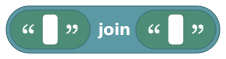 Join Text: stick two pieces of text end to end.
The block sticks two pieces of text together, end to end.
So "Score: " joined with "10" becomes "Score: 10". Nothing gets added in between, so put
any spaces inside the text yourself. To build a longer sentence from several parts, drop a join
block inside another join block.
Turning anything into text
 To Text: turn any value into readable text.
The block, "To Text", takes almost any value (a number,
a true/false, a coordinate) and turns it into text you can show in a message. You'll reach for
it often to drop numbers into sentences, because "show a message" slots only accept text.
If you cast a player (or object, or NPC) straight to text, you get an internal ID like
player:abc123, not a friendly name. To show a player's actual name, use the dedicated
display name block instead (see Players).
Reading what a player said
 Triggering Message Text: the words a player typed in chat.
The block gives you the exact words a player typed in
chat that set off this script. Pair it with the when player says phrase event to react to
what people type: passwords, commands, secret words.
Worked example
show toast (join "Nice one, " with (join (display name of [triggering player]) with (join "! Score: " with (to text (player variable [triggering player] score))))).
This looks busy, but it's just four pieces glued in a row: "Nice one, ", the player's name,
"! Score: ", and the score. To Text turns the score number into text, and a stack of
Join Text blocks stitches all four pieces into one message.
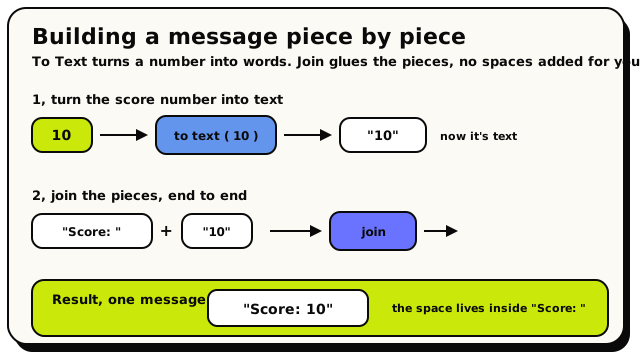 To Text makes the number readable, then Join glues the pieces into one message.
Under the hood
The precise rules
- Text is capped at 512 characters. Joins and casts longer than that are trimmed, and chat text a player typed is also cut to 512 before your script sees it.
- All text blocks read instantly and never pause the script.
- When you cast a value to text:
true/falseprint as words, a coordinate prints as(x, y, z), a list prints aslist:<count>, and players/objects/NPCs print as their internal ID. For human names, use the display-name blocks.
The blocks
Text
ValueTextTextA piece of writing you type in, like a word, sentence, or message.
This is the basic text block. Type any words into it and plug it into slots that ask for text, such as a chat message, a sign's words, a state name, or a text variable. It is the building block for everything in the Text category.
Inputs & fields
| Slot | Accepts | Default | What it's for |
|---|---|---|---|
TEXT | text |
How it behaves
Compiles to a constant text value with whatever you typed (defaults to empty). Read instantly and never pauses the script.
Watch out
If you need to show a number inside a message, wrap the number with the "to text" block first, or use the "join" block to glue them together.
Tips
Leave it empty to represent 'no text', for example when clearing a sign.
Examples
send message {Welcome to my world!} to {triggering player}Sends the typed text as a chat message to the player who triggered the script.
To Text
ValueTextTextTurns any value (like a number or true/false) into text you can show in a message.
This block converts something that isn't text, such as a number, a true/false value, or a position, into readable text. Use it when you want to put a value into a chat message or onto a sign, since those slots need text. For example, turn the score number into text so you can show "Score: 42".
Inputs & fields
| Slot | Accepts | Default | What it's for |
|---|---|---|---|
to text * | Yes/NoNumberWhole numberTextDurationDirectionPosition (X, Y)Position (X, Y, Z)PlayerGroup of playersObjectAreaSoundlist | 0 | Any value you want turned into readable text. |
How it behaves
Evaluates the inner value and converts it to its display text form. Numbers become their digits, true/false become "true"/"false", and other values use a sensible readable form. The result is capped at the maximum text length. Read instantly and never pauses the script.
Watch out
The default plugged-in value is the number 0, so an untouched block produces the text "0". Replace it with your real value.
Tips
Combine with the join block to build messages like "You have " + to text(coins) + " coins".
Examples
send message {join {Score: } {to text {score}}} to all playersConverts the score number into text and glues it after the word "Score: " before sending it.
Triggering Message Text
ValueTextTextThe exact words a player typed in chat that set off this script.
When a script runs because a player said a certain phrase in chat, this block gives you back the exact text they typed. Use it to react to what someone says, repeat their message, or check it against words you are looking for. It only makes sense inside a 'when player says a phrase' event.
How it behaves
Loads the chat text that triggered the current event. It only has a value inside the 'player says a phrase' (player.chatPhrase) event; outside that context it has nothing useful and the block is blocked from use. Read instantly and never pauses the script.
Watch out
Only works inside the 'when a player chats / says a phrase' event. It is unavailable in other events.
It only exists in room and object behaviors, not NPC behaviors.
Tips
Pair with compare to react to specific words a player types.
Echo it back with a join block to repeat what the player said.
Examples
send message {join {You said: } {triggering message text}} to {triggering player}Repeats back whatever the player just typed, prefixed with "You said: ".
Join Text
ValueTextTextSticks two pieces of text together into one, end to end.
This block glues text A and text B together to make a single piece of text. Use it to build messages out of parts, like joining "Hello, " with a player's name. There is no space added automatically, so include any spaces yourself inside the text blocks.
Inputs & fields
| Slot | Accepts | Default | What it's for |
|---|---|---|---|
A * | Text | (default) | The first piece of text. |
join * | Text | (default) | The text to stick onto the end of the first piece. |
How it behaves
Evaluates both inputs and concatenates A followed by B into one text value. The combined result is capped at the maximum text length (extra characters are cut off). Read instantly and never pauses the script.
Watch out
No space is added between the two parts. If you want "Hello world" instead of "Helloworld", put the space inside one of the text blocks.
To join a number, wrap it in a 'to text' block first.
Tips
Nest join blocks to build longer messages from three or more parts.
Combine with 'to text' to mix words and numbers, e.g. join "Coins: " with to text(coins).
Examples
send message {join {Hi, } {name of player}} to {triggering player}Joins the word "Hi, " with the player's name to make a custom greeting.