Players
These value blocks let you talk about a single player, usually the person who just did something. Plug them into actions and checks to read a player's position, name, and the direction they're facing.
Each block here gives you back one player. To do something to many players at once (like everyone in the room), use the Groups blocks instead. Brand new to all this? Start with the Players concept page.
The one you'll use most
 Triggering Player stands for whoever set off the current event.
The block is the one you'll reach for again and
again. When an event fires (someone joins, clicks an object, walks into an area, or sends a chat
phrase), the runtime remembers who did it and hands them to this block. Drop it into any
slot that asks for a player to mean "the person who just acted".
It only works inside events that have one person behind them. In a timer or a room-start handler there's nobody who triggered it, so the editor won't let you place it there.
Reading facts about a player
Each of these takes a player and reports one fact about them. Pair them with
to read facts about whoever just acted.
 Display Name Of Player: the name shown above their character, as text.
- gives you a player's Text name.
Join it with other words to build greetings like "Welcome, Alex!".
 gives you where they're standing as a
Position (X, Y, Z) point (x, y, z). Feed it into "move object to" to make something
follow them.
gives you where they're standing as a
Position (X, Y, Z) point (x, y, z). Feed it into "move object to" to make something
follow them. gives you which way they're facing as a
Direction:
gives you which way they're facing as a
Direction: north,east,south, orwest.
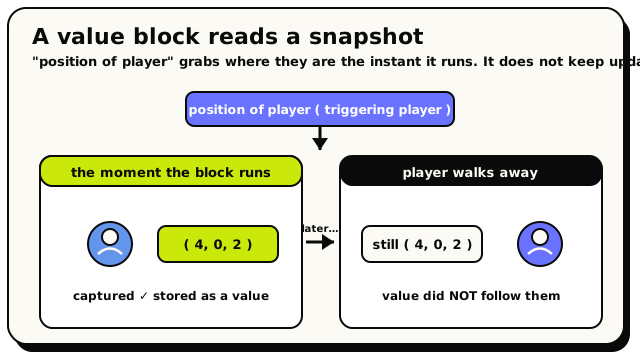 A value block reads a snapshot. Whatever it grabs is frozen at the moment the block runs. It does not follow the player around afterward.
Every reader here is a snapshot, taken the instant the block runs. If you read a player's position and they then walk away, your stored value does not follow them. To react continuously, re-read inside an event or a repeating check rather than holding onto one value.
Checking a player
 Is Player In Area answers yes or no, right now.
- is a Yes/No block. It
answers true or false: is this player standing inside this area at the moment you ask? Put it
inside an "if" to gate a reward, a trap, or a shop floor. You'll need an
Area to check against.
 is also a Yes/No
block. It checks whether the player holds a Discord role you pick from the dropdown. Good for
VIP doors and staff-only commands. It only works in worlds linked to a Discord server.
is also a Yes/No
block. It checks whether the player holds a Discord role you pick from the dropdown. Good for
VIP doors and staff-only commands. It only works in worlds linked to a Discord server.
Advanced and placeholder blocks
 and
and
 read a player's current camera target and zoom.
They're hidden from the toolbox and mainly used in cinematic scripting: save a value before a
cutscene, then restore it afterward.
read a player's current camera target and zoom.
They're hidden from the toolbox and mainly used in cinematic scripting: save a value before a
cutscene, then restore it afterward. isn't a block you add on purpose. The editor shows it as
a placeholder where a real player block is needed but none has been chosen. Swap in
(or another player block) before publishing.
Leaving it there blocks publishing.
isn't a block you add on purpose. The editor shows it as
a placeholder where a real player block is needed but none has been chosen. Swap in
(or another player block) before publishing.
Leaving it there blocks publishing.
Worked example
when a player joins → send message ( join [ display name of player [ triggering player ] ] and " joined!" )
The is the person who just joined, so
reads their name and you announce it to the room.
The blocks
Triggering Player
ValuePlayersPlayerGives you the player who just did the thing that started this event.
Use this block whenever you want to talk about the exact person who triggered the event your script is reacting to. If someone walks into an area, clicks an object, sends a chat phrase, or joins the room, this block stands for that one player. Plug it into any block that asks for a player, like 'display name of player' or 'is player in area'.
How it behaves
When an event fires, the runtime remembers who set it off and hands that one player to this block. It only works inside events that have a triggering player: a player joining or leaving, interacting with, grabbing, or letting go of an object, entering or leaving an area, sending a chat phrase, changing their outfit, or interacting with an NPC. The editor won't let you place it anywhere else, and outside a valid event it has no real value.
Watch out
It only makes sense inside events that are caused by one specific player. In a timer or room-start handler there is no triggering player, so the editor will not let you use it there.
It is a single player, not a group. To affect everyone, use 'all players' instead.
Tips
Combine it with 'display name of player' to greet whoever just joined.
Drop it straight into action blocks like 'send message to' to respond to the person who acted.
Examples
When a player joins → send message {display name of player {triggering player}} + " joined!"The triggering player is whoever just joined, so you can read their name and announce it.
Position Of Player
ValuePlayersPosition (X, Y, Z)Gives you where a player is standing in the world as an x, y, z point.
This block reports the exact spot a player is standing, as a 3D position (x, y, z). Use it when you want to know or react to where someone is, for example to move an object next to them, to compare their location, or to teleport something to them. Plug a player into it (like 'triggering player').
Inputs & fields
| Slot | Accepts | Default | What it's for |
|---|---|---|---|
position of player * | Player | The player whose location in the world you want. |
How it behaves
Reads the player you plug in and returns their spot in the world as a 3D point (x, y, z). The value is read at the moment the block runs. If that player can't be found, you get an empty position instead.
Watch out
The position is a snapshot taken when the block runs; it does not keep updating by itself.
It returns a 3D vector, not separate numbers. Use the vector's x/y/z reader blocks if you only need one axis.
Tips
Feed it into 'move object to' or distance comparisons to make things follow or react to a player.
Examples
set object position of {a flag} to {position of player {triggering player}}Reads the player's current spot and moves the flag there.
See also
Rotation Of Player
ValuePlayersDirectionGives you which way a player is facing (North, South, East or West).
This block tells you the direction a player is currently facing. Use it when you want something to point the same way as a player, or to check which way someone is looking. The result is a rotation (a compass-style direction), which you can plug into anything that takes a rotation.
Inputs & fields
| Slot | Accepts | Default | What it's for |
|---|---|---|---|
rotation of player * | Player | The player whose facing direction you want. |
How it behaves
Reads the player you plug in and returns the direction they're facing as a rotation. The value is read at the moment the block runs. If that player can't be found, it falls back to 'north'.
Watch out
The output is a rotation, not a number, even though the block is coloured like a number block. Use it where a rotation is expected.
It is a snapshot at the moment the block runs and does not auto-update.
Tips
Pair it with 'set object rotation' to make an object face the same way as a player.
Examples
set object rotation of {an arrow} to {rotation of player {triggering player}}Copies the player's facing direction onto the arrow object.
Display Name Of Player
ValuePlayersTextGives you a player's name as text you can show in messages.
This block reads a player's display name (the name shown above their character) as a piece of text. Use it whenever you want to greet someone by name, write their name into a message, or compare names. Plug a player in (such as 'triggering player').
Inputs & fields
| Slot | Accepts | Default | What it's for |
|---|---|---|---|
display name of player * | Player | The player whose name you want to read. |
How it behaves
Reads the player you plug in and returns their display name as text. The value is read at the moment the block runs. If that player can't be found, you get an empty piece of text.
Watch out
The result is text, so to combine it with other words you need a join/combine text block.
Names can contain spaces or emoji; treat the value as ordinary text.
Tips
Join it with text to build friendly messages like 'Welcome, Alex!'.
Examples
send message {display name of player {triggering player}} + " pressed the button"Reads the player's name and includes it in the announcement.
Is Player In Area
Yes/NoPlayersYes/NoChecks yes or no whether a player is standing inside an area.
This block answers true or false: is this player currently inside this area? Use it inside 'if' blocks to make things happen only when a player is in a certain region, like a safe zone, a trap, or a shop floor. Plug in a player and an area.
Inputs & fields
| Slot | Accepts | Default | What it's for |
|---|---|---|---|
is player * | Player | The player to check. | |
in area * | Area | The rectangular area to check against. |
How it behaves
Takes the player and the area you plug in and returns true or false: true if that player is standing inside that rectangle right now, false if not. It is checked at the moment the block runs. If either the player or the area is missing, you get false.
Watch out
It checks the situation only at the instant it runs; it is not an ongoing event. For continuous reactions use the enter-area / leave-area events instead.
You must provide an area; pair it with the 'Area from ... to ...' block or an area variable.
Tips
Use it inside an 'if' to gate rewards or rules to a specific zone.
Combine with 'not' to react when a player is NOT in an area.
Examples
if {is player {triggering player} in area {Area from (0,0) to (10,10)}} → give healthThe heal only happens when the player is standing inside the defined rectangle.
Player Has Discord Role
Yes/NoPlayersYes/NoChecks yes or no whether a player has a chosen Discord server role.
This block answers true or false: does this player have the Discord role you picked from the dropdown? Use it to unlock things for special members, like moderators, boosters, or VIPs. Choose the role from the menu, and plug in the player to check.
Inputs & fields
| Slot | Accepts | Default | What it's for |
|---|---|---|---|
player * | Player | The player to check. | |
has Discord role | role |
How it behaves
Takes the player you plug in and the role you pick from the dropdown, and returns true or false: true if that player has that Discord role, false if not. It is checked at the moment the block runs. The list of roles you can pick comes from the Discord server the world is connected to.
Watch out
The role list comes from the connected Discord server, so it only works for worlds linked to Discord and only shows roles that actually exist there.
If you don't pick a role the check has nothing to compare against.
Tips
Great for VIP doors or staff-only commands: gate an action behind a role check.
Combine with 'if' so only members with the role get the reward.
Examples
if {player {triggering player} has Discord role "Moderator"} → set object state of {the door} to "open"The door only opens for players who hold the chosen Discord role.
Missing Player
ValuePlayersPlayerA placeholder that shows up when a player block could not be filled in.
This is not a block you add on purpose. It is a placeholder the editor uses to hold a spot where a real player block is needed but none has been chosen yet. When you see it, swap in a proper player block (like 'triggering player') before publishing your script.
How it behaves
The editor treats this as an empty slot. It counts as 'no player' and shows the error 'Choose a value before validating or publishing'. It is just a stand-in that holds the spot until you drop in a real player block.
Watch out
Leaving this placeholder in your script blocks publishing, because the editor counts it as an error.
It always counts as 'no player', so any logic using it behaves as if the player is missing.
Tips
Whenever you spot a missing-player placeholder, replace it with 'triggering player' or another player block.
Use validation errors to find every missing placeholder before you publish.