Objects
Objects are the things you place in your world: doors, chairs, signs, props. These blocks let your script point at a specific object and read facts about it, like where it is or which state it's in.
An object can be in different states. For example, a door that's open or closed. To
learn how to set those states up, see Object states.
Two ways to point at an object
Before you can read or change an object, you have to name which one. There are two everyday blocks for that (plus a third for objects your script has just created), and picking the right one keeps your scripts reusable.
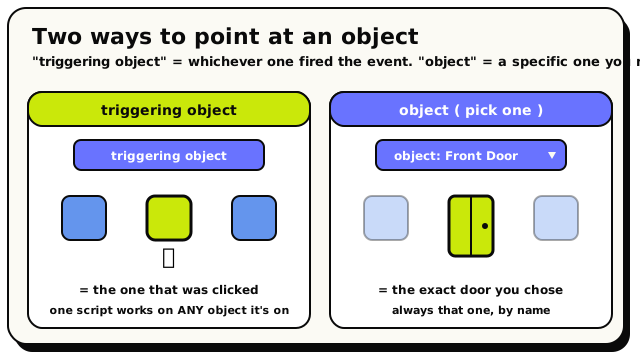 Use 'triggering object' for whichever one fired the event; use 'object' to pick one specific prop by name.
 Triggering Object: the object this script is on, or the one that fired the event.
- means "this one": the object the script is attached
to, or the object that triggered the current event. It only works in object-scoped scripts
Object or object events. Because it never names a specific prop, you can
attach the same script to many objects and each copy works on whichever object it's on.
 lets you pick one particular object from a dropdown, or
click it in the world with the picker button. Use it when a script needs to reach out and
touch a specific door, sign, or button by name.
lets you pick one particular object from a dropdown, or
click it in the world with the picker button. Use it when a script needs to reach out and
touch a specific door, sign, or button by name. is the object most recently created by a
 block in the same run. It's empty until a spawn
has happened, so store it in a room variable or list if another script needs it later.
block in the same run. It's empty until a spawn
has happened, so store it in a room variable or list if another script needs it later.
only works inside object behaviors or object event
handlers. Drop it into a plain room script that isn't reacting to an object event and the editor
rejects it. If you leave a picker empty, publishing is
blocked until you choose one.
Reading facts about an object
Each of these takes an object and reports one fact. Plug in
or a picked .
 Position Of Object: where it sits in the world, as an x, y, z point.
- gives you where the object sits as a
Position (X, Y, Z) point. Use it to line something up with a prop or spawn an effect
at it.
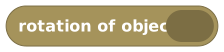 gives you which way the object faces as a
Direction. Copy it onto another object to make them point the same way.
gives you which way the object faces as a
Direction. Copy it onto another object to make them point the same way.
Like the player readers, these are snapshots taken the instant the block runs. They don't keep updating on their own.
States and transitions
 Current State Of Object reads which state an object is in right now, as text.
- reads which object state
an object is in right now, as Text. Compare it inside an "if" to branch
on, say, whether a door is
openorclosed. 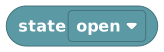 lets you pick a named state from a dropdown. Use it
on both sides of your logic, to check the current state and to feed a "set object state"
action, so the names always match exactly.
lets you pick a named state from a dropdown. Use it
on both sides of your logic, to check the current state and to feed a "set object state"
action, so the names always match exactly.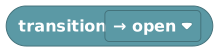 picks a named transition: the animated move
between two states, like a door swinging open rather than snapping.
picks a named transition: the animated move
between two states, like a door swinging open rather than snapping.
The state and transition blocks fill their dropdowns from the states your objects were actually given. Picking from the menu avoids the typos that plain text would introduce. The choices only appear for objects that were set up with states.
Placeholder blocks
You don't add these. The editor shows them where a real reference is missing:
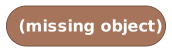 stands in for an object you haven't chosen.
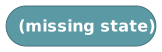 stands in for a state you haven't chosen.
Both count as errors and block publishing. Replace each with a real
or block before you
publish.
Worked example
when object is interacted with → set object state of [ triggering object ] to [ state "on" ]
Using means this one script flips any object you attach
it to, with no need to name each prop separately.
The blocks
Triggering Object
ValueObjectsObjectStands for the object this script is attached to, or the object that fired the event.
Use this block to refer to the object the script belongs to without picking it by name. In a script attached to a specific object, it means 'me'. In object events (like 'when this object is interacted with'), it means the object that triggered the event. It is the easy way to make a reusable object script that works no matter which object it's on.
How it behaves
Returns whichever object the script is currently working with. The editor only allows it in two cases: when the script is attached to an object, or when it's reacting to an object event. Anywhere else it shows the error 'this object can only be used inside object behaviors or object event handlers'.
Watch out
It only works in object-scoped scripts or object events. The editor/compiler will reject it in a plain room script that isn't reacting to an object event.
It is a single object, not a list.
Tips
Use it to write one script that you can attach to many objects, since it always means whichever object it's on.
Combine with 'set object state of {triggering object}' to make self-contained interactive props.
Examples
When object is interacted with → set object state of {triggering object} to "on"The script affects whichever object was clicked, without naming it.
Last Spawned Object
ValueObjectsObjectStands for the object most recently created by a 'spawn object' block in the same script run.
When a 'spawn object' block creates something, this block is how you get hold of it. It works anywhere after the spawn in the same run (the same trigger firing): inside loops, after waits, and inside or after your own functions. Plug it into any block that takes an object, like 'set object state', 'move object', 'rotate object', 'delete object', 'set object variable', 'add to list' or 'players sitting at object'. It is the bridge between creating an object and doing something with it.
How it behaves
Returns a handle to the object most recently created by 'spawn object' in the current script run. Before the first spawn of a run it is empty (nothing), and it is also empty in other scripts and other event handlers, because each run keeps its own value. The editor shows a warning if you use it under an event whose blocks (including your functions) never spawn an object, because it would always be empty there. If you need the object later or elsewhere, store it in a room variable or a room list right after spawning.
Watch out
It only remembers spawns from the same run. A different script, a different event handler, or the next time the same event fires all start with nothing.
If the spawn failed (blocked spot, object limit, spawning too fast), this block is empty until a later spawn in the same run succeeds, so the next object block fails instead of acting on an older object.
It is a single object, not a list. After spawning several objects in a loop it only holds the newest one; add each to a list as you go if you need them all.
If you later delete that object, the handle points at nothing, and blocks that take it then fail like with any deleted object.
Tips
Set a room variable (or add to a room list) to 'last spawned object' immediately after 'spawn object' so other scripts can use the new object.
In a 'repeat' loop that spawns objects, add 'last spawned object' to a list inside the loop to collect every object you create.
Examples
When room starts → spawn object {Treasure Chest} at {12, 4, 0} facing South → set room variable {chest} to {last spawned object}The chest's handle is saved into a room variable, so any other script can open, move, or delete it later.
When object {switch} is interacted with → spawn object {Lamp} at {5, 0, 8} facing South → set object state of {last spawned object} to "on"The lamp is created and switched on in the same run, without ever picking it by name.
Object
ValueObjectsObjectLets you pick a specific object in your world from a menu.
This block stands for one particular object you choose. Use the dropdown to select it, or use the picker button to click it in the world. Plug it into any block that needs an object, such as 'set object state' or 'position of object'. This is how you point your script at a specific door, button, sign, or prop.
Inputs & fields
| Slot | Accepts | Default | What it's for |
|---|---|---|---|
object | dropdown | ||
pick object button | custom |
How it behaves
Returns the object you choose. The dropdown is filled with the objects that exist in your room, and the picker button lets you select one by clicking it in the world. If you don't choose anything, it counts as 'no object' and shows the error 'Choose an object before validating or publishing'.
Watch out
If you don't pick an object, the block is treated as a missing reference and publishing is blocked.
If the object it points to is later deleted, the block can no longer resolve and will need re-picking. When a room has no objects at all, the dropdown shows a single 'Missing object' option with no value to pick.
Tips
Use the world picker button to click the exact object instead of guessing from the list.
If a script is attached to the object itself, prefer 'triggering object' so it stays reusable.
Examples
set object state of {object: Front Door} to "open"You pick the specific door from the dropdown and change its state.
Position Of Object
ValueObjectsPosition (X, Y, Z)Gives you where an object is in the world as an x, y, z point.
This block reports an object's current position in the world (x, y, z). Use it when you want to read where a prop is, line something up with it, or measure distance to it. Plug an object in (like 'triggering object' or a picked object).
Inputs & fields
| Slot | Accepts | Default | What it's for |
|---|---|---|---|
position of object * | Object | The object whose location you want. |
How it behaves
Reads the object you plug in and returns its spot in the world as a 3D point (x, y, z). The value is read at the moment the block runs. If the object is missing, you get an empty position.
Watch out
The position is a snapshot when the block runs and does not keep updating.
It returns a 3D vector; use the vector axis readers if you need just x, y, or z.
Tips
Use it with distance math to detect when something is near an object.
Examples
play visual effect at {position of object {triggering object}}Reads the object's location and uses it as the effect's position.
Rotation Of Object
ValueObjectsDirectionGives you which way an object is facing (North, South, East or West).
This block tells you the direction an object is currently facing, as a rotation. Use it to copy an object's facing onto something else, or to check which way a prop points. Plug an object in.
Inputs & fields
| Slot | Accepts | Default | What it's for |
|---|---|---|---|
rotation of object * | Object | The object whose facing direction you want. |
How it behaves
Reads the object you plug in and returns the direction it's facing as a rotation. The value is read at the moment the block runs. If the object is missing, it falls back to 'north'.
Watch out
The output is a rotation, even though the block uses the number colour. Use it where a rotation is expected.
It is a snapshot at run time and does not auto-update.
Tips
Use it to align other objects or players to the same direction as a prop.
Examples
set object rotation of {a torch} to {rotation of object {triggering object}}Copies one object's direction onto another.
Current State Of Object
ValueObjectsTextTells you the name of the state an object is currently in, as text.
Many objects have states, like a door being 'open' or 'closed'. This block reads which state an object is in right now and gives it back as text. Use it inside 'if' blocks to do different things depending on what state an object is in. Plug an object in.
Inputs & fields
| Slot | Accepts | Default | What it's for |
|---|---|---|---|
current state of object * | Object | The object whose current state you want to read. |
How it behaves
Reads the object you plug in and returns the name of the state it's in right now, as text. The value is read at the moment the block runs. If the object is missing, you get an empty piece of text.
Watch out
The result is the state's name as text, so compare it against a 'state' block or matching text.
An object only has states if it was set up with them; objects without states won't give a meaningful value.
Tips
Compare it with a 'state' block to react to a specific state, e.g. only act when the door is 'open'.
Combine with 'if' to branch your logic by object state.
Examples
if {current state of object {a switch}} = {state "on"} → do somethingReads the switch's current state and runs the action only when it equals 'on'.
State
ValueObjectsTextLets you pick a named state (like 'open' or 'closed') to compare or set.
This block stands for one named state of an object, chosen from a dropdown. Use it to compare against 'current state of object', or to feed into a 'set object state' action. It is the safe way to refer to a state by its real name without typing it.
Inputs & fields
| Slot | Accepts | Default | What it's for |
|---|---|---|---|
state | objectState |
How it behaves
Returns the state name you pick from the dropdown, as text. The choices come from the states that objects in your room have been given. If you leave it empty, it counts as 'no state' and shows the error 'Choose a state before validating or publishing'.
Watch out
If you leave the dropdown empty, the block is a missing reference and publishing is blocked.
The available states depend on how objects were set up; an object with no defined states gives you nothing to choose.
Tips
Use it on both sides of your logic: to set a state and to check the current state, so the names always match.
Picking from the dropdown avoids typos that plain text would cause.
Examples
if {current state of object {a door}} = {state "closed"} → open itThe 'state' block supplies the exact state name to compare against.
Transition
ValueObjectsTextLets you pick a named transition (a move between two states) for an object.
Some objects don't just snap between states; they play a transition, like a door swinging open. This block stands for one named transition, chosen from a dropdown. Use it where a transition name is needed, for example to trigger a specific animated change on an object.
Inputs & fields
| Slot | Accepts | Default | What it's for |
|---|---|---|---|
transition | objectTransition |
How it behaves
Returns the transition name you pick from the dropdown, as text. The choices come from the transitions that objects in your room have been given. If you leave it empty, it counts as 'no transition' and shows the error 'Choose a transition before validating or publishing'.
Watch out
Leaving the dropdown empty makes it a missing reference and blocks publishing.
Transitions only exist on objects that were authored with them; otherwise there's nothing to pick.
Tips
Use transitions when you want the smooth animated change between states rather than an instant switch.
Pick from the dropdown to avoid name typos.
Examples
trigger transition {transition "swingOpen"} on {the door}The 'transition' block names the exact animated change to play.
See also
Missing Object
ValueObjectsObjectA placeholder that appears when an object reference is empty.
This is not a block you drag in yourself. The editor uses it as a stand-in for an object that hasn't been chosen. When you see it, add a real object to your world and pick it (or use 'triggering object'), then replace this placeholder before publishing.
How it behaves
The editor treats this as an empty slot. It counts as 'no object' and shows the error 'Choose a value before validating or publishing'. It is just a stand-in that holds the spot until you drop in a real object block.
Watch out
Leaving this placeholder in your script blocks publishing, because the editor counts it as an error.
It always means 'no object', so any logic using it behaves as if the target is missing.
Tips
Add objects to your world, then use the normal 'object' block to pick one.
Run validation to find every missing placeholder before publishing.
Missing State
ValueObjectsTextA placeholder shown when a state value could not be filled in.
This is not a block you add on purpose. The editor uses it to hold a spot where a state name is needed but none has been chosen. When you see it, replace it with a real 'state' block and pick the right state before publishing.
How it behaves
The editor treats this as an empty slot. It counts as 'no state' and shows the error 'Choose a value before validating or publishing'. It is just a stand-in that holds the spot until you drop in a real state block.
Watch out
Leaving this placeholder in your script blocks publishing, because the editor counts it as an error.
It counts as 'no state', so comparisons against it will not match any real state.
Tips
Replace it with the 'state' block and choose the correct state from the dropdown.
Use validation to find any missing-state placeholders.