HUD
A HUD (heads-up display) is the stuff pinned to the edges of the screen while you play: the score in the corner, a countdown clock, a health bar. These blocks let your script put that kind of always-visible info on a player's screen and keep it there until you take it down.
HUD vs. effects: the one thing to remember
There are two ways a script can paint things on a screen, and beginners mix them up:
- The HUD is the dashboard. It stays put. A score you pin to the corner sits there until your script changes it or removes it. That's this page.
- Cinematic effects are the special FX. Confetti, a screen flash, a camera shake: they flash and vanish on their own. Those live on the Cinematic blocks page.
So: want it to stick around? Use a HUD block. Want a quick splash? Use an effect.
 Show HUD Number pins a number (here, a score) to a corner of the screen and keeps it there.
Every HUD element has a name
This is the most important idea on the page, and it's simple once it clicks.
When you show a HUD element, you give it a name, a label like "score" or
"timer". The name is its identity, like the label on a sticky note:
- Show it again with the same name and it updates in place. Showing
"score"as7, then later showing"score"as8, changes the 7 to an 8. No flicker, no second copy. This is how you make a live scoreboard. - Show a new name and you get a new element. A typo in the name quietly makes a second sticky note instead of updating the first one.
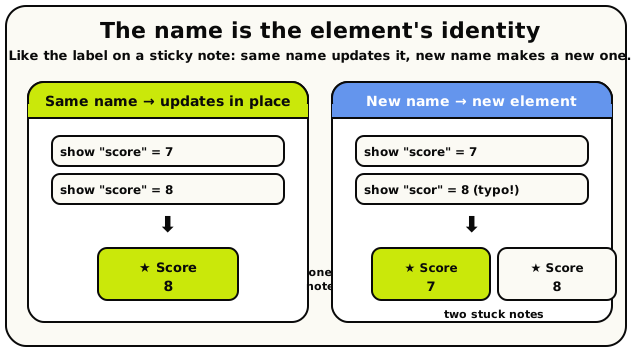 Re-show with the same name and the element updates in place. A different name (even a typo) creates a second one.
Pick a name once. Re-show with that same name whenever the value changes. Remove it by name when you're done. That's the entire HUD workflow.
The blocks on this page
Show HUD Text
ActionCinematic
Sticks a little label (an optional icon plus some words) onto players' screens and keeps it there until you remove it.
Pins a piece of text to the corner (or wherever you choose) of players' screens, where it stays until you take it down. Pick an optional icon from the emoji picker and type the text to show. Give it a name so you can update it later: showing another HUD element with the same name replaces this one in place. Great for objectives, hints, team names, or any always-visible status text.
Inputs & fields
| Slot | Accepts | Default | What it's for |
|---|---|---|---|
show HUD text to * | PlayerGroup of playersPlayer list | all players | Whose screens this text appears on. Defaults to all players. |
named * | Text | message | A name you choose for this HUD element. Show another HUD element with the same name to update or replace it, and use this same name to remove it later. |
text * | Text | Hello! | The words shown on screen, next to the optional icon. |
icon | custom | ||
at | dropdown | top_center | Choose: top left, top center, top right, left, center, right, bottom left, bottom center, bottom right |
How it behaves
Reads the audience, the name, the chosen icon, the text, and the anchor position. The name is trimmed and capped at 64 characters; an empty name fails (stops the script with an error). The icon must be a valid sign-emoji name, or empty for no icon, or the action fails. The text is filtered and trimmed to 100 characters. If you target specific players but none of them are online, the action fails. Shown to "all players", the element is stored once and shared, so players who join later see it too; shown to specific players, it is stored per-player. Each affected player's screen updates right away. The block runs instantly and does not pause the script.
Watch out
The name is an ID, not visible text. Two HUD elements with the same name overwrite each other, so use different names for elements you want to coexist.
There is a limit of 24 HUD elements per scope. Once you hit it, showing a brand-new name fails the action instead of evicting an older one, so reuse names to stay under the cap.
An empty name, an unknown icon, or targeting specific players who aren't online makes the action fail, so the element won't appear.
The text is capped at 100 characters and the name at 64; longer values get cut off.
Tips
Show the same name again whenever the text changes (e.g. a new objective) and it updates in place with no flicker.
Show to "all players" so people who join the room later still see it.
Leave the icon empty if you just want plain text.
Use "Remove HUD Element" with the same name, or "Clear HUD Elements", to take it down.
Examples
show HUD text to {all players} named {"objective"} icon {target} text {"Reach the flag!"} at {top center}Pins a goal banner to the top of every player's screen, including anyone who joins later. Show it again named "objective" with new text to change the goal.
show HUD text to {the triggering player} named {"hint"} icon {bulb} text {"Press E to open"} at {bottom center}Only the targeted player sees this hint. Remove it later with "Remove HUD Element" named "hint" for that player.
Show HUD Number
ActionCinematicPins a number onto players' screens as a progress bar, a plain number, a "value / max" fraction, or a self-ticking countdown.
Shows a number on players' screens that stays until you remove it. Choose how it looks: a filled progress bar (value out of max), a plain number, a "value / max" fraction, or a countdown timer that ticks down on its own from the value in seconds. Give it a label and optional icon, and tint it with any colour. Give it a name so you can update it later by showing it again with the same name. Perfect for scores, health bars, timers, and counters.
Inputs & fields
| Slot | Accepts | Default | What it's for |
|---|---|---|---|
show HUD number to * | PlayerGroup of playersPlayer list | all players | Whose screens this number appears on. Defaults to all players. |
named * | Text | score | A name you choose for this HUD element. Show another HUD element with the same name to update it in place, and use this name to remove it later. |
label * | Text | Score | The caption shown next to the number or bar, like "Score" or "Health". |
value * | NumberWhole number | 7 | The current number to display (or, for the countdown style, the number of seconds to count down from). |
max * | NumberWhole number | 10 | The maximum value, used to fill the bar or show "value / max". Set it to 0 (or leave it blank) for styles that don't need a max. |
color | Text | (default) | An optional tint for the bar/number, like "#ff5555" or "red". Leave blank for the default colour. |
icon | custom | star | |
as | dropdown | bar | Choose: bar, number, value / max, countdown (m:ss) |
at | dropdown | top_right | Choose: top left, top center, top right, left, center, right, bottom left, bottom center, bottom right |
How it behaves
Reads the audience, name, icon, label, value, max, style, colour, and anchor. The name is trimmed and capped at 64 characters (an empty name fails). The icon must be a valid sign-emoji name or empty, or the action fails. The label is trimmed to 100 characters and the colour to 32. The value is clamped to the HUD's allowed number range. For the countdown style, the value is read as a number of seconds and stored as an end time, which each player's screen ticks down on its own, stopping at zero; for every other style the value is stored as-is, and max is kept only if it is greater than 0. If you target specific players but none are online, the action fails. Shown to "all players" the element is stored once and shared (so future joiners see it too); shown to specific players it is stored per-player. Affected players' screens update right away, including anyone whose older element was removed to make room. Runs instantly; does not pause the script.
Watch out
The name is an identity, not a caption. Reusing the same name overwrites the existing element; the visible caption is the "label" field.
For the bar and "value / max" styles you must set a sensible max; with max 0 the bar can't fill.
Countdown counts down from the value in SECONDS and runs on its own on each player's device, so you don't need to update it every second.
Showing it once with a fixed value does NOT auto-update when your data changes. To keep it in sync with a variable, use "Show Live HUD Number" instead, or re-show this block whenever the value changes.
There is a cap of 24 HUD elements per scope; once you reach it, showing a brand-new name fails the action rather than evicting an older one. Re-using names keeps you under the cap.
A bad icon name, empty element name, or targeting offline-only players makes the action fail and nothing appears.
Tips
Re-show with the same name every time a score or counter changes to update it smoothly in place.
Use the "bar" style with a max for health and progress; "number" for simple counters; "countdown" for round timers.
Tint the bar to match your theme, e.g. green for health or red for danger.
If you want it to follow a variable automatically without re-showing, reach for "Show Live HUD Number".
Examples
show HUD number to {all players} named {"score"} icon {star} label {"Score"} value {team points} max {0} as {number} color {""} at {top right}Shows the current score as a plain number in the top-right. Each time the points change, re-run this block named "score" to update the display.
show HUD number to {all players} named {"timer"} icon {hourglass} label {"Time"} value {60} max {0} as {countdown (m:ss)} color {"#ffcc00"} at {top center}Starts a 60-second countdown that ticks down on its own on every player's screen and stops at zero. No need to update it each second.
show HUD number to {the triggering player} named {"hp"} icon {heart} label {"HP"} value {player health} max {100} as {bar} color {"red"} at {bottom left}Draws a red progress bar filled to the player's current health out of 100. Re-show named "hp" whenever their health changes.
Show Live HUD Number
ActionCinematic
Pins a number that follows a variable automatically, so it updates on its own every time the variable changes.
Like "Show HUD Number", but instead of a fixed value it follows a variable you pick from the "showing" dropdown. Whenever that variable changes, the on-screen number updates by itself, so you never have to re-show it. If you bind it to a player variable, every player sees their OWN value, which is perfect for personal scores and health. Choose a bar, plain number, or "value / max" style, give it a label, icon, and colour.
Inputs & fields
| Slot | Accepts | Default | What it's for |
|---|---|---|---|
show live HUD number to * | PlayerGroup of playersPlayer list | all players | Whose screens this number appears on. Defaults to all players. |
named * | Text | score | A name you choose for this HUD element. Show another HUD element with the same name to update it, and use this name to remove it later. |
label * | Text | Score | The caption shown next to the number or bar, like "Score" or "Health". |
max * | NumberWhole number | 10 | The maximum value, used to fill the bar or show "value / max". Set it to 0 (or leave blank) for the plain number style. |
color | Text | (default) | An optional tint for the bar/number, like "#ff5555" or "red". Leave blank for the default colour. |
icon | custom | star | |
showing | custom | ||
as | dropdown | bar | Choose: bar, number, value / max |
at | dropdown | top_right | Choose: top left, top center, top right, left, center, right, bottom left, bottom center, bottom right |
How it behaves
Reads the audience, name, icon, and label, then the chosen variable (its scope, player or room, and its id) and finally max, style, colour, and anchor. The name is trimmed and capped at 64 characters (an empty name fails), the icon is validated, the label is trimmed to 100 characters, the colour to 32, and max is kept only if greater than 0. If no variable is chosen, the action fails. Instead of a fixed number, the element stores a link to that variable. The number shown is read from the variable every time a player's screen is drawn (for a player variable, it reads that viewing player's own value) and it refreshes by itself whenever the variable changes. The countdown style is not available here; if it is somehow set, it falls back to a plain number, because a live value has no fixed finish line. If you target specific players but none are online, the action fails. Shown to "all players" the element is shared; shown to specific players it is stored per-player. Affected players' screens update right away. Runs instantly; does not pause the script.
Watch out
You must pick a variable in the "showing" dropdown; with no variable chosen the action fails and nothing appears.
It tracks the live variable, so you do NOT (and should not) re-show it on every change; that's the whole point.
Bound to a player variable, each player sees their own value; bound to a room variable, everyone sees the same shared value.
There is no countdown style here (a live value can't count down from a fixed end time); use "Show HUD Number" with countdown for timers.
If you later delete or rename the bound variable, the element can stop updating.
Still subject to the 24-elements-per-scope cap and the same name-overwrite behaviour as other HUD blocks.
Tips
Use this for personal scores, coins, and health: bind to a player variable and every player automatically sees their own.
Set this up once at the start of the game and keep changing the variable elsewhere; the HUD follows along.
Use "Show HUD Number" instead when you want a one-off value, a calculated expression, or a countdown timer.
Pick the "bar" style with a sensible max for health/progress, or "number" for a simple live counter.
Examples
show live HUD number to {all players} named {"coins"} icon {coin} label {"Coins"} showing {player coins} max {0} as {number} color {""} at {top right}Every player sees their own coin total, and it updates by itself whenever you change the player "coins" variable anywhere in your script.
show live HUD number to {all players} named {"progress"} icon {flag} label {"Progress"} showing {room objective} max {100} as {bar} color {"#33cc66"} at {top center}A single shared bar everyone sees, filling toward 100 as the room "objective" variable rises. No need to re-show it.
Remove HUD Element
ActionCinematic
Takes a single HUD element off players' screens, by the name you gave it.
Removes one HUD element you previously showed, found by its name. Use the same name you gave it when you showed the text or number. You can remove it for everyone or just for specific players. Handy for clearing a hint once it's no longer needed, or hiding a score at the end of a round.
Inputs & fields
| Slot | Accepts | Default | What it's for |
|---|---|---|---|
remove HUD element named * | Text | score | The name of the HUD element to take down, the same name you used when you showed it. |
for * | PlayerGroup of playersPlayer list | all players | Whose screens to remove it from. Defaults to all players. |
How it behaves
Reads the audience and the name. The name is trimmed and capped at 64 characters; an empty name fails. If you target specific players but none are online, the action fails. For "all players" it removes the shared element for everyone; otherwise it removes the element for just the listed players. Note: if an element was shown to "all players", removing it for specific players hides it from only those players' screens, and it stays hidden for them until it is shown to everyone again. The affected players' screens update right away. Runs instantly; does not pause the script. Removing a name that isn't there does nothing.
Watch out
Use the exact name you showed the element with; a typo means nothing is removed.
Removing a shared ("all players") element for only some players just hides it from them; it stays hidden for them until shown to everyone again.
Note the field order: this block reads "named" first, then "for" players, so the audience socket comes second.
Removing a name that was never shown is harmless and does nothing.
Tips
Keep your element names consistent so removing them later is easy.
To wipe everything at once instead of one element, use "Clear HUD Elements".
Remove a personal hint for just the triggering player once they've acted on it.
Examples
When object {a door} is interacted with → remove HUD element named {"hint"} for {the triggering player}Once the player opens the door, the personal "hint" element disappears from their screen only.
remove HUD element named {"timer"} for {all players}Removes the shared countdown from everyone's screen, e.g. when the round ends.
Clear HUD Elements
ActionCinematic
Wipes every HUD element off the chosen players' screens at once.
Removes all HUD elements (text and numbers alike) from players' screens in one go, instead of removing them one name at a time. Target everyone or just specific players. Great for resetting the screen when a round or game ends, or when a player leaves a mode.
Inputs & fields
| Slot | Accepts | Default | What it's for |
|---|---|---|---|
remove all HUD elements for * | PlayerGroup of playersPlayer list | all players | Whose screens to clear every HUD element from. Defaults to all players. |
How it behaves
Reads only the audience. If you target specific players but none are online, the action fails. For "all players" it clears every shared element for everyone; otherwise it clears all elements for just the listed players. The affected players' screens update right away. Runs instantly; does not pause the script.
Watch out
This removes EVERYTHING, including HUD elements set up by other parts of your script. There's no way to clear just a category.
Clearing for specific players removes shared ("all players") elements from their screens too; those stay hidden for them until shown to everyone again.
Targeting specific players who aren't online makes the action fail (nothing happens).
Tips
Use this at the end of a round or game to reset the screen cleanly.
To remove just one element instead of all of them, use "Remove HUD Element" with its name.
Pair it with a fresh batch of "Show HUD ..." blocks to set up a brand-new HUD for the next round.
Examples
remove all HUD elements for {all players}Wipes every score, bar, and label from everyone's screen so the next round starts clean.
remove all HUD elements for {the triggering player}Removes every HUD element from just that one player's screen, e.g. when they leave a mini-game.
Three flavours of element
| Block | What it shows | Reach for it when… |
|---|---|---|
| Show HUD Text | An icon + a short text label | You want a message or status word on screen |
| Show HUD Number | A number, bar, fraction, or countdown | You're showing a score, health, or a timer |
| Show Live HUD Number | A number wired straight to a variable | You want it to update automatically |
The “number” styles
The Show HUD Number block has a style dropdown that changes how the number looks:
- number: a plain number, e.g.
1,250. - bar: a progress bar that fills up (great for health or XP).
- value / max: a fraction, e.g.
3 / 10. - countdown (m:ss): a clock that ticks down on its own, like
1:30 → 1:29 → ….
- bar and value / max need a max greater than 0. Without one they quietly fall back to a plain number.
- A countdown's value is the seconds remaining, not an end time. The screen counts it down for you and stops at zero. It turns red and pulses in the final 10 seconds.
- The live number block can show number, bar, or value / max, but not countdown (a live value has no fixed finish line).
- Numbers are clamped to a maximum of one trillion; a countdown is capped at 24 hours.
Live numbers: the auto-updating one
Show Live HUD Number: bind it to a variable once and it re-draws itself every time that variable changes.
The live block is a beginner's best friend. You point it at a number variable once, and from then on it updates itself every time that variable changes. You never have to “show” it again.
There's a lovely trick here: if you bind it to a player variable, each player sees their own value. Perfect for personal scores or health. Even players who join later see the right number.
Where it sits: anchors
Every HUD element snaps to one of nine screen positions (called anchors), picked from a little 3×3 grid in the editor:
top_left      top_center      top_right
left          center          right
bottom_left   bottom_center   bottom_right
If two elements share an anchor, they stack neatly away from the edge. Sensible defaults are already chosen for you: text starts at top center, numbers start at top right.
Taking elements down
- Remove HUD Element takes down one
element, by its name.
- Clear HUD Elements wipes the slate.
It removes all of them at once.
- You can show up to 24 HUD elements to everyone at once, and up to 24 personal ones per player. Past that, the block fails rather than piling them up: another reason to re-use names instead of making new ones.
- Element names can be up to 64 characters; labels/text up to 100.
- The HUD lives in memory. It survives you re-publishing a script, but resets when the room restarts, and a room-start event fires then, so your script can rebuild it.