Areas
An area is a rectangle of the floor that you mark out using two corners. Use areas to spot when players walk into a zone, count who's inside, or change the physics above part of your world.
The Areas concept page explains corners, the enter-area and leave-area events, and the "is in area" check, all with pictures.
Making an area
 Area: a rectangle built from a 'from' corner and a 'to' corner.
The block builds the rectangle. Give it two opposite corners
as Position (X, Y) floor points and Hideout fills in everything between them. The
inputs start at (0, 0) and (4, 4), so it makes a small 4×4 box right away. Or use the
coordinate picker button to drag the rectangle out directly in the world.
This block is the only one that makes an area. Other blocks consume the rectangle it produces to ask questions or change behavior inside it.
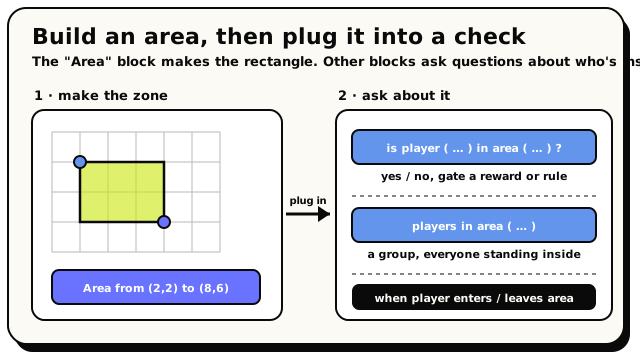 The 'Area' block makes a zone. Plug that zone into checks like 'is player in area' or 'players in area', or react to it with the enter/leave-area events.
You can give the corners in any order: top-left then bottom-right, or the other way around. Both describe the same rectangle. The edges count as "inside", so a player standing exactly on the rim is still in the zone.
Where areas plug in
The block on its own doesn't do anything. It's a
Value you feed into other blocks. The most common partners live in nearby
categories:
| Block | Category | What it asks |
|---|---|---|
 Is Player In Area Is Player In Area | Players | Is one player inside, yes or no? |
 Players In Area Players In Area | Groups | Everyone standing inside, as a group |
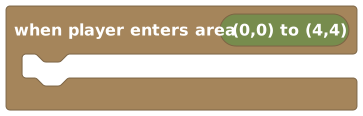 When Player Enters Area When Player Enters Area | Events | Fire the instant someone walks in |
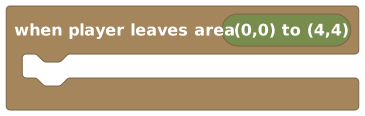 When Player Leaves Area When Player Leaves Area | Events | Fire the instant someone walks out |
 Set Area Friction Set Area Friction | Areas | Make supported movement more or less slippery |
 Set Area Gravity Set Area Gravity | Areas | Change downward gravity above the rectangle |
 Add Force Field Add Force Field | Areas | Continuously push players with a 3D force vector |
If you use one rectangle in several places, store it in an area variable and plug that in everywhere. Then if you resize the zone, you only change it once.
Changing physics in an area
The three area-physics blocks create persistent effects. A friction or gravity block updates the override owned by that block, and the most recently run matching override wins where areas overlap. Force fields are different: fields from separate blocks add together where they overlap. Running the same force-field block again updates its field instead of adding a duplicate.
Area checks are flat, but physics effects use the rectangle as an x/y footprint that extends through every height. This lets a gravity zone or wind tunnel keep affecting an airborne player above the marked floor.
- Normal friction is
1 N; use0 Nfor ice. - Normal downward gravity is
0.025tiles per tick squared; use0for zero gravity. - Force fields use a Vector3 in newtons. Positive z pushes up and negative z pushes down.
Walking applies force rather than replacing the player's existing velocity. Below normal friction,
held input keeps applying the full walking force without the normal walk-speed limit. On ice this
means players accelerate while walking, keep sliding after release, and preserve drift when turning.
Players have mass 10, so a 1 N horizontal force changes velocity by 0.1 tiles per tick on each
tick before other forces are included.
These effects remain in the world after the script finishes. Run the same block with the normal value, or with a zero force vector, when you want to neutralize its effect.
The placeholder block
 isn't a block you add yourself. The editor shows it where an
area is needed but none has been provided. Replace it with a real
block (or an area variable) before publishing. Leaving it
there blocks publishing.
isn't a block you add yourself. The editor shows it where an
area is needed but none has been provided. Replace it with a real
block (or an area variable) before publishing. Leaving it
there blocks publishing.
Worked example
if [ is player [ triggering player ] in area [ Area from (0,0) to (4,4) ] ] → open shop
The builds the rectangle, and
checks whether the player is standing inside it
before the shop opens.
The blocks
Area
ValueAreasAreaMakes a rectangular zone in your world from two corner points.
This block builds an area: a rectangle on the floor defined by two corners. Use it whenever a block asks for an area, such as 'is player in area' or 'players in area'. You can type the corners or use the picker button to draw the rectangle in the world. By default it makes a small 4x4 box from (0,0) to (4,4).
Inputs & fields
| Slot | Accepts | Default | What it's for |
|---|---|---|---|
Area from * | Position (X, Y) | (0, 0) | One corner of the rectangle (x, y). |
to * | Position (X, Y) | (4, 4) | The opposite corner of the rectangle (x, y). |
coordinate picker button | custom |
How it behaves
Takes the two corner points you plug in (each an x, y point) and returns the rectangle between them. The two inputs start filled in with (0,0) and (4,4) so the block works right away. The coordinate picker button lets you set the corners by drawing the rectangle in the world.
Watch out
The area is always a rectangle (axis-aligned), not a circle or free shape.
Both inputs are 2D points (x, y); the area covers the rectangle between those two corners regardless of which is which.
Tips
Use the picker button to drag out the rectangle directly in the world instead of guessing coordinates.
Store an area in a variable if you reuse the same zone in several places.
Examples
if {is player {triggering player} in area {Area from (0,0) to (4,4)}} → open shopBuilds a rectangle and checks whether the player is inside it.
See also
Set Area Friction
ActionAreasChanges how strongly the floor slows moving players inside a rectangular area.
Use this block to make slippery ice, sticky ground, or ordinary floor inside one area. Friction is measured as a force in newtons: 1 N is the normal value. Below 1 N, held walking input keeps applying full force without the normal walk-speed limit; at 0 N, players accelerate continuously while walking and keep all horizontal momentum after release. Players have mass 10, so raw forces on slippery ground change their velocity gradually.
Inputs & fields
| Slot | Accepts | Default | What it's for |
|---|---|---|---|
set friction in * | Area | (0,0) to (4,4) | The floor rectangle whose friction you want to change. |
to * | Number | 1 | The friction force in newtons. The normal floor value is 1; use 0 for ice. |
How it behaves
Creates or updates one persistent friction override owned by this block. It affects supported players whose x/y position is inside the rectangle. Below the normal 1 N friction, the walking speed governor is disabled so walking force can accelerate players. Running the same block again updates its existing override instead of adding another one. If friction areas overlap, the matching override set most recently wins.
Watch out
Friction only acts while the player has support beneath them; it does not create air resistance.
Values must be between 0 and 100 N.
Below 1 N, holding movement keeps accelerating the player; there is no walking-speed cap on slippery ground.
Tips
Set friction to 0 for an ice patch.
Set it back to 1 with the same block when you want normal floor behavior again.
Examples
When room starts → set friction in {Area from (0,0) to (12,8)} to 0Players accelerate while walking and keep their horizontal momentum after releasing input inside the rink.
Set Area Gravity
ActionAreasChanges the downward gravity above a rectangular part of the world.
Use this block for low-gravity rooms, heavy-gravity traps, or zero-gravity spaces. Gravity is tick-native and is entered as downward acceleration in tiles per tick squared. The usual world value is 0.025.
Inputs & fields
| Slot | Accepts | Default | What it's for |
|---|---|---|---|
set gravity in * | Area | (0,0) to (4,4) | The x/y rectangle whose downward gravity you want to change. |
to * | Number | 0.025 | Downward gravitational acceleration in tiles per tick squared. The normal value is 0.025. |
How it behaves
Creates or updates one persistent gravity override owned by this block. The area extends vertically, so it affects players at any z height while their x/y position is inside the rectangle. Running the same block again updates it. If gravity areas overlap, the matching override set most recently wins. Floor support still supplies a normal force that cancels downward gravity while a player is standing on it.
Watch out
Gravity is always downward; use a force field if you want an upward or sideways force.
Values must be between 0 and 100 tiles per tick squared.
Setting gravity to 0 does not erase velocity a player already has.
Tips
Use 0 for a zero-gravity shaft.
Use the default 0.025 to restore ordinary gravity with the same block.
Examples
When room starts → set gravity in {Area from (5,5) to (15,15)} to 0.005Airborne players fall more slowly while they remain above that rectangle.
Add Force Field
ActionAreasApplies a persistent 3D force to players above a rectangular area.
Use this block to build wind tunnels, conveyor-like pushes, launch pads, or downward traps. The vector says which direction and how strongly the field pushes: positive z is upward and negative z is downward. Players have mass 10, so each force component is divided by 10 to produce that component of acceleration.
Inputs & fields
| Slot | Accepts | Default | What it's for |
|---|---|---|---|
add force field in * | Area | (0,0) to (4,4) | The x/y rectangle covered by the field. |
with force * | Position (X, Y, Z) | x:1 y:0 z:0 | The force vector in newtons: x and y push across the floor, while z pushes up or down. |
How it behaves
Creates or updates one persistent force field owned by this block. The field extends vertically above and below its x/y rectangle. Running the same block again replaces that block's force instead of stacking another copy. Different force-field blocks do add together wherever their areas overlap, and their sum joins gravity, walking, friction, and player-attached forces in the ordinary F = ma resolver.
Watch out
Each vector component must be between -100 and 100 N.
A downward force field is an explicit downward drive, so it can move players below z=0 where the world geometry allows it.
Set this same block's vector to (0,0,0) to neutralize its field.
Tips
Use a positive z force for a launch pad.
Use several overlapping fields when you deliberately want their forces to combine.
Examples
When room starts → add force field in {Area from (0,0) to (4,20)} with force {(0, 0.2, 0)}Players inside the tunnel are continuously pushed along its y direction.
Missing Area
ValueAreasAreaA placeholder that appears when an area block could not be filled in.
This is not a block you add on purpose. The editor uses it to hold a spot where a real area is needed but none has been provided. When you see it, drop in an 'Area from ... to ...' block (or an area variable) before publishing.
How it behaves
The editor treats this as an empty slot. It counts as 'no area' and shows the error 'Choose a value before validating or publishing'. It is just a stand-in that holds the spot until you drop in a real area block.
Watch out
Leaving this placeholder in your script blocks publishing, because the editor counts it as an error.
It counts as 'no area', so area checks using it will not match anything.
Tips
Replace it with the 'Area' block and set the two corners, or plug in an area variable.
Use validation to find any missing-area placeholders.