A door that opens
A door you can actually open is the moment a room stops being a diorama and starts feeling alive. In this recipe you'll make a door that swings open when you click it and closes when you click again. Along the way you'll meet object states, the single most useful idea for making things in your world look and behave more than one way.
What you'll build: a door that toggles between open and closed each time a player clicks it, and, optionally, a door that opens by itself when someone walks up.
This guide builds straight on A button that does something. If you haven't done that one, start there. It teaches the click-an-object pattern we reuse here in about five minutes.
The big idea: states
Lots of objects in Hideout can look or behave more than one way. A candle can be lit or unlit. A lamp can be on or off. A door can be open or closed. Each of those looks is called a state.
Think of an object like a flip-book:
- Each state is a page (the door drawn open, the door drawn closed).
- A transition is an allowed move from one page to the next (closed → open).
- You can only flip to a page the current page connects to.
Building a door is really just telling Hideout: when someone clicks, flip to the other page.
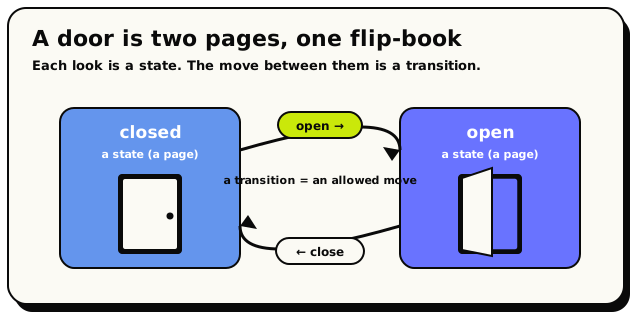 A door has two states (closed and open) and a transition each way between them.
Each object type ships with a list of named states (like ["open", "closed"]) and a map
of allowed transitions between them. A freshly placed object starts in its
default state. Your script's whole job is to move it from one named state to another.
You'll see those exact names in the dropdowns when you build, so you never have to guess.
Before you start
In build mode, place a door object in your world. Use an object that actually has open and closed states; most doors do. Place it in a wall or doorway where opening it will look right. Then open the scripting editor.
Plug it into a set object state block (you'll add one below). If the state dropdown lists options like "open" and "closed", you've got a stateful object. If the dropdown is empty, that object only has one look, so pick a different one.
Doors flip open and closed by themselves when tapped: that's built into the object. Left unlocked, that built-in flip runs and then your script runs, and the two fight. The tap swings the door open, then your "if closed → open, else → close" logic sees an open door and slams it shut again.
The fix is one keypress: with the door selected in build mode, press L to lock it. A locked door ignores the built-in tap-flip but still fires your interact event, so your script becomes the only thing driving it. Every recipe on this page assumes the door is locked. (More on locking in Object States.)
Version 1: click to toggle
We'll build it in the simplest possible way first: click to open, click to close.
Start with the click event
From the Events category, drag out the when object is interacted with hat block, the same one from the button recipe.
 Fires when a player clicks the object you plug in.
Plug your door object into its object slot, so the event watches that one door.
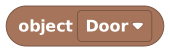 An object block pointing at your specific door.
Read the door's current state
To toggle, we first need to ask: is the door open or closed right now? The current state of object block answers that. It hands back the name of the state the object is in, as text.
 Tells you the name of the state an object is in right now, as text.
Plug your door into it. Now we have a block that says, in effect,
"open"or"closed"depending on the door's situation.Decide what to do with an If block
We want: if it's closed, open it; otherwise, close it. That's a job for the if / else block from the Conditions category. Snap it under the hat.
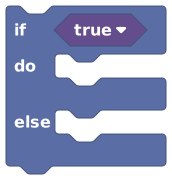 Runs one set of blocks if a test is true, and a different set if it's false.
An if block needs a yes-or-no test in its socket. We'll build that next.
Build the test: 'is the door closed?'
Use a compare block from the Logic category to check whether two things are equal.
 Checks two values against each other: equal, greater than, and so on.
Set it up to test: current state of object
=stateclosed. The state block lets you pick a named state from a dropdown, so you don't have to type it exactly. Pick a named state (like 'open' or 'closed') from a dropdown.
Drop that whole comparison into the if block's socket. It now reads: if the door's current state equals "closed"…
Set the state in each branch
Now the actions. The set object state block snaps an object straight into a state you choose, instantly, no waiting.
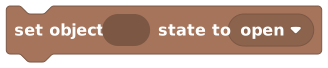 Instantly switches an object into the named state you pick.
- In the if (true) branch: set object [door] state to
open. - In the else (false) branch: set object [door] state to
closed.
Put a state block in each one and pick the matching state from the dropdown. That's the toggle: closed becomes open, anything else becomes closed.
- In the if (true) branch: set object [door] state to
Save and test
Save, leave build mode, and click your door. It should swing open. Click again and it closes. One door, two states, flipping back and forth on every tap. Nicely done.
What you just made
when object [Door] is interacted with
  ┗ if  [current state of Door] = [closed]
       ┗ set object [Door] state to [open]
     else
       ┗ set object [Door] state to [closed]
In plain English: when someone clicks the door, if it's closed, open it; otherwise, close it. You just used a state to give one object two behaviors.
Version 2: the shortcut with transitions
There's a neater way to flip a door that has a built-in transition between its states. The advance object state block follows a named transition from wherever the object is right now, so it can step "closed → open" without you writing the if/else at all.
 Moves an object to its next state by following a named transition.
If your door defines transitions both ways (closed has an "open" move, open has a "close" move), a single advance object state block under the click event can do the whole toggle, and it plays the swing animation if the object has one.
Set object state names a destination directly: it switches the object to the exact state you pick, regardless of any transition rules. Advance object state follows a named transition from wherever the object is right now; it walks the path the object's designer set up. Both play the object's animation for the state it lands in.
- Use set when you know exactly which state you want.
- Use advance when you want the object's own built-in "next" move along a transition.
Not every object has transitions defined, so if advance does nothing, fall back to the set-based Version 1.
While a door is mid-swing, advance object state won't follow another transition until the animation completes. So if you mash an advance-based door, the extra clicks during the swing don't count. That's on purpose: it stops objects getting stuck half-open. Give it a beat. (A set object state door doesn't enforce this, so it can be re-flipped at any time.)
Bonus: a door that opens by itself
Clicking is great, but the coolest doors open as you walk up to them. For that, swap the click event for an area event. The when player enters area block fires the moment a player steps into a rectangle you draw on the floor.
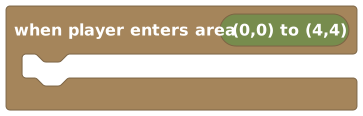 Fires when a player walks into a rectangular zone you draw on the floor.
(The lock from earlier doesn't get in the way here: locks stop player taps, and scripts can always set states.) A simple auto-door looks like this:
Add the enter-area event
Drag out when player enters area and use its little picker button to draw a rectangle on the floor right in front of your door. That's the "doormat" that triggers the opening.
Open the door when they step on the mat
Under it, snap a set object state block and set your door to
open.Snap the door to its 'open' state the instant a player enters the zone.Close it again when they leave
Add a second script with the when player leaves area event over the same rectangle, and set object state back to
closed. Now the door opens as you approach and closes behind you.
Nothing stops you keeping the click-to-toggle script and the auto-open script on the same door. A room can run many scripts at once, up to 50 active behaviors per world, so you've got loads of headroom.
Make it your own
- Add a sound. Snap a play sound for block under the state change so the door thunks or creaks when it moves.
- Add a nearby glow. On the click event, tick highlight when nearby and add a
hint like
Press to openso players know the door is interactive. - Lock it. Wrap the open action in an if that checks a room variable like
doorUnlocked, so a switch or password elsewhere can unlock it. - React to the change. Use when object state changes to do something after the door opens: dim the lights, drop confetti, reveal a secret.
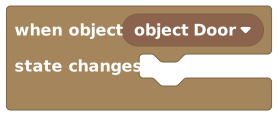 Fires whenever a specific object switches to a different state. Great for reacting after the door moves.
When it doesn't work
| Symptom | Likely cause | Fix |
|---|---|---|
| The state dropdown is empty | Your object has only one look | Use an object that actually has open/closed states |
| Nothing happens on click | The object slot is empty or points elsewhere | Plug your door into both the event and the state blocks |
| It opens but never closes | The else branch is missing or set wrong | Make sure the else sets the door back to closed |
| Advance does nothing | This object has no transitions defined | Switch to the set-based toggle (Version 1) |
| Rapid clicks get ignored (Version 2) | Advance won't fire while the swing animation is still playing | Wait for it to finish; fast re-clicks during a transition are dropped on purpose |
What's next?
The recipe this one builds on: clicking, toasts, and sounds.
A secret password doorOpen a door by typing a magic phrase in chat instead of clicking it.
Build mode & objectsGo deeper on placing objects, states, and how the grid works.
Object blocksEvery block for reading and changing objects and their states.