A cutscene
A cutscene is you putting on the director's hat. Black bars slide in, a title fades up, the screen dips to black, the camera glides to a hero shot, confetti rains, and then control hands back to the player. The secret isn't any one fancy block; it's timing. You chain cinematic blocks together and use wait blocks as the beats between them, like a storyboard. This guide hands you a complete, reusable cutscene you can fire whenever a big moment lands.
What you'll build: a scripted dramatic moment (letterbox bars, a big "Chapter One" title, a fade to black, a camera move to a key spot, then a celebratory reveal with confetti) that cleans up after itself.
You'll be fine if you've done A button that does something. The one new idea is sequencing with waits. For the full effects catalogue, keep HUD & cinematics open in another tab.
The big idea: cinematic blocks don't wait for themselves
This is the single most important thing to understand, and it trips up everyone at first:
Most cinematic blocks fire and forget. When you run "letterbox in," the bars start sliding and your script immediately moves to the next block. It does not pause for the slide to finish.
So if you stack five cinematic blocks in a row, they all kick off at almost the same instant and pile on top of each other. To make a sequence (bars, then title, then fade) you put a wait block between the beats. The wait is your "hold this shot for 2 seconds" instruction.
Think of it like a film strip: each cinematic block is an action, and each wait is the length of that shot before you cut to the next.
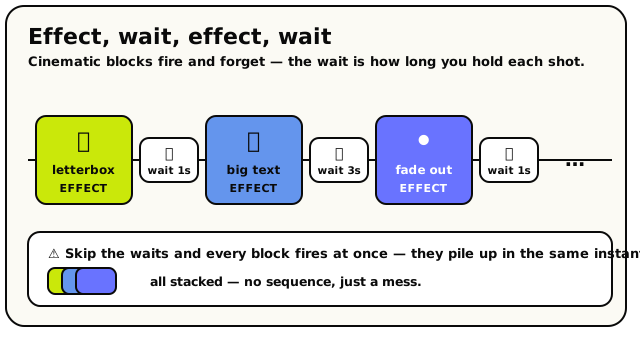 Alternate effect and wait like frames on a film strip. Drop the waits and every effect fires at once.
- Transient effects (confetti, big text, screen flash, the countdown) flash and vanish on their own. You never clean them up.
- Sticky effects (fade to black, letterbox bars, weather, background, a moved camera) stay on screen until you explicitly turn them off. Forget to, and players are left staring at black bars or a frozen camera. We clean up every sticky effect at the end of this guide.
Step 0: the trigger and a target spot
A cutscene needs a reason to fire. For this guide we'll trigger it when a player walks into an area (a "stage"), but you could fire it from a button click, a round ending, anything.
You'll want:
- An area drawn on the floor (the trigger zone), and
- A coordinate for the camera to glide to: your dramatic "hero shot" position. The coordinate picker lets you click the live room to grab one. See The grid & positions.
Build the cutscene
Trigger it when a player enters the stage
Grab the when player enters area event from the Events category. It fires the moment someone walks into the zone you draw.
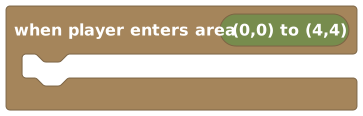 Fires when a player walks into a rectangular zone you draw on the floor.
Draw your stage area into its slot. Everything below runs for that moment.
Show the cutscene to one person or the whole room?By default the cinematic blocks below target all players, so the whole room watches the show. If you only want the triggering player to see it (a personal moment), plug triggering player into each block's "visible to" slot instead. We'll keep it room-wide here.
Slide in the letterbox bars
First beat: the cinematic black bars. Add a letterbox block from the Cinematic category, with its direction set to in.
 Slides cinematic black bars in (or out) across the top and bottom of the screen.
Leave the slide time around 0.6 seconds. The bars start sliding, and your script rolls on. Because the bars are sticky, they'll stay put through the whole cutscene, which is exactly what we want for that movie feel.
Hold the shot, then show the title
Add a wait seconds block set to about 1 second, long enough for the bars to settle.
 Pauses this one script for a number of seconds, then carries on.
Then drop a big text block to fade up a title.
 Shows large, dramatic text that fades in and out, pinned to a spot on screen.
Set the text to
Chapter One, the size to large, the anchor to center, and the seconds to 3. Then add another wait of 3 seconds so the title gets its full moment before we cut away. (Big text fades out on its own, since it's transient, so there's no cleanup.)Under the hood: why we wait the same number of secondsThe big-text block shows for 3 seconds and then fades, but the script doesn't pause for it. If we didn't add our own wait 3, the very next block (the fade to black) would slam in while the title is still up. Matching your wait to the effect's length is how you "hold the shot." The fix for almost any "everything happened at once" bug is: add a wait.
Fade to black for the cut
Now the classic scene change. Add a fade to/from black block with direction to black.
 Fades the screen to solid black, or back from black, like a movie cut.
The screen dips to black over a smooth half-second. This is a sticky effect: the screen stays black until we fade from black later. We'll use this darkness to hide the camera jumping to its new spot, just like a real film cut.
Add a short wait of about 1 second to sit in the black.
Glide the camera to the hero shot
While the screen is black, move the camera. Add a move camera block.
 Glides the players' camera to a spot in the world at a chosen zoom, over a number of seconds.
- to → your hero-shot coordinate
- zoom →
3(a nice close-in framing; zoom is kept between 1 and 5) - over →
2seconds for a smooth glide (or0to snap instantly, fine here since the screen's black anyway)
Add a wait of 2 seconds to let the glide finish before we reveal it.
Gotcha: a moved camera is sticky tooOnce you move camera, the camera stays locked there. Players can't see their own character until you give control back with reset camera, which we do in the cleanup step. Forgetting this is the classic "help, I'm stuck staring at a wall" bug.
Reveal: fade back in and celebrate
Time for the big reveal. Fade back from black: add another fade to/from black block, this time with direction from black. The screen brightens to show the new camera framing.
Then, the payoff: confetti.
 Rains colourful confetti across the screen to celebrate a moment.
Leave it around 72 pieces for 1.5 seconds. Confetti is transient, so it cleans itself up. Add a wait of about 2 seconds to enjoy the moment before we hand control back.
Want even more punch?A dramatic countdown ("3… 2… 1…") before the reveal builds suspense, and a screen flash on the reveal frame adds a snap. Browse the full set in HUD & cinematics. They all chain the same way: block, then a matching wait.
 A big on-screen 3-2-1 countdown with a label, for building suspense.
Clean up: hand control back to the player
The most important step, and the one beginners skip. Every sticky effect we turned on must be turned off, or players are stuck. We turned on three sticky things: the letterbox bars, the (already-faded-back) black fade, and the moved camera.
First, give the camera back with reset camera.
 Returns camera control so the view follows the player's own character again.
Then slide the letterbox bars away with another letterbox block set to out.
Finally, a tidy catch-all: remove visual effects clears any leftover camera filters, background, weather, the letterbox, and any open NPC dialog you might have added.
 Clears cinematic filters, background, weather, the letterbox, and any open NPC dialog from the targeted screens.Gotcha: "remove visual effects" does NOT reset a moved camera
Here's the one thing it misses. Remove visual effects clears camera filters (like the fade), the background, the weather, the letterbox bars, and any open NPC dialog, but it does not reset a moved camera. The camera has its own "off" block, reset camera, which is why our cleanup runs that separately. (We still slide the bars off with a letterbox out block too, because it gives a nice animated slide rather than the instant clear.) The rule of thumb: whatever sticky effect you turned on, turn it back off, and target the same players you applied it to.
Save and test it
Save, leave build mode, and walk into your stage area. You should get: bars in → "Chapter One" title → fade to black → (camera secretly moves) → fade in on the hero shot → confetti → bars out and control returns. A whole little movie from a stack of blocks.
What you just made
Read top to bottom, your cutscene says:
when player enters area [stage]
  ┗ letterbox in (over 0.6s)
  ┗ wait 1 second
  ┗ big text "Chapter One" size large at center (for 3s)
  ┗ wait 3 seconds
  ┗ fade to black
  ┗ wait 1 second
  ┗ move camera to [hero spot] zoom 3 over 2 seconds
  ┗ wait 2 seconds
  ┗ fade from black
  ┗ confetti (72 pieces, 1.5s)
  ┗ wait 2 seconds
  ┗ reset camera
  ┗ letterbox out
  ┗ remove visual effects
Notice the rhythm: effect, wait, effect, wait. That alternation is directing. Master it and you can stage anything.
None of these blocks change the actual world. A fade to black doesn't teleport anyone; a camera move doesn't move their character. They paint pixels on the screens of the players you target, and nothing else. They're also per-player: aim a fade at one person and only that person's screen darkens, while everyone else sees the world normally. And a wait only pauses this one script run, not the room. Other players keep playing the whole time your cutscene runs for whoever triggered it.
Make it your own
- A personal cutscene. Swap every "visible to" slot to triggering player so only the person who triggered it sees the show, perfect for a "you found the secret room" moment.
- Add a narrator. An NPC dialog block shows a portrait and click-through lines, and, uniquely, it does pause the script until players click through. It pairs beautifully with a fade and letterbox for a story beat. (It needs a scripted puppet NPC; see NPCs.)
- Theme the mood. Set weather or a room color grade before the title for instant atmosphere. Just remember weather is sticky, so clear it in cleanup.
- Trigger from a win. Fire this cutscene when a round ends or someone tops the leaderboard, for a real victory sequence.
When it doesn't work
| Symptom | Likely cause | Fix |
|---|---|---|
| Everything happens at once | No wait blocks between effects | Add a wait after each beat, roughly matching that effect's length |
| Players are stuck staring at a fixed spot | You moved the camera but never reset it | Add reset camera in cleanup, targeting the same players |
| The screen stays black | You faded to black but never from black | Add a fade from black, then verify it isn't being skipped |
| Black bars won't go away | No cleanup at all, or it ran for different players | Add a letterbox out block (or remove visual effects), targeting the same players |
| The cutscene fires over and over | The area trigger fires each time someone enters | That's expected; guard it with a room boolean if it should play once |
What's next?
The full catalogue of effects, filters, anchors, and their exact behaviours.
A leaderboardBuild the scores your cutscene can celebrate.
A round-based minigameFire this cutscene as the grand finale when a round is won.
Timers, loops & waitsWhy waits pause only your script, and how the engine schedules them.