A button that does something
This is the "hello, world" of building in Hideout: an object you can click that actually does something back. By the end you'll have a button that pops a message on screen and plays a sound when a player taps it. It's tiny, but it's the exact pattern behind doors, shops, score buttons, and every interactive thing you'll ever make.
What you'll build: a clickable object that shows a message (a "toast") and plays a sound whenever a player taps it.
A block is a puzzle piece you snap together to describe what happens. An event is a "when this happens" block that starts a script. If those are brand new, skim Hello, World first. It's a five-minute warm-up.
The idea
Every interactive thing follows the same little sentence:
When someone clicks this object, do something.
The "when" part is one event block. The "do" part is the blocks you stack under it. That's all a button is. Let's build it.
Before you start
You'll need one object in your world to act as the button. Anything works: a real button object, a lever, a crystal, a rubber duck. In build mode, place any object where you'd like your button to be. Don't worry about which one; you can swap it later.
A lever or a big shiny gem reads as "press me" better than, say, a houseplant. You can also add a glowing outline later (see Make it your own) so players know it's interactive.
Build it
Open the scripting editor
Hop into your world, enter build mode, and open the scripting editor. You'll see a blank workspace (the big grid) and a toolbox of blocks down the side, sorted into color-coded categories like Events and Actions.
This is where you'll snap your blocks together. Think of it as your workbench.
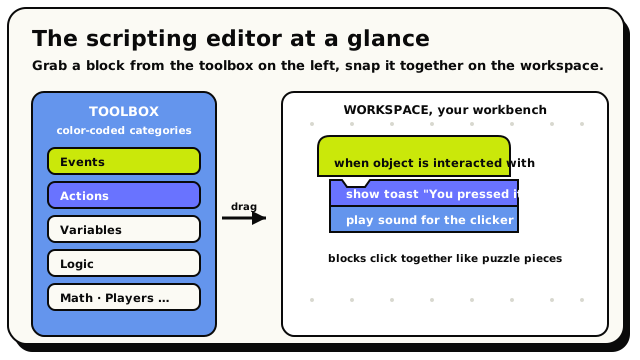 Toolbox on the left, workspace on the right. Drag a block out, snap it onto the stack.
Grab the 'when object is interacted with' event
From the Events category, drag out the when object is interacted with block. It's a Event block: notice the curved top, like a hat. Hat blocks are the only blocks that can start a script, and they always sit on top.
 The hat block that fires when a player clicks the object you plug in.
This block is the "when someone clicks this" part of our sentence. See the empty object slot in it? That's where we tell it which object to watch.
Tell it which object to watch
Drop your button object into that slot. The editor knows about every object in your world, so picking one gives you an object block: a value block that points at that one specific thing.
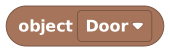 An object block points at one specific object in your world.Under the hood: every object has an ID
When you place an object, Hideout gives it a unique instance ID, a number that names that one exact object. Two identical chairs have two different IDs. The event block uses that ID to know "click this chair, not that one." You never have to type the number; the editor handles it. "The object" really means "this one specific object," which is why two copies of a button need two scripts (or one reusable object behavior).
Add a 'show toast' action
Now the fun part: the "do something" half. From the Actions category, drag out the show toast block and snap it underneath the hat. A toast is a quick little message that pops up on a player's screen and fades away, like "You found it!" or "Wrong way!".
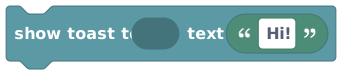 Pops a short message on a player's screen, then fades it away.
Type a message into it, something like
You pressed the button!. This block also lets you choose who sees the toast.Show it only to the player who clicked
You probably want the message to appear for the person who pressed the button, not for everyone in the world. There's a perfect block for that: triggering player. It stands for "whoever just did the thing that started this script."
 Stands for the exact player who fired the event. Here, whoever clicked.
Plug triggering player into the "who" slot of your show toast block. Now only the clicker sees the message.
"Triggering player" is your best friendYou'll reach for this block constantly. Anywhere a script reacts to a person (a click, a chat phrase, walking into a zone), triggering player is how you say "that one."
Add a sound for extra juice
A button that makes a sound feels ten times better. Under your toast block, snap in a play sound for block. It plays a sound effect and, like the toast, lets you pick who hears it.
 Plays a sound effect for just the players you choose.
The sound itself comes from a separate little block. Drag a sound block into the sound slot and pick an effect from the dropdown. Your world's sound library is right there.
 Holds one chosen sound effect from your world's library. Plug it into a 'play sound' block.
Plug triggering player into the "who hears it" slot too, so the sound plays for the clicker.
Save and test it
Save your script, leave build mode, walk up to your button, and click (or tap) it. You should see your message pop up and hear your sound. That's it. You built a working interactive object!
If nothing happens, jump to When it doesn't work.
What you just made
Read top to bottom, your script says:
when object [your button] is interacted with
  ┗ show toast to [triggering player] "You pressed the button!"
  ┗ play sound [a sound] for [triggering player]
One event, two actions. When they click, do a toast and a sound. You now know the shape of every interactive build in Hideout.
"When this object is interacted with, show the triggering player a toast and play them a sound." If you can say what your script does in one plain sentence, you've understood it. That habit will carry you a long way.
Make it your own
The pattern is the recipe; the toppings are up to you. A few easy swaps:
- Change the message. Make it funny, mysterious, or a clue:
It's locked... for now. - Lock the button. If your button is a stateful object (a lever, a switch), tapping it also flips its own state, which can look odd for a pure trigger. Select it in build mode and press L to lock it: the lever stops wiggling, but your script still fires on every tap. Now it's a true button.
- Glow when you're near. On the when object is interacted with block, tick the
highlight when nearby checkbox and type a hint like
Press me!. Players standing close will see the object outlined with your hint. (The hint is capped at 64 characters, so keep it punchy.) - Tell everyone, not just the clicker. Swap triggering player for
 in the toast to broadcast the message to the
whole room.
in the toast to broadcast the message to the
whole room. - Send a bigger alert. Trade the toast for a notify block when the moment deserves more weight, like announcing a winner.
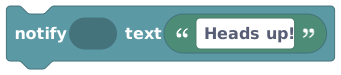 Like a toast, but for the important moments: an on-screen alert.
- Do two things at once. Stack more action blocks under the hat. They run top to bottom, in order. Pop a message, play a sound, then teleport the player. Go wild.
Only blocks snapped underneath the hat actually run. A loose block floating on its own is saved but never runs; the editor quietly ignores it. If an action isn't firing, the first thing to check is that it's really attached to the stack.
When it doesn't work
A quick checklist for the usual culprits:
| Symptom | Likely cause | Fix |
|---|---|---|
| Nothing happens on click | The object slot is empty or points at the wrong object | Make sure your object block is plugged into the hat and points at the button you're clicking |
| Toast shows for nobody | The "who" slot is empty | Plug in triggering player (or all players) |
| No sound | The sound slot is empty | Drop a sound block in and pick an effect from the dropdown |
| One action runs, the next doesn't | A block came loose | Re-snap it so it's connected to the stack under the hat |
| You forgot to save | The old version is still live | Save the script, then test again |
| Works up close, dead from far away | The world has Proximity interactions on | Walk within ~5 tiles of the object, or check World settings → Advanced |
The when object is interacted with event needs a literal, fixed object plugged in. You can't compute it on the fly. That's because Hideout builds a fast lookup table ("click on object 4271 → run this script") when you save, so it never has to scan every script on every click. The upside for you: it's snappy. The catch: always plug in a real object block, never leave the slot empty.
What's next?
Take clicking further: make an object that toggles between open and closed states.
A welcome messageSame one-event, one-action shape, triggered when a player joins instead of clicks.
Events & triggersThe full story on "when this happens" blocks: every event you can react to.
Action blocksBrowse every "do something" block: toasts, sounds, teleports, effects, and more.