Keyboard & Controls
Some shortcuts are desktop-only: they show as on-screen key hints while you build. On phones and tablets the same actions are done with on-screen buttons. Both are listed below.
Moving around
How you move depends on whether you're playing or building.
| Control | What it does |
|---|---|
| Walk / tap-to-move | Move your avatar around the world. |
| W A S D (player-locked camera) | Move your player. This is the default. |
| W A S D (free camera) | Pan the view around the room instead of moving your player. |
Build Mode (building)
When you're building and you've selected an object, these desktop key hints appear at the top of the screen.
| Key | Action |
|---|---|
| Esc | Cancel: clear the current placement or selection. |
| Delete / Backspace | Delete the selected object. |
| R | Rotate the selected object (90° at a time). Only shown when something is selected. |
| L | Lock / Unlock the selected object. Locked objects ignore player taps; scripts stay in control. Only shown for objects with tappable states; needs room editing permission. |
On phones and tablets, these actions are circular buttons at the bottom of the screen while you're placing:
- Cancel (red ): drop what you're placing.
- Delete (orange trash): remove the selected object.
- Confirm (green ): place the object where it is. (On desktop you click to place, so there's no Confirm key.)
- A rotate button sits at the top-right corner of the selection (when the object can rotate).
- A padlock button sits next to rotate: it locks or unlocks the selected object, same as L on desktop.
If you try to rotate an object that can't be rotated, you'll see "Object cannot be rotated!" and the rotate button hides itself. Some objects only have one facing.
Locking is similar but permission-based: without room editing permission the padlock shows greyed out (so you can still see whether an object is locked), and trying it shows "Only room editors can lock objects!".
Other Build Mode controls
These aren't single keys; they're buttons in the Build Mode HUD:
- Edit Room button: enter or exit Build Mode. Reads "Editing room" with an while you're in it.
- Camera mode button: toggle player-locked ↔ free camera.
- Adjust time of day button: a slider (plus quick moon/sun presets) for the room's brightness.
- Object limit counter: shows
current / 8,000objects used; turns red at the cap.
The script editor
The script editor is mostly drag-and-drop, so there are only a couple of true keyboard shortcuts. Most actions are buttons.
| Control | What it does |
|---|---|
| Esc | Close the Variables panel, the NPCs panel, or a picker overlay. |
| Drag from the toolbox | Pull a block out onto the canvas. |
| Drag a block onto a slot | Snap it in (it only fits if the types match). |
Buttons you'll use constantly
These live in the editor's top bar. No keyboard shortcut, just click:
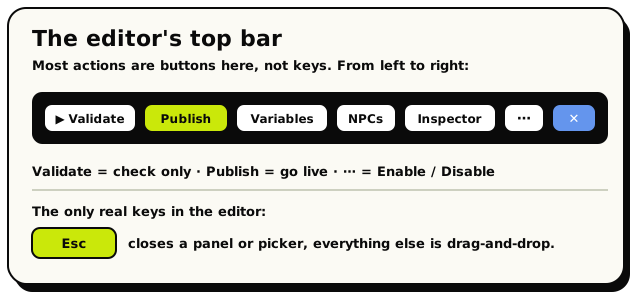 The editor's top bar, left to right: Validate checks, Publish goes live, and Esc is the one real key.
| Button | What it does |
|---|---|
| Validate () | Compile your draft and show any problems, without going live. |
| Publish (lime button) | Make your draft live for players in the room. |
| Variables | Open the Variables panel (add/edit variables, see live values). |
| NPCs | Open the NPCs panel (create and manage scripted NPCs). |
| Inspector | Open the Inspector (Diagnostics and Runs tabs). |
| ⋯ More | The overflow menu; its one action is Enable / Disable the behavior. |
| Close | Close the editor (it saves your draft first). |
Some blocks have a "pick from the room" button for a coordinate, an area, or an object. Clicking it opens a full-screen picker over your world; click a tile (or an object) to grab it, then Use. Press Esc to cancel.